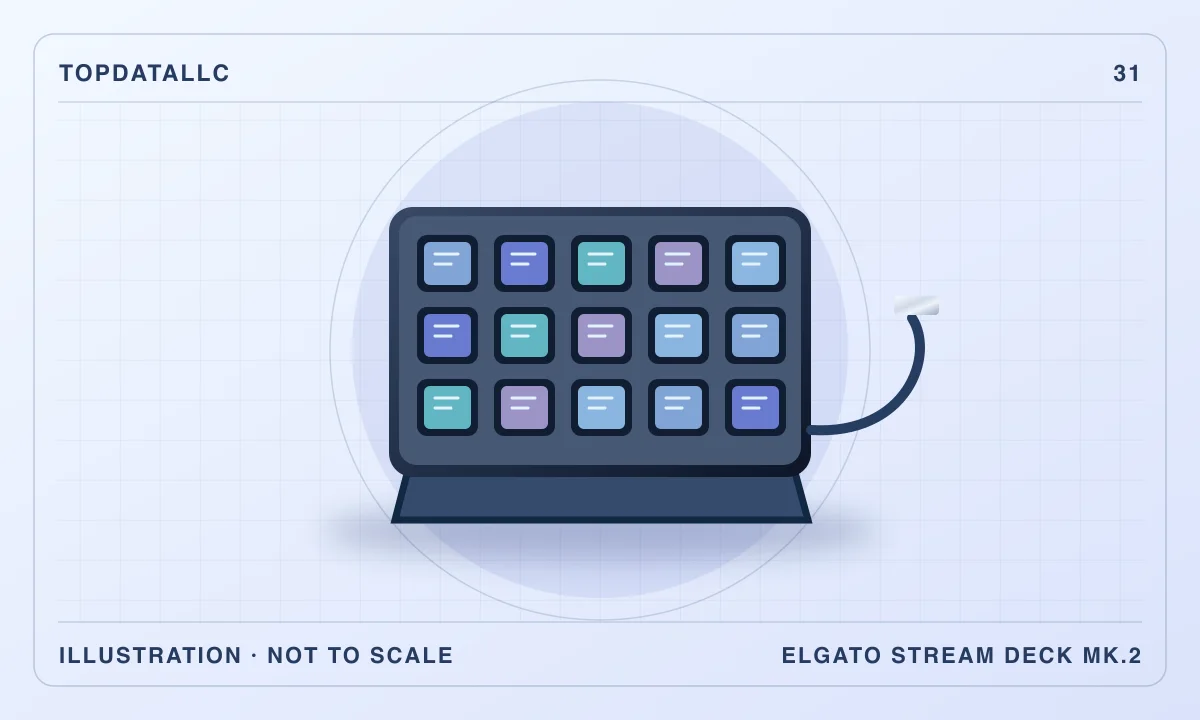
The Elgato Stream Deck MK.2 is worth considering when your computer work contains repeated actions that are difficult to find quickly. Its fifteen labelled display keys can put recording controls, application shortcuts and frequently used commands beside your keyboard. The buying decision starts with the actions you would actually assign. Someone who repeatedly switches scenes during a live presentation has a stronger reason to buy one than someone hoping another gadget will make an unfocused workflow efficient.
This research review covers the classic fifteen-key MK.2. Elgato's current hardware and software documentation matters more than an old compatibility badge. Independent reviews from Tom's Hardware and Laptop Mag explain the physical controls and software experience, but their original operating-system requirements are historical. Before ordering, check the current Stream Deck application requirements and the exact version of every integration you need.
Begin with a list of interruptions
For one ordinary work session, note every moment you leave the task in front of you to find a control. A presenter might repeatedly mute audio, open a reference document and change a scene. A video editor might launch a project folder and trigger a familiar keyboard shortcut. These are candidate actions. Arrange them by frequency and by how disruptive it is to find them, rather than by how impressive an elaborate automation would look.
Then try the simplest existing shortcut for each action. If one familiar key combination solves the problem comfortably, putting it on another device may add little. The MK.2 becomes more useful when the command is occasional enough to be forgotten, when its meaning benefits from a visible label, or when your main keyboard lacks a convenient dedicated control. Those are specific benefits you can evaluate before buying.
Consider the cost of maintaining the layout too. If your work changes completely every week, you may spend considerable time rebuilding profiles. A stable set of recurring jobs gives the device a clearer role. Reserve space for the actions you use during the task itself, and put setup tools somewhere less prominent. A tidy first page should make the next action easier to identify.
Check current software support before the hardware
Elgato's current Stream Deck software page lists Windows 11 on supported Intel or AMD systems and macOS Ventura 13 or later. It also flags uncertainty around Windows on ARM. The older MK.2 hardware specification page lists earlier operating systems. These pages describe different things, and buying an older device does not restore support in today's application.
If you use an employer-managed laptop, ask whether the software and any required plugins can be installed. Permission to connect a USB keyboard does not establish permission to install integration software or give it access to another application. Make a short list of those requirements before purchasing. A controller that works perfectly on a personal desktop can be impractical on a restricted work machine.
Check integrations individually. A key that sends a standard hotkey has a different dependency from one that reads live information from a service. For a service integration, verify the plugin publisher, current application compatibility and any account requirement. Do not assume a key can control every function in every program simply because the program's name appears in a marketplace.
Make sure the controls sit within reach
The MK.2 uses a separate desktop stand and a detachable USB connection. Elgato lists the bare controller as 118 by 84 by 25 millimetres. The stand changes the working angle and footprint, so use those bare dimensions as a starting point rather than a complete placement template. That makes placement part of the purchase decision. Put a small object where you expect the controller to sit, then reach for it while keeping your normal keyboard and mouse position. If you have to move the mouse out of the way every time, the convenient command panel could become another obstruction.
Try the position during the activity you want to improve. A streaming control needs to be easy to locate while you look at the camera or another monitor. A panel for occasional office commands can sit farther away. The right location may be beside the keyboard, but it should follow your actual reach and available cable route.
Elgato notes that the supplied cable changed over time from USB-C to USB-A to USB-C at both ends. Check the box contents on the exact listing and the ports on your computer. The detachable connection is useful for replacing a damaged cable, but a photograph from an older review is insufficient evidence of which lead arrives with current stock.
Treat the first page as a control surface
Fifteen keys sounds restrictive until you consider the software's folders and profiles. More pages let you organise additional commands, but finding an action hidden several levels down can recreate the menu-hunting problem you wanted to solve. Keep immediate controls visible. Group related but less urgent commands in folders with obvious names.
Use labels that explain the result. A generic microphone icon may leave you unsure whether a key toggles the system microphone, a particular application or an audio source in recording software. A specific label reduces that ambiguity. Where an integration supports feedback, check that the displayed state follows the application, rather than assuming an illuminated key proves the action succeeded.
For shared equipment, make the layout legible to someone who did not design it. Explain which page is for preparation and which is for live operation. This matters particularly when two visually similar buttons do different things. The value of display keys is that their meaning can be shown, so make that meaning more useful than an attractive set of icons.
Build multi-actions in small steps
Elgato documents multi-actions that trigger a sequence of commands, with configurable delays. They can be helpful when opening several tools or preparing a repeatable recording setup. However, a timed sequence does not necessarily know whether each application has finished starting. A delay that works on an idle computer can be too short when the same machine is busy.
Begin with an action you can easily observe and undo. Add the next step only when the first behaves consistently. If opening a program changes keyboard focus, check where the following hotkey goes. A sequence that depends on the correct window being active needs a more careful trial than a simple application launch.
For recording or broadcasting, rehearse the complete sequence away from a live session. Check the actual application's indicators and the saved output. Keep a manual way to stop or recover the task. A single press can reduce repetitive input, but it can also repeat a mistake quickly if the steps were built around an assumption that no longer holds.
Decide whether buttons suit the adjustment
The classic MK.2 is principally a bank of display keys. It is a good match for distinct actions such as selecting a scene or opening a folder. It is a less obvious choice if the main job is continuously adjusting several audio levels. Repeated button presses may be less comfortable than a physical dial for that particular task.
Elgato's Stream Deck Plus adds rotary controls and a different layout, while the Neo provides a smaller collection of keys. Compare how you want to operate the system, rather than treating the device with the most buttons as automatically better. A dedicated audio interface can also provide a direct control for a function you would otherwise try to reproduce in software.
If your existing keyboard has programmable keys, try them with a small set of candidate commands first. The MK.2's attraction is the combination of a separate panel and visible labels. If neither benefit solves your problem, a software shortcut manager or the application's own custom workspace may be enough.
Account for plugins and account access
A plugin can connect the panel to software or an online service, but it also introduces an additional component to maintain. Read its publisher information and requested permissions. Consider whether it is necessary for the task, whether it is actively supported and whether a simpler hotkey would achieve the same result with fewer dependencies.
Do not store passwords, recovery information or other secrets in a button that pastes text. On a shared desk, a well-intentioned shortcut can put private information into the wrong window. Keep account authentication in the appropriate service and use only the access an integration actually needs.
After software updates, check the small set of commands you depend on. An integration can change separately from the device hardware. A useful maintenance routine is to test the first-page controls before an important session and keep an export or backup of the working profile. Elgato's documented backup tools are particularly relevant once substantial setup time has gone into the layout.
Set realistic expectations about productivity
The independent reviews praise the configurable controls and approachable software. That supports considering the MK.2 as a flexible input device. It does not establish a measurable time saving for your own work, and a reviewer's enthusiastic verdict should not replace the list of tasks you made at the start.
A useful evaluation is whether the panel removes a particular interruption consistently. After setup, notice whether you use the keys without thinking, whether the labels prevent mistakes and whether you still hunt for commands elsewhere. You do not need to assign every key for the device to be useful. A small, dependable arrangement can make more sense than a complex page filled with rarely used actions.
For occasional computer work, the setup burden may outweigh the benefit. For repeated presentations, streams or editing sessions, visible controls can be easier to justify. The useful distinction is the regularity of the job and the quality of the integration, rather than whether you identify as a professional creator.
A layout exercise before you spend time on icons
Sketch a first page with the commands from one real session. Give each candidate a plain label and leave a space between controls you must not confuse. Imagine reaching for them while the main application is full screen. If you keep changing the labels because the action is unclear, resolve that workflow before building an elaborate profile.
For a presentation, separate preparation from actions used in front of an audience. Opening reference files can live in a setup folder, while a small collection of live controls stays visible. For editing, group actions by the application or stage that uses them. This gives the device a coherent purpose and lets you assess whether fifteen visible positions are enough without relying on a theoretical maximum number of profiles.
After that exercise, choose an inexpensive action to configure first. A working result teaches you how the software represents state and how easily you find the control. That experience is a better basis for adding complexity than downloading a large unfamiliar layout.
Questions to settle before ordering
Can it operate independently of the computer? The ordinary MK.2 setup depends on the connected computer and Stream Deck software. Treat it as part of that system. If you need standalone control, check a device designed for that purpose instead of assuming that a screen on each key makes this one self-contained.
Will it work with every meeting or recording application? Verify the exact action and integration. A supported application may still have functions that require a hotkey, an extra plugin or a different approach. Test the required commands before relying on them in an important session.
Should you buy it for decorative icons? Personalisation is part of the appeal, but the stronger reason is a practical control layout. Choose the classic MK.2 when fifteen visible actions, expandable through software, fit a recurring job and your computer supports the current application. If the job mainly needs continuous adjustment, a simpler shortcut or another control type may serve it better.