The Logitech MX Master 3S is worth shortlisting when your work repeatedly involves long documents, wide spreadsheets or editing timelines. Its quiet primary clicks, main scroll wheel and separate thumb wheel offer a different experience from a basic travel mouse. The purchase makes less sense if the body is too large for your hand, you mainly play competitive games or you cannot use the software behind the features you want. Start with the work and the fit, not the maximum sensor number.
Choose the exact package before comparing value
This review centres on the Graphite standard US retail MX Master 3S, associated with part 910-006556. The original retail package reviewed by Tom’s Hardware includes a USB-A Logi Bolt receiver. Logitech also sells Mac-oriented and Bluetooth-labelled packages, and its current product page uses Bluetooth Edition wording. Do not assume that every current offer includes the same receiver, cable or extra case.
The mouse itself and the box contents are separate buying questions. Check the selected offer’s full model, finish, condition and inclusions, particularly when moving between a manufacturer page and a retailer. A page that shows a travel case as an exclusive promotion does not establish that the same case comes with an Amazon purchase. Compare the complete package you can actually order.
This matters most if the receiving computer has unreliable Bluetooth or very few sockets. A missing receiver can change the setup and total cost. Equally, a person who will use Bluetooth exclusively may have little reason to pay more for an unused accessory. Settle the connection plan first so a packaging difference does not become an unexpected problem after delivery.
The shape is deliberately substantial
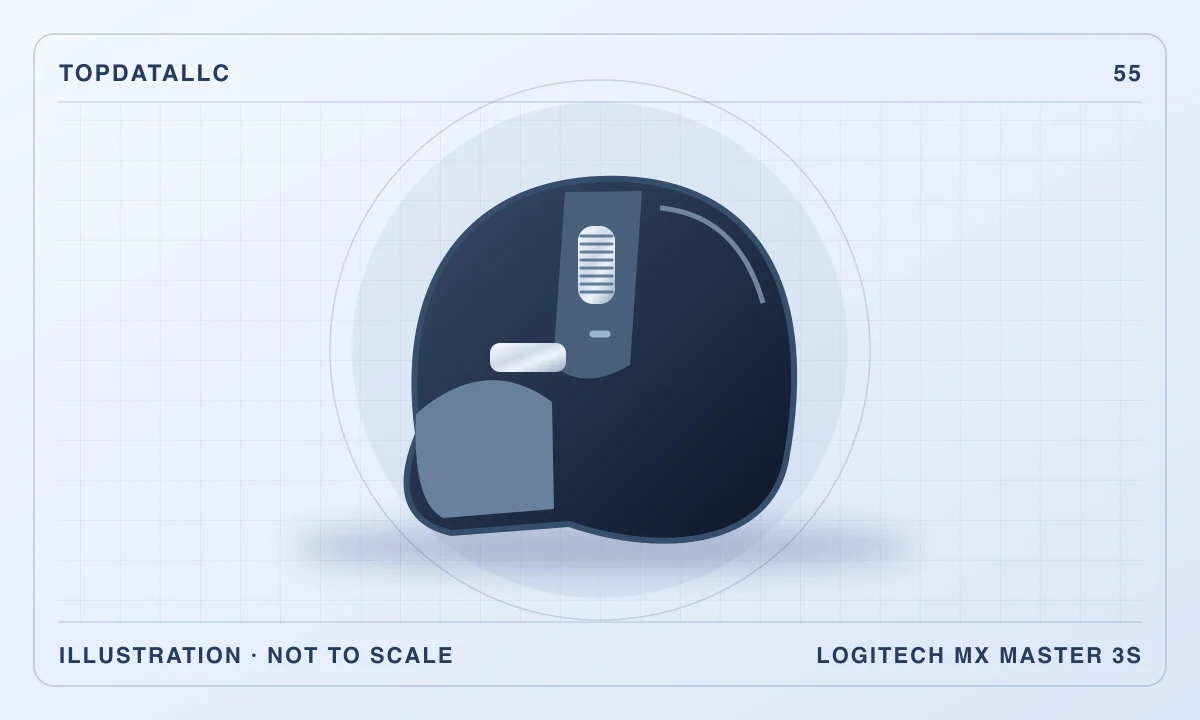
The MX Master 3S is a sculpted right-handed mouse with a broad thumb rest. Its approximately 141g mass and relatively large body are central to the experience, not minor details hidden behind the controls. RTINGS identifies small-hand suitability and travel bulk as weaknesses. A design described as ergonomic is still a particular shape that may or may not suit the person using it.
If you can try the body, check access to the main buttons, thumb wheel and lower thumb control without changing your grip awkwardly. A comfortable resting position is only part of the evaluation. The controls need to be usable while the hand remains in a position you like. An extra button provides little practical value if reaching it repeatedly interrupts ordinary movement.
For a shared desk, consider whether the same large right-hand shape works for everyone who will use it. For a laptop bag, consider the volume as well as the mass. A compact symmetrical mouse may be less luxurious on a fixed desk yet more convenient to carry. Neither category is an automatic upgrade over the other; they solve different physical problems.
Quiet clicks change feel as well as sound
Logitech’s quiet-click claim concerns the primary buttons, with a comparison against the previous MX Master 3 under the maker’s stated conditions. It should not be read as a promise that every action is silent or that every conferencing application will transmit a dramatic improvement. The thumb controls and wheels also have their own feel and sound.
Tom’s Hardware found the primary clicks markedly quieter but noted that the softer feel could divide users. RTINGS also identifies quiet primary buttons as a strength. These are independent observations, not a test performed by TopDataLLC. If you rely on a crisp click sensation, try the change rather than assuming reduced sound is an unqualified benefit for your preferences.
A quieter mouse can be welcome in a shared physical workspace. For remote calls, however, microphone position and application noise processing are separate factors. Buying this model solely to solve noisy call audio may miss the main cause. It is more convincing when you like the shape and scrolling system as well, so the quieter click becomes part of a useful overall arrangement.
The main wheel is the clearest reason to consider it
The MagSpeed main wheel supports both a more defined scrolling feel and a freer-spinning mode. Supported software can adjust the way it changes behaviour. The practical appeal is moving through long material while retaining control near the passage or row you need. That is more relevant to repeated reading and editing than a manufacturer demonstration of extreme scrolling speed.
Think about a real task: moving through a long report, stopping near a section and making a small adjustment to the view. The value is whether the wheel makes that sequence feel easier and predictable. If you spend most of the day in short pages or applications controlled mainly by keyboard shortcuts, the improvement may be less important than the specification suggests.
Start with the default behaviour and change one setting at a time. If the wheel changes mode too readily for your taste, review the supported adjustment rather than compensating with repeated small hand movements. Keep the configuration understandable. An elaborate collection of settings that behaves differently in every application can become harder to manage than a simpler mouse.
The thumb wheel needs a job
The separate thumb wheel is particularly interesting for wide content. Horizontal navigation in spreadsheets and editing timelines is a plausible reason to choose this mouse. Supported software can assign different behaviours in different applications, but that flexibility is useful only if you can remember the mapping and the chosen action makes sense in the program.
Before buying, name the applications where you would use the extra wheel. Check whether the desired behaviour is supported in their current versions and on your operating system. A wheel that can technically be remapped is not a guarantee that every application will interpret its input as expected. The sensible test is the exact program and document you work with.
Avoid treating customisation as an obligation to assign something to every control. A consistent pair of scrolling actions and a few familiar buttons can be more useful than a dense configuration. If an accidental gesture changes a view unexpectedly, simplify it. The goal is to reduce interruptions in the work, not demonstrate the largest number of functions in a settings panel.
Pairing and switching are separate from software Flow
The MX Master 3S can retain pairings for up to three devices. Its physical Easy-Switch control is underneath the mouse. That location is a meaningful compromise if you frequently move between computers: changing the active connection requires handling the mouse rather than pressing a convenient top button. Tom’s Hardware specifically identifies this as a frustration in its use.
Logitech Flow is a different feature, using supported software to move between suitable computers. It depends on the documented software and network arrangement, rather than simply being another name for Bluetooth pairing. If you cannot install Options+ on a work computer, do not assume that Flow will be available. Ordinary device switching may still be the relevant supported method.
Also consider the keyboard. Switching the mouse alone does not automatically establish that the keyboard follows it. Check the exact keyboard and software support if that is the workflow you want. A multi-computer desk is easiest to understand when you map the input and display changes explicitly rather than assuming a collection of compatible-looking peripherals will behave as a single system.
Bolt is not Unifying
The MX Master 3S uses Bluetooth or Logi Bolt, rather than the older Logitech Unifying receiver system. An existing receiver with a similar small USB form is not proof of compatibility. Check the actual receiver technology and the pairing instructions. This matters when replacing an older MX Master or trying to share a receiver with a keyboard already on the desk.
If the computer has only USB-C sockets, account for the physical receiver connection in the exact package. A hub or adapter may be appropriate, but it adds another component. Bluetooth may be more convenient if supported reliably. The best choice depends on the computer and its permitted setup, not a general claim that one wireless route is always better in every room.
For managed systems, check with the normal support process before relying on optional pairing software. A product can provide basic mouse input while advanced configuration is restricted. Buying an expensive customisable device and then discovering that only its defaults are available can change the value calculation considerably. Make that limitation visible in the initial shortlist.
Sensor range is flexibility, not a productivity guarantee
Logitech advertises sensitivity up to 8000dpi and tracking on glass under a minimum-thickness condition. A larger adjustable range can help someone tune pointer movement across a wide desktop, but maximum sensitivity is not automatically the most accurate or comfortable choice. Set it so that normal movement and precise targeting both feel manageable in your own workspace.
The same caution applies to glass tracking. If your desk surface is important to the purchase, test the actual surface rather than treating a broad marketing description as universal. A mouse mat remains a practical option if the tracking or feel is inconsistent. There is little benefit in insisting on bare-glass operation when a simple surface change produces a more predictable result.
RTINGS also notes gaming limitations in weight and response behaviour. A high sensor ceiling does not make a productivity mouse equivalent to a gaming design. If games are a major part of the same purchase, compare the Logitech G502 HERO guide already on TopDataLLC and other suitable gaming options. Shape, mass, connection behaviour and supported controls all deserve more weight than a single sensitivity number.
Charging does not create a wired mouse
The front USB-C connection charges the battery, but the mouse continues to require a wireless connection for input. Tom’s Hardware confirms that plugging in the charging cable does not turn it into a conventional wired USB mouse. That distinction is important for restricted computers or troubleshooting: a successful charging indication does not demonstrate that the computer has a working input connection.
Logitech’s up-to-70-day battery claim is a conditional maximum. Build a charging routine around your actual use and keep a suitable cable accessible. Because the mouse can continue operating wirelessly while charging, occasional desk charging can be convenient. It should not be an excuse to ignore battery behaviour until an important task is interrupted, particularly as a rechargeable device ages.
The absence of an internal receiver compartment is another small but real travel consideration. If you carry the receiver separately, give it a predictable storage place. A missing receiver is not evidence the mouse has stopped working, but it can still disrupt the intended setup. A simpler travel mouse may be a better choice if this equipment moves constantly between bags and desks.
Decide whether the extra controls justify the body
The M720 Triathlon already reviewed by TopDataLLC is worth comparing when convenient manual switching is the main requirement. A smaller mouse deserves consideration for small hands or frequent travel. A newer MX Master model also needs a current comparison. The 3S should win a place on your shortlist through its exact fit, controls and offer, rather than through the reputation of the whole MX range.
For a scrolling-heavy right-handed desktop workflow, the MX Master 3S offers a coherent set of features. For someone who cannot reach its controls naturally or use the needed software, much of that value disappears. Confirm the package, try the physical interaction and test the real applications. Buy it when the wheels and quiet buttons solve repeated tasks, with the wireless and software limitations understood from the start.