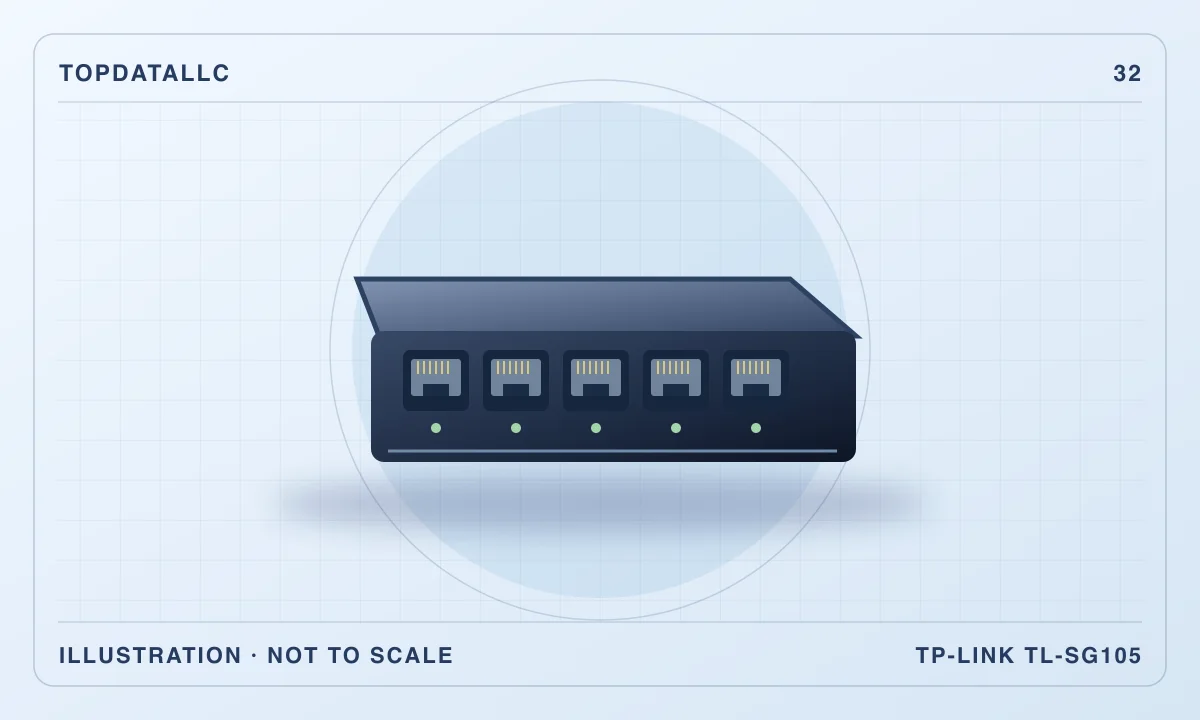
The TP-Link TL-SG105 is a straightforward way to give a desk more wired network connections when the router has too few accessible LAN ports. Connect it to the existing network and use its remaining ports for computers, a printer or other compatible Ethernet devices. Its appeal is the absence of a configuration routine. The important question is whether a basic gigabit switch matches the network you have and the equipment you expect to add.
This research review covers the ordinary TL-SG105, with five gigabit-capable ports. It does not cover the similarly named multi-gigabit or managed versions. TP-Link's product and installation documents establish the basic design, while independent buying guidance helps put gigabit expansion in context. Hardware revisions can add controls or change the enclosure, so match the manual to the unit supplied.
Draw the connection path first
Start with the router, rather than the wall socket beside the desk. You need a working LAN connection from the router or an equivalent existing network to the switch. A wall socket is useful only if its other end is connected appropriately. Buying a switch will not make an unconnected room socket provide internet access.
In a common desk arrangement, one cable links the router to the TL-SG105 and the other sockets connect local devices. The uplink uses one of the five ports, leaving four for that arrangement. List your equipment before buying. A desktop, laptop dock, network printer and console would use those remaining connections. Another planned device would require a different port plan.
On a managed workplace network, check with the administrator before adding a switch. Some environments control connected equipment or do not allow extra network hardware. The product's uncomplicated installation does not establish permission to use it on every network. For an ordinary home LAN, the task is usually much simpler, provided the router and cabling already work.
Understand what gigabit changes
TP-Link specifies auto-negotiating ports that support the common Ethernet rates up to gigabit. Each link negotiates with the connected device. A slower printer can work alongside a faster computer, but that does not make the printer's network interface faster. Likewise, a computer with a faster interface is limited by the port it connects to.
The shared path back to the router also matters. Several devices can use the switch, but traffic that needs the same uplink shares that connection. If two computers regularly copy large files to a server elsewhere on the network, the uplink may be the limiting part of the route. A quick internet plan is only one piece of that assessment.
Do not buy this model to obtain multi-gigabit speeds between compatible computers and storage. TP-Link sells a TL-SG105-M2 with a different capability, and other manufacturers offer similar alternatives. The shared name and port count can make them easy to confuse. Check the full model number and the speed of every important link before comparing prices.
Separate local traffic from internet problems
A wired connection can be useful when the problem is an unreliable wireless link at the desk. It gives compatible devices another route to the router. It does not repair a service outage, an overloaded remote website or a slow subscription. Identify where the problem happens before assuming that more network sockets are the solution.
For example, if a laptop works well beside the router but poorly across the house, a viable cable route may address that weak wireless path. If every device struggles even when directly connected to the router, adding this switch is unlikely to fix the underlying issue. Start with the existing connection and service equipment.
Local file transfers deserve their own check. They may travel between devices without using the internet connection, depending on the network arrangement. If local transfers are important, identify the interfaces on the source computer, destination storage and any switches between them. That makes the choice between gigabit and a faster network more concrete than an internet speed test alone.
Decide whether unmanaged is enough
The TL-SG105 is designed for operation without a management interface. That is an advantage when you want additional sockets and have no need to configure individual ports. You avoid creating another administration task for a small home network. A fanless metal housing also suits a desk where a small cooling fan would be unwelcome.
The limitation is control. If you need to configure separate networks for particular devices, inspect individual port statistics or manage port behaviour, compare a switch designed to provide those functions. The presence of traffic-handling features in a basic switch does not give it the same administration tools as a managed device.
Be precise about what you want to control. Keeping a guest wireless network separate is often a router or access-point function, while a more involved wired segmentation plan may need cooperation across several devices. Buying a managed switch alone does not automatically create the complete arrangement. A simple expansion job is where the ordinary TL-SG105 is easiest to justify.
Check power requirements for connected equipment
Ethernet sockets carry network data, but this ordinary model is not the choice for supplying Power over Ethernet to an access point or camera. If the connected device needs PoE, check its required standard and power budget and select equipment that explicitly supports them. Similar-looking sockets do not establish that power is available.
The switch itself needs its supplied power arrangement. Choose a location with a suitable outlet and room for the adapter. Think about the desk when all the other plugs are connected, including monitor supplies and charging equipment. A tiny network box can still be awkward if the only available outlet is difficult to reach.
For a laptop without Ethernet, you also need a suitable network adapter or dock. This switch does not connect directly to a USB port. Check that the adapter, its drivers and the computer support the required connection. If you already own a dock with Ethernet, its network interface may be all the extra hardware the laptop needs.
Plan the cables as part of the setup
Count the uplink cable as well as the leads to each device. Check whether those leads are included in the particular offer, and buy suitable lengths for the actual route. Excess cable coiled beneath a chair can be more inconvenient than the switch itself. A cable stretched across a walkway creates another problem.
Leave enough slack to unplug a laptop or move the monitor without pulling at the switch. Label the cable that returns to the router. That simple distinction helps when you later disconnect a printer and accidentally remove the network uplink instead. If the switch is tucked behind equipment, make sure its indicators remain reasonably accessible.
TP-Link describes desktop and wall-mounting options. Follow the guide for the exact hardware revision if you choose to mount it. Avoid trapping the box behind a warm power adapter or covering its ventilation. The fanless design removes a moving cooling component, but the device still needs an appropriate operating location.
Read revision-specific controls carefully
TP-Link has sold the TL-SG105 through multiple revisions. The installation guide for a newer revision documents a loop-prevention control, while older guides show a simpler panel. A feature photographed on one revision may be absent or arranged differently on another. That is why the version printed on the device matters when finding support documents.
For normal expansion, use one planned connection back to the existing network. Do not add a second cable between the same devices merely because there is a spare socket. An accidental loop can disrupt traffic. If a revision includes a loop-related feature, read what that particular guide says instead of assuming it makes any connection pattern appropriate.
Keep the full model and version details somewhere accessible. If you need troubleshooting advice later, those details are more useful than a description such as five-port TP-Link box. They also help you distinguish the unmanaged gigabit model from a managed or multi-gigabit sibling during replacement shopping.
A practical first-day connection check
Before rearranging the desk, confirm that one computer works on the intended upstream cable. Then connect the switch and that same computer with a suitable second lead. If it works, add the remaining devices in a controlled order. This makes it easier to identify which connection introduced a problem.
Check ordinary tasks as well as whether a link indicator lights. Open a familiar service, reach the local printer and try the file transfer that matters to you. A connected cable establishes a physical link, but it does not prove that every device's network settings or application are correct. Keep the original working arrangement available while checking the new one.
If something fails, inspect the simple causes first. Confirm switch power, the correct uplink and a fully seated plug. Swap a suspect lead with a known working one. Compare the failing device directly on the existing network where practical. These checks help distinguish a cable or endpoint issue from a faulty switch without changing several settings at once.
Compare the alternatives by the missing capability
Choose an eight-port unmanaged switch if your equipment list is already close to this model's limit. Count future connections realistically, including an extra dock or network storage device. More ports can be useful, but the size and cable bundle may also increase. Compare the complete desk arrangement rather than just the headline port count.
Choose a multi-gigabit switch when the devices and traffic pattern can benefit from faster local links. Choose a PoE model when it must power supported equipment. Choose managed equipment when a defined administration requirement calls for it. These are different needs, and paying for one capability does not necessarily solve another.
If the issue is simply one laptop and no Ethernet port, a suitable adapter may be enough. If the router has spare accessible LAN sockets, you might need only a longer cable. The TL-SG105 earns its place when several wired devices genuinely need to share a convenient local connection and ordinary gigabit performance is appropriate.
Consider the failure point at the desk
Adding a local switch concentrates several devices behind one upstream lead and one power supply. If either is disconnected, the affected devices may all lose their route at once. Place the power adapter and uplink where an ordinary desk adjustment is unlikely to remove them accidentally, and label both before the cable bundle becomes crowded.
If a printer remains reachable from a nearby computer while internet access disappears, that gives a different clue from every connected device losing its link. Note the pattern before changing settings. It can help you explain the problem to someone assisting you and avoid replacing an otherwise functional switch.
For an important home-work connection, keep a simple fallback in mind. Knowing how to reconnect one computer directly to the router can be useful during troubleshooting. You do not need a complicated spare network, but a clear picture of the original working route makes a small network easier to maintain.
Is it a useful desk upgrade?
For a compact home workspace, the TL-SG105 offers a clear trade-off. It adds uncomplicated wired expansion and avoids another configuration interface. In return, you accept gigabit links, a shared upstream connection and the absence of the management and power-delivery features found on more specialised switches.
Before ordering, identify the upstream LAN socket, count the devices, check cable routes and confirm the exact model. Then consider the traffic you expect to move through it. If that exercise describes a small collection of ordinary wired devices, this switch is a sensible candidate. If the exercise reveals faster storage traffic, PoE equipment or a network-segmentation requirement, choose around that need from the outset.