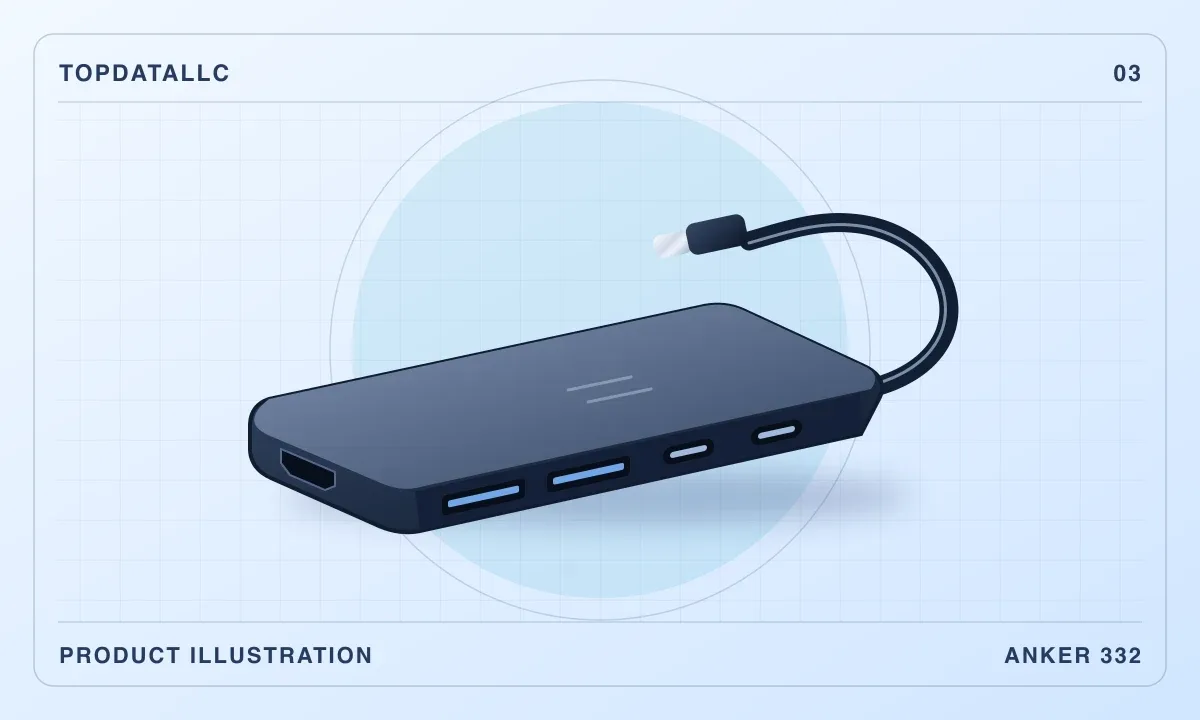
The Anker 332 is useful when a slim laptop needs to connect to one HDMI screen and a few USB accessories. The purchase decision turns on two things that are easy to miss. Your laptop must send video through the USB-C port, and your monitor must be usable at the refresh rate this hub supports.
Match the HDMI output to the monitor
Anker specifies up to 4K at 30 Hz over HDMI. That can suit a secondary screen for documents or reference material. If a 4K monitor is your main display and you care about smooth scrolling or pointer motion, choose a hub and laptop combination explicitly rated for a higher refresh rate at 4K. Check the full setup, including the monitor input and cable. The display resolution printed on a box only answers part of the compatibility question.
Look up the specifications for the exact USB-C port on your laptop. VESA advises checking the device documentation for DisplayPort Alt Mode support. If your chosen port handles data and charging alone, the HDMI socket on the hub cannot add video output to that port.
Tell the USB-C sockets apart
One USB-C socket is for power input and another is for data. Anker lists up to 5 Gbps for the data ports, which include two USB-A ports and one USB-C port. Connect a compatible USB-C charger to the power input if you want to charge the laptop while using the hub. Anker lists up to 85 W to the host with a suitable 100 W charger and setup. The charger is separate. If your laptop needs more power under load, check its requirements and consider using the original charger directly.
When a bigger dock earns its space
Count the cables that are normally on your desk. If the list includes wired Ethernet, a second external display or a memory card reader, look for a dock with those connections built in. The 332 is a better fit when the list starts with one HDMI screen and ends with everyday USB peripherals. This assessment uses Anker’s published specifications and VESA’s compatibility guidance.