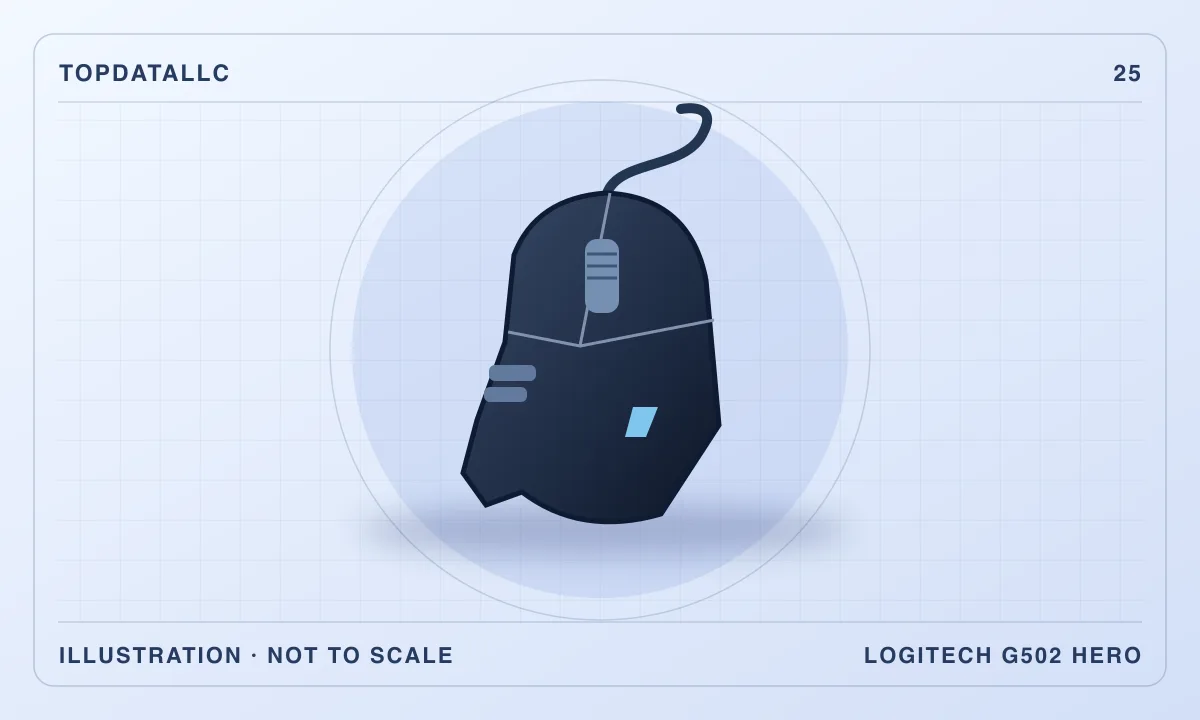
The wired Logitech G502 HERO is a gaming mouse for someone who wants controls under the thumb and a wheel that can switch between stepped and free scrolling. It is a larger right-handed design with a thumb rest. The useful question is whether the shape lets you reach the controls without moving your grip. A mouse with many buttons earns its space only when you can use the ones you need in the middle of a game or a long session at the desk.
This review covers the black wired G502 HERO linked in the product panel. Logitech's model specifications and RTINGS' independent evaluation support the assessment. Other G502 variants can have different switches, weight or wireless connections. Confirm the exact model and included equipment if you are comparing an offer for the G502 X or a wireless version.
Check the thumb reach before counting buttons
Start with the hand position you actually use. Some people rest more of the palm on the body. Others hold the sides with fingertips or move the mouse mostly with the wrist. Put your hand on the mouse in that normal position, then see which thumb buttons you can reach without pulling the palm off the shell. The controls farther forward may require a different reach from the back buttons. The thumb rest can make the grip feel stable if its height suits you.
RTINGS describes the G502 HERO as relatively bulky and cautions that smaller hands or some fingertip grips may find its controls hard to reach. That is a reason to try the fit if possible. A quick grip that feels comfortable on a display table can become awkward if the side button you need is just beyond easy reach. Plan one routine action for the closest control and save the harder-to-reach ones for commands you rarely use.
Check how you pick up and recenter the mouse. On a large pad you may leave it down for longer movements. On a narrow desk or with low pointer sensitivity, you may lift it frequently. A bigger body and thumb rest can be comfortable when you guide it across the pad and less practical when you lift repeatedly. Try the motion you would actually use with the mouse before choosing it by feature count.
Leave room for the cable to move
The G502 HERO plugs in by cable. Check the path between the mouse and your computer. You want enough slack for the edge of the pad without leaving a loop that catches the keyboard or monitor stand. Plan the full movement, including when you lift and reset the mouse. RTINGS noted that the cable on its test unit could feel stiff. You may notice drag more on a tight desk than on a broad pad with a clear route behind it.
If the computer is below the desk, route the cable so it does not pull down on the front of the mouse as you move. A cable clip or a properly placed support can help keep slack in the right area. Leave room to unplug the connector without pulling on the cable. If your laptop has few accessible ports, check the connection and adapter arrangement before choosing a wired mouse for use away from the desk.
A wireless model is worth considering if the cable is the specific problem you want to solve. It adds its own charging or battery routine and can differ in shape and controls. If the cable already moves freely and you mostly use one desk, the wired HERO is a sensible option. A lightweight wired mouse may be a better comparison if you want a similar simple connection but fewer controls and less mass.
Build a useful button layout before adding more
Logitech lists eleven programmable buttons and supports configuration through G HUB. Start with the actions you use most often in a particular game. Put one or two on controls you can identify by touch. Try the arrangement in an ordinary session. If you find yourself pausing to remember a command, keep the most important controls and remove assignments you do not use. A small set of predictable bindings can do more for comfort than assigning everything at once.
Use the game or application's supported controls and follow any rules that apply to remapping and macros. Single actions with obvious labels are easier to track and move between setups. An assignment that works in a private game can be inappropriate in a different competitive setting. Keep the scheme simple and follow the rules of the software and service you use.
For everyday work, think about whether you would use the same controls. A back button may be useful in a browser but disruptive when accidentally pressed in another application. A shortcut you use to navigate a document can make sense on a separate profile if the software supports it. Check that you can see or otherwise tell which profile is active before using different functions on the same button.
Compare the wheel modes with your own tasks
The G502 HERO wheel can be switched between a mode with tactile steps and a free-spinning mode. RTINGS also notes left and right wheel tilt. Steps can be useful for moving through a menu or selecting items one at a time. Free spin can help you move through a long page quickly. Try changing mode and then returning to a precise selection. The value is having both motions available without changing the device.
Check which wheel motion you use for everyday work. In a spreadsheet, tilt may be useful if the application and configuration support horizontal scrolling. In a game, you may prefer fixed steps and avoid any feature that changes selection unexpectedly. If the wheel is mostly used for reading long pages, you may benefit from the free-spin option even if you use only a few of the side buttons.
Notice what happens when you click the wheel while using the tilt. The shape of your hand and pressure can influence whether the motions are easy to separate. If you rely on middle-click, practice that action before remapping the other directions. An additional control is only an improvement if it leaves the common controls straightforward to use.
Treat sensitivity and weight as fit choices
Logitech describes a sensitivity shift control and removable tuning weights. Begin with a familiar sensitivity and the standard mouse before changing the weight. Pick a regular action, such as turning to a target or positioning the cursor over a small control. Make one change and try it again. The higher end of the advertised sensitivity range matters less if you prefer a modest setting that gives you consistent control.
If you add weights, follow the model's directions and test the layout with the same pad and settings. The underlying shell remains a relatively substantial design. Added weight can change the feel for a user who likes more resistance. Someone trying to make frequent quick movements may prefer to leave the weights out or choose a lighter mouse altogether. Change the physical fit before compensating for it with software settings.
Check the grip when your hand is relaxed. If you keep bracing against the sides to stop the mouse shifting, compare another shape before attributing the problem to the sensitivity. A thumb rest can help support a right-handed grip, but it may not work for a left-handed user. Check the actual button location and shape on any alternative rather than relying on general size descriptions.
Think about using the same profile elsewhere
Logitech lists onboard memory for compatible settings. If you want to take the mouse to another computer, use the manufacturer's instructions to save the settings you need and test the controls on that second machine. A profile used while software is running may not behave the same after the computer changes. Confirm the exact functions you care about, including which sensitivity stages and buttons remain available.
On a work computer, check whether configuration software is permitted. If you cannot install it, first decide whether the basic mouse and any supported saved settings are enough. The hardware can still have a useful role as a wired mouse while some customization is more convenient on another machine. A dedicated office mouse may be simpler if you need quiet controls, frequent device switching or a different shape for travel.
Test a layout using actions you actually repeat
A useful trial is to take a game you already play and identify two actions that are cumbersome on your current setup. For example, you might want to move a command away from a key that makes you lift a finger from the movement keys. Assign that action to an easy-to-reach button and leave the rest of the layout alone for a session. If your hand position improves, build around that choice. If it creates accidental presses, move the action or choose a control farther from the point where your thumb naturally rests.
Check what happens when you switch back to normal desktop use. A browser or a document editor may interpret the same mouse button differently. Look for a supported way to keep ordinary navigation consistent, then test it before assigning several commands. A shared computer can make profile selection especially important. Make the default configuration easy for the next person to use and confirm which settings are tied to your profile.
Watch for the difference between grip and desk space
Place the pad where you can move through your normal range without turning the keyboard or hitting a stand. A large mouse can seem awkward if the pad is set too close to the keyboard. Moving the keyboard or changing the angle may fix the issue. If you use a full-size keyboard and a narrow desk, compare whether you have enough width for this mouse before deciding the shell is the only problem.
If you have more than one usual setup, test both. A mouse that works with a desktop tower and a large pad may feel very different with a laptop and a smaller surface. Consider which desk matters most and whether you will really carry the same mouse between them. The built-in controls and cable are good reasons to pick it for a stable desk. A compact shape or a simpler mouse may be better for the second location.
Who should choose the G502 HERO
The G502 HERO suits a right-handed buyer who has enough desk room, likes a substantial shape and can comfortably use the thumb buttons. The wheel modes are a useful reason to consider it for a desk that switches between games and long documents. Choose a simpler lightweight mouse if quick lifting and a small grip are more important. Choose a documented wireless model if cable movement is the main problem.
Before ordering, check the grip, the length of your usual mouse movement and which two extra controls you would use frequently. Then check the cable route and how you will configure the buttons. If those conditions fit, the G502 HERO offers useful control options on one wired device. If you are buying mainly for the sensor rating or a long feature list, compare your preferred hand position first.