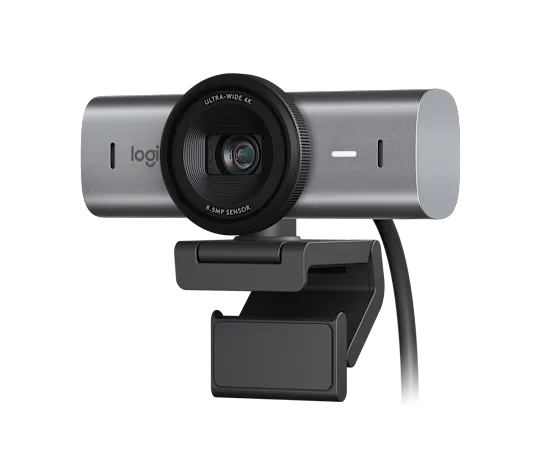
Logitech MX Brio at a glance
The Logitech MX Brio Ultra HD 4K Webcam in this review is the Graphite US model, SKU 960-001545. It is a USB webcam aimed at detailed desktop calls, flexible framing and sharing notes or objects on a desk. Its appeal is broader than resolution alone: the camera combines selectable viewing angles, Show Mode, image controls, a privacy shutter and a detachable mount.
The real buying decision is whether those capabilities change your working setup. Someone who appears in ordinary face-to-face calls may not gain enough from 4K capture to justify a feature-rich webcam. Someone who alternates between a close face view and a desk demonstration has a more convincing reason to consider it.
That decision still depends on the computer, operating system, meeting software and audio expectations. Logitech supplies the technical specifications and compatibility qualifications. TechRadar provides an independent account of image quality, setup and microphone performance; those observations describe that reviewer’s experience rather than a universal benchmark.
Image quality and framing
Logitech lists 4K at 30 frames per second with 3,840 by 2,160 pixels as one supported video mode. It also lists 1080p at 60 frames per second with 1,920 by 1,080 pixels. The choice is therefore between a higher-resolution mode and a faster-frame-rate mode, although the application and computer setup determine which options are available in a particular call.
The MX Brio uses an 8.5-megapixel Sony STARVIS image sensor. That identifies the sensor hardware, not the appearance of every outgoing stream. A meeting service can reduce video quality, and the recipient’s display may not show all captured detail. The sensible interpretation is that 4K provides capture headroom for compatible workflows rather than describing every meeting automatically.
Logitech specifies diagonal fields of view of 90 degrees, 78 degrees and 65 degrees. This range is more useful than a single wide-angle figure because it lets the buyer match the composition to the desk. The 90-degree setting can include more workspace, while the 65-degree setting can make a close face view less expansive. The 78-degree option sits between those purposes.
The webcam also has 4x digital zoom. Digital zoom is a crop-based framing control, not extra optical reach, so the result depends on how much of the original image remains. It can remove unused surroundings without moving the camera. For desk sharing, starting with a wider view may be more practical than relying heavily on a digital crop.
Logitech specifies advanced autofocus. That is relevant when the subject changes from a person to a notebook, drawing or object on the work surface. Autofocus remains an automated system rather than a promise about every transition. For a fixed face view, camera position and lighting may matter more than refocusing capability.
The manufacturer describes RightLight 5 with face-based image enhancement and lists automatic focus, HDR, white balance and exposure. Logitech says these features are intended for conditions ranging from low light to direct sunlight. That describes the processing available in the camera; it does not eliminate the effects of a bright window, dark background or mixed-color lamps.
Logitech also claims up to 2x finer image detail and face visibility versus Brio 4K. That is a manufacturer comparison claim, not an independent measurement in the supplied review. It may explain the product’s positioning, but it should not be treated as a prediction of the exact difference on every monitor or compressed call.
TechRadar’s independent reviewer described the video quality as exceptional and reported a pleasing image in a basement office with mood lighting and no natural camera lights. That is useful context from a difficult-looking room, but it remains a reviewer judgment rather than a controlled low-light benchmark. Buyers should separate image processing from the amount and direction of light in their own room.
Show Mode and physical setup
Show Mode is the feature most directly connected to desk sharing. Logitech describes tilting the webcam down to share notes and sketches on a desk during a call. That gives the MX Brio a purpose beyond a conventional face-facing webcam for planning pages, handwritten diagrams and physical objects.
Show Mode should not be read as proof that every meeting application handles the view identically. Logitech documents the camera behavior, but the supplied material does not establish identical support for orientation correction, switching or presentation layout across every application. Check the chosen software before building a team workflow around desk demonstrations.
TechRadar’s reviewer reported that pointing the camera toward the desk was easy, while the review summary described desk mode as somewhat awkward. Those findings can coexist: the physical movement can be simple while the resulting composition or workflow needs adjustment. Show Mode is a meaningful differentiator, but not evidence that every desk demonstration will be effortless.
The camera has a detachable universal mounting clip. Logitech says the clip fits laptops, LCD displays and monitors. It also specifies a standard 1/4-inch tripod thread. These options cover common desk arrangements, but the specification does not establish that every display, tripod, camera arm or light bar will hold the camera at the preferred angle.
TechRadar’s reviewer reported mounting the camera on a MacBook Pro lid, monitor, iPad, tripod, camera arm and light bar. That is an independent account of varied placement, not a compatibility list for every accessory. The practical check is mechanical: confirm the available surface, clearance, hinge position and angle before relying on a particular stand or arm.
The webcam itself measures 1.73 inches (44 millimeters) high, 3.86 inches (98 millimeters) wide and 1.42 inches (36 millimeters) deep. Logitech lists its webcam-only weight as 4.83 ounces (137 grams). These are the relevant figures for checking shelf space or a small camera arm when the mount is not included.
With the mount closed, Logitech lists the assembly at 2.44 inches (62 millimeters) high, 3.86 inches (98 millimeters) wide and 2.05 inches (52 millimeters) deep. The mounted weight is 6.21 ounces (176 grams). That larger footprint matters on a narrow laptop lid or shallow monitor shelf, where the clip and hinge can affect clearance.
The included cable is a detachable USB-C to USB-C cable supporting USB 3.0, and Logitech lists it as 5 feet (1.5 meters) long. That can suit a nearby laptop or monitor but may be restrictive when a desktop tower sits under a desk. Detachability makes rearrangement easier, provided a replacement cable meets the required connection standard.
Compatibility and software
Logitech requires a USB-C port supporting the USB 3.0 standard. A USB-C-shaped socket alone is not enough evidence that a computer, dock, monitor or hub meets that requirement. This is an important check for desktop users and anyone routing the camera through an accessory. The supplied material does not establish the behavior of every adapter, extension or dock.
The listed operating-system compatibility includes Windows 10 or later, macOS 10.15 or later, ChromeOS and Linux. Logitech qualifies ChromeOS and Linux with basic webcam support using the USB Video Class standard. Basic UVC operation is not the same as access to the complete control layer, so operating-system compatibility should not be treated as identical feature compatibility.
Logitech says its software is available on Windows and macOS and says there is no Logitech software for systems other than Windows and macOS. The practical divide is clear: Linux or ChromeOS can provide basic webcam input, but buyers should not assume access to the same fine controls or Logitech-specific workflow features.
The manufacturer lists certification for Microsoft Teams, Zoom, Google Meet, Works With Chromebook and Streamlabs. It separately lists the camera as working with Zoom, Teams, WebEx, Skype, FaceTime, Google Meet, Streamlabs and OBS. Those lists show broad stated application compatibility, but they do not establish that every application exposes 4K, Show Mode, HDR, digital zoom or Logitech controls in the same way.
Logitech identifies Logi Options+ and G HUB as optional software for fine image controls. The listed adjustments include lighting, white balance, ISO, shutter speed, tint and vibrance. That can help a controlled video setup or difficult room, but it adds a software choice. Buyers who prefer application defaults may reasonably value simplicity over manual adjustment.
Audio, privacy and ownership
The MX Brio has a dual beamforming microphone described by Logitech as supporting noise reduction. Logitech lists microphone range as up to 4 feet (1.2 meters). The phrase “up to” describes the stated reach, not uniform speech quality throughout that distance. Desk position, room reflections, keyboard noise and conferencing software can affect whether the built-in microphones suit a particular call.
TechRadar’s reviewer found the microphone acceptable but less impressive than the camera and preferred AirPods Pro 2 audio in the reported comparison. The reviewer also described the camera microphone as a substantial improvement over internal laptop microphones. The practical trade-off is straightforward: the built-in microphones can simplify ordinary calls, while a headset or separate microphone remains more appropriate when voice quality is central.
The camera includes a built-in privacy shutter. Logitech describes rotating it to block the camera between meetings. This is a physical lens control, not a software status indicator. It does not mute a separate microphone, close a meeting application or control other cameras and microphones connected to the computer.
In the box, Logitech lists the mounting clip with removable adapter, the USB-C to USB-C 3.0 cable and user documentation. The supplied evidence does not list a separate light, headset, tripod or desk arm, so those should be treated as additional equipment when the setup requires them.
The manufacturer lists a one-year limited hardware warranty. That is the stated coverage period, not a prediction about repair outcomes or a substitute for reading the terms applicable to the purchase region. Logitech’s product-page excerpt also lists free returns within 30 days, but return conditions can depend on the seller and transaction.
Which webcam should you choose?
Choose the MX Brio when 4K capture, selectable framing, desk demonstrations and manual image controls all matter to your work. It is particularly logical for someone who alternates between a detailed face view and physical notes or objects on the desk. The USB-C and USB 3.0 requirement, Windows or macOS software preference and willingness to use separate audio should be part of that decision.
Choose a simpler 1080p webcam category when calls are mostly face-to-face, the meeting service compresses video heavily or the computer lacks the required USB-C connection. You may give up 4K capture and some framing flexibility, but you also avoid paying for capabilities that do not change your meetings. A basic UVC model can be a cleaner match for a Linux or ChromeOS setup needing ordinary camera input.
Choose a dedicated microphone or headset alongside the MX Brio when voice consistency matters more than reducing equipment. TechRadar’s audio finding is the key limitation: the picture was more compelling than the microphone. If one camera connection and adequate everyday audio matter most, the built-in dual beamforming microphones may be sufficient for the role described by Logitech.
The main limitation is the gap between capability and workflow. The camera can capture 4K at 30 frames per second, offer 1080p at 60 frames per second, change field of view, tilt toward a desk and expose advanced controls. The application, operating system, port, lighting, mounting position and audio expectations determine how much of that specification becomes useful.
Verdict
The Logitech MX Brio Ultra HD 4K Webcam, Graphite, US 960-001545 is a strong conditional choice for detailed desktop calls and desk sharing. Its most persuasive combination is 4K capture, three framing angles, Show Mode, a physical shutter and software controls. Buy it when those capabilities match a recurring workflow and the computer meets the connection requirements. Choose something simpler when 1080p is enough, advanced controls are unavailable on the system or microphone quality is the deciding factor.