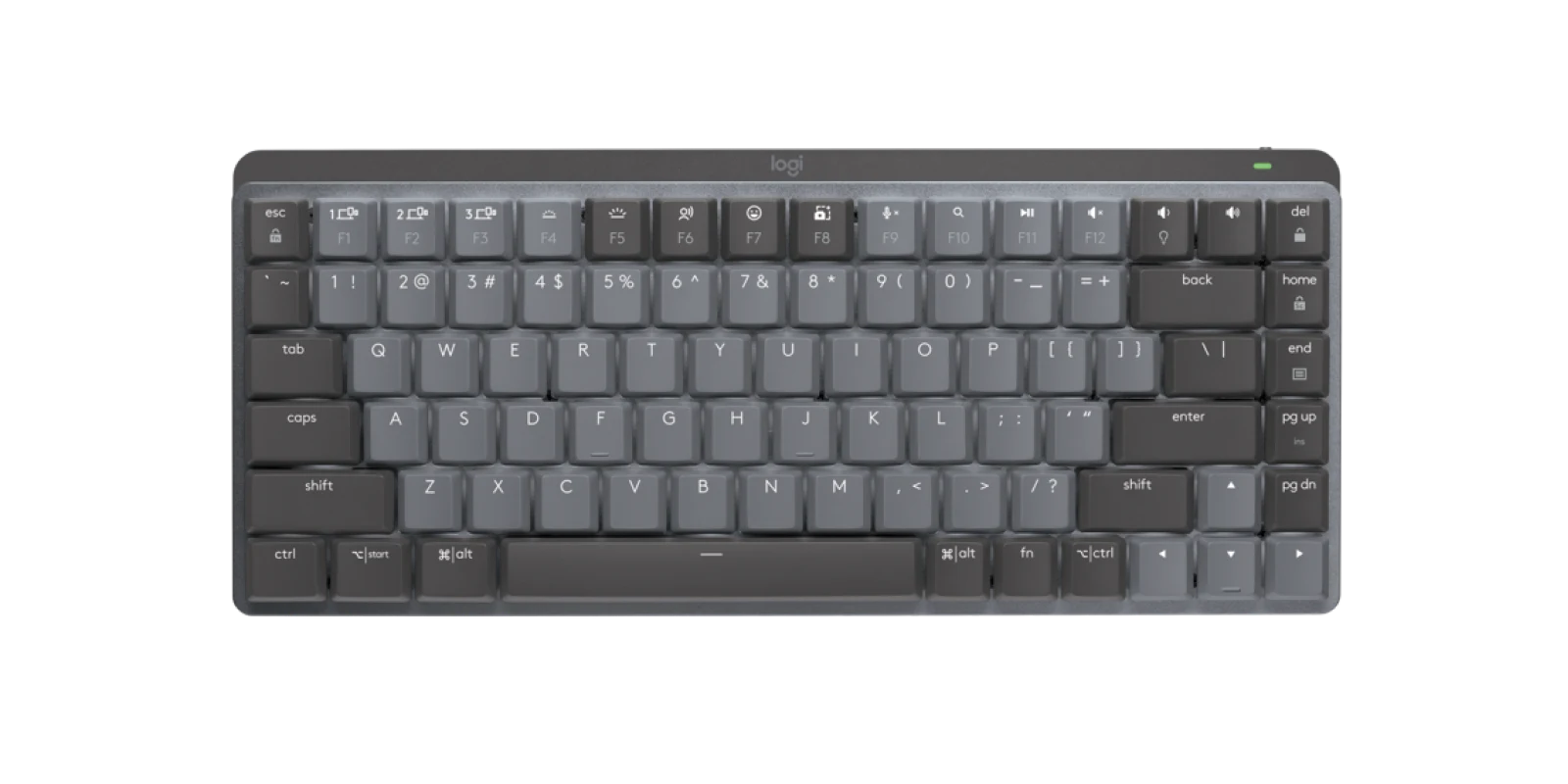
The Logitech MX Mechanical Mini Wireless Illuminated Keyboard in this review is the graphite US QWERTY model 920-010550, fitted with Tactile Quiet switches. It is intended for people who want mechanical key feedback without giving a full-size keyboard most of the desk.
The buying decision is not simply whether a compact keyboard sounds appealing. You need to decide whether the saved width is more valuable than a dedicated number pad, whether you will actually switch among several devices, and whether the standard model’s Mac function-row compromise fits your routine. The Tactile Quiet version is also a fixed switch choice: the independent review says the MX Mechanical Mini boards are not hot-swappable.
What this keyboard is for
Tom’s Guide describes the MX Mechanical Mini as “A 75% low profile mechanical wireless keyboard from Logitech.” That is a useful summary of its role. It retains the main typing area, arrow keys and a compact navigation section while removing the dedicated number pad. Compared with a full-size board, the layout can leave more room for a mouse or other desk equipment. Compared with a smaller minimalist keyboard, it keeps more conventional navigation keys.
This is a productivity-oriented design rather than a gaming-first board. Tom’s Guide says Logitech pitches it toward people wanting a keyboard for work and describes it as suitable for general use and casual gaming, while saying it is not designed for competitive gaming. The restrained graphite appearance, white illumination and low-profile switches all reinforce that purpose.
The 75% arrangement is useful when most work consists of writing, browsing, coding, administration or ordinary document editing. It is less suitable when numeric entry is a central part of the job. Spreadsheet work, accounting, inventory entry and repeated form filling can make a number pad feel essential. A separate number pad is possible, but that adds another device and gives back some of the space saved by the Mini.
The standard 920-010550 is also the relevant version for buyers who want a mixed Windows-and-macOS desk. Tom’s Guide reports that its keycaps carry both Windows and macOS symbols. That can make the keyboard easier to share between systems, but it does not eliminate the Mac shortcut limitation discussed below.
Tactile Quiet typing
The Tactile Quiet variant is designed around a middle ground. It is mechanical, so the keys provide more defined feedback than a typical low-cost membrane board, but it is not intended to make a loud click the main feature of the room. Tom’s Guide’s reviewer describes the quiet switches as pleasant, with gentle tactile feedback and a sound that was not distracting in a workplace. That is an independent reviewer’s observation, not a result produced for this article.
Logitech describes the MX Mechanical Mini’s low-profile mechanical switches as offering a deep and reassuring typing feel. The manufacturer also presents the family as available with three switch types: Tactile Quiet, Clicky and Linear. Those are product descriptions rather than a standardized noise or force measurement. The Tactile Quiet name should not be interpreted as complete silence; mechanical switches still create sound from key movement and bottoming out.
The low-profile format may be especially approachable for laptop users. Tom’s Guide says the 75% layout is similar to laptop keyboards and reports that the low-profile keys helped avoid accidental presses during fast typing. That does not mean every laptop user will prefer the feel. People who specifically want tall keycaps, a deep traditional mechanical sound or extensive switch experimentation may find this design too restrained.
The switch choice should be made before purchase. Tom’s Guide says the linear version is for buyers who prefer no tactile feedback and the clicky version is for those who want a snappier sound. It also says none of the boards are hot-swappable. In practical terms, choosing Tactile Quiet means accepting that the keyboard is not a convenient platform for trying different switches later.
For a shared office, the Tactile Quiet version makes more sense than the clicky option if you want mechanical feedback without a conspicuous sound. If mechanical feedback is not important, a quiet scissor-switch keyboard may be a simpler solution. The Mini earns its justification when the mechanical feel, compact format and device switching all matter together.
Size, layout and desk fit
The independent review lists dimensions of 12.3 inches by 5.17 inches by 1.02 inches and a weight of 21.6 ounces. These are published review specifications, not measurements taken here. The figures explain why the Mini can suit a crowded desk while still feeling like a complete work keyboard rather than a travel board stripped to its essentials.
The missing number pad is the most important physical compromise. Measure the area currently occupied by your keyboard, then consider where your mouse sits and how often you reach for numeric keys. If you mostly type words and use keyboard shortcuts, the narrower layout may be a meaningful improvement. If you enter long numerical sequences, a full-size board may be more efficient even if it occupies more space.
Tom’s Guide describes the top plate as aluminum and the backplate as plastic. The reviewer reports snug keycaps and rear risers that open with a firm click, while also saying the board is not as light as its compact appearance suggests. That combination points to a compact but substantial desk keyboard, not an ultralight accessory for frequent travel.
The same review says the keycaps appear to be ABS plastic and may not retain their clean matte effect indefinitely. This is an independent construction observation rather than a manufacturer material specification. It is relevant to ownership because a keyboard can feel solid while its key surfaces still show wear or shine with extended use.
There are only two height settings, according to Tom’s Guide. That makes setup worth considering before ordering. Desk height, chair position, wrist angle and the presence of a separate wrist support all affect whether the available tilt feels comfortable. The supplied evidence does not establish that a wrist rest is included, so buyers should not assume one is in the box.
Connections and device switching
The independent review reports three Bluetooth channels and says switching among them requires a single tap. It also reports an included USB Type-A wireless adapter. Compatibility is listed with macOS and Windows, as well as ChromeOS, Linux and iPadOS.
Logitech’s current specifications for the standard MX Mechanical Mini list Bluetooth or Logi Bolt wireless connectivity, easy switching between up to three devices, and support across the listed desktop and mobile platforms. Its package contents include the Logi Bolt receiver and a USB-C charging cable. That is a different purchase arrangement from a keyboard that requires a separate receiver.
Three saved connections are useful when one keyboard serves a work computer, personal laptop and tablet. Switching can be less disruptive than pairing a new keyboard repeatedly. The feature matters much less if the board will stay connected to one desktop. In that case, you are paying for flexibility that may remain unused.
Bluetooth suits a laptop or tablet setup where minimizing adapters matters. The included Logi Bolt receiver gives a compatible computer a second wireless connection option. Logitech lists the included USB-C cable as a charging cable and specifies Bluetooth or Logi Bolt for the connection. Buyers requiring wired typing should choose hardware that explicitly documents that mode rather than relying on the connector shape. Check the computer’s ports and wireless restrictions before choosing a connection.
For a shared desk, label the three device positions during setup or use the software to make the arrangement memorable. The keyboard’s physical switching buttons are convenient, but the exact benefit depends on whether your computers remain in range and whether workplace policies allow the accompanying software.
The Mac shortcut limitation
The largest platform-specific issue is the position of the device-switching controls. Tom’s Guide reports that Bluetooth buttons occupy Fn 1 through Fn 3. On macOS, those positions correspond to screen-brightness and App Exposé functions.
The review says the keys can operate as standard Fn 1 through Fn 3 buttons, but cannot be customized to restore the default macOS shortcuts while retaining their Bluetooth-control role. For a Mac user who frequently changes brightness or invokes App Exposé, this is not merely a labeling annoyance. It changes a repeated part of the keyboard workflow.
Logitech says Logi Options+ can change Fn key functions, select backlighting effects, assign application-specific profiles and create Smart Actions shortcuts. Those features may make the compact layout more adaptable, but software customization cannot be assumed to restore every displaced macOS function. The independent reviewer also reports that an organizational MacBook could not install Options+, leaving the affected controls unavailable there.
This makes the standard model a more complicated recommendation for dedicated Mac users. Occasional Mac users may accept the trade-off in exchange for the dual Windows/macOS legends and three-device convenience. A buyer who depends on native brightness and Exposé controls should compare the Mac-layout version and other compact keyboards before choosing 920-010550.
Windows users are less exposed to this particular problem. Mixed-platform households and desks may find the standard legends helpful, provided everyone understands that platform flexibility does not mean identical shortcut behavior.
Backlighting and battery
The independent review identifies white LED backlighting. Logitech describes the lighting system as Smart Backlighting: the keys can illuminate when hands approach, adjust to lighting conditions and offer selectable effects through Logi Options+.
Tom’s Guide found the lighting choices limited and reported that the backlight could turn off in bright ambient conditions. That may conserve power, but it makes illumination less predictable for someone who wants a selected effect to remain active. White lighting is a reasonable office choice because it is restrained and avoids the visual intensity of RGB, but buyers wanting extensive manual control should compare alternatives.
The independent review lists a 1,500 mAh battery and repeats Logitech’s rated claim of up to 15 days with backlighting enabled or up to 10 months with backlighting disabled. The supplied manufacturer material also states those two battery figures. These are published ratings, not an ownership result here, and actual intervals depend on lighting, connection and use conditions.
The battery trade-off is straightforward. The longest published runtime requires the backlight to be off, while the illuminated figure is substantially shorter. If your room is bright enough for unlit keys, disabling illumination should make the longer claim more relevant. If you work in dim rooms and want the keys visible, USB-C charging becomes a normal part of ownership.
Software and maintenance
Logi Options+ is potentially important because a 75% board has fewer dedicated controls than a full-size keyboard. Logitech says the software supports Fn reassignment, lighting effects, application-specific profiles, Smart Actions. Tom’s Guide says the application can customize almost all Fn keys and the final column of control keys.
Those options can help tailor the board to a writing, coding or administrative workflow. They also introduce a dependency: the useful behavior may require installation rights and support for the operating system in question. On a managed work computer, judge the keyboard by its physical defaults rather than assuming the software will be available.
The supplied sources do not provide a water-resistance rating, a user-replaceable battery specification or a battery replacement procedure. Keep the board away from spills and clean the keys gently. Do not treat the rechargeable battery as an easily serviced component unless Logitech’s current support documentation specifically confirms that process.
The non-hot-swappable design limits customization but does not by itself predict failure. It means switch replacement is not a routine ownership feature. The reported ABS keycaps are another reason to buy for the typing experience and layout you want now, rather than expecting to transform the board later with extensive enthusiast parts.
Alternatives that change the decision
The full-size Logitech MX Mechanical is the closest family alternative. Tom’s Guide identifies it as the full-sized counterpart. Choose it when the number pad is central to your work and your desk can accommodate the added width. Choose the Mini when mouse clearance and a narrower typing area matter more than dedicated numeric entry.
The Linear and Clicky MX Mechanical Mini versions are internal alternatives. Linear suits someone who wants mechanical travel without a tactile bump. Clicky suits someone who wants a sharper, more audible response and has a room where that sound is acceptable. Neither solves the standard model’s Mac function-row issue, and the independent review says the family is not hot-swappable.
Tom’s Guide compares the Mini with the Keychron K2 V2 and notes that the Keychron uses Fn with number keys for Bluetooth switching, leaving default Mac controls available. That makes a keyboard in that design category worth considering if native Mac shortcuts, switch experimentation or enthusiast-style customization matter more than Logitech’s software ecosystem.
A quiet laptop-style wireless keyboard is the simpler alternative when mechanical feedback is optional. Compare its key action, layout and noise against the functions you actually need. Choose that category when mechanical feedback is optional, rather than treating a different switch mechanism as an automatic upgrade. The right alternative depends on which feature is essential rather than which product has the longest feature list.
Verdict
Choose the Logitech MX Mechanical Mini 920-010550 if you want a graphite US QWERTY keyboard that saves desk width, provides quiet tactile mechanical feedback and can move among up to three devices. It is a logical fit for writing, coding, administration and mixed Windows-and-macOS desks where the number pad is not central.
Pause before buying if you are a dedicated Mac user who depends on brightness or App Exposé keys, enter numbers constantly, expect hot-swappable switches or want highly controllable lighting. The Mac function-row conflict is the most consequential limitation. The reported ABS keycaps, limited height adjustment, compact-but-substantial weight and shorter illuminated battery rating also weaken the case if you expect a premium enthusiast keyboard.
Verify the listing before ordering: model 920-010550, graphite colour, US QWERTY legends and Tactile Quiet switches should agree. Choose the Mini when its compact mechanical layout and switching controls solve a real desk problem; choose a different layout if its missing number pad or Mac shortcut compromises would interrupt everyday work.