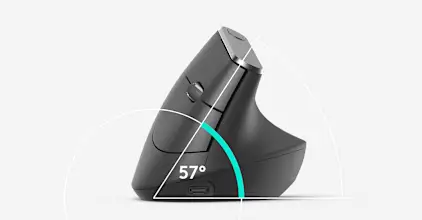
The Logitech MX Vertical Advanced Ergonomic Wireless Mouse, Graphite, US model 910-005447, is a specialist pointer rather than a conventional mouse with a cosmetic change. Its defining choice is the upright 57-degree layout, while its practical appeal comes from adjustable cursor control, two wireless connection methods and support for a multi-device workflow.
The useful buying question is not whether a vertical shape sounds ergonomic. It is whether this particular shape gives your hand a workable resting position, whether the buttons land naturally under your fingers, and whether your computer setup suits its receiver, Bluetooth and optional software requirements.
Fit and adaptation
Logitech describes the MX Vertical as suited to medium-to-large hands. That makes hand size the first screening question, not a detail to investigate after purchase. A smaller hand may need to reach around the shell or reposition more often, while a larger hand may appreciate the taller grip. The supplied manufacturer material does not provide a more precise hand-size range.
The layout is also a right-hand-oriented buying decision. The thumb rest, thumb-side buttons and sculpted grip give the mouse a defined side to hold, rather than the symmetrical shape common to many conventional pointers. The supplied manufacturer records do not identify a left-handed version for model 910-005447, so buyers who specifically require one should confirm the product arrangement before ordering.
The central physical feature is the 57-degree vertical angle. Logitech presents that angle as a different wrist position, while Tom’s Guide describes it as a tilt between a fully horizontal and a fully vertical configuration. Those descriptions establish the design intent, not an individual comfort result. The relevant question is whether your wrist, palm and thumb remain relaxed while the mouse is held at its side.
Adaptation is part of the purchase. A conventional mouse asks the hand to lie across its top; this one asks the hand to close around a raised side. Tom’s Guide says the design is not suited to everyone and may be worth trying as a different format from a standard mouse. That makes a practical return window and an uncluttered trial area more valuable than broad ergonomic wording on a product page.
The control layout reinforces that adaptation. Tom’s Guide identifies a left button, right button and clickable scroll wheel on top, two customizable buttons above the thumb area, and another customizable button on top. Logitech lists four customizable buttons, with Back/Forward, DPI and middle-click functions among the defaults. Buyers should distinguish the number of physical controls from the number they expect to remap.
The thumb area is not merely decorative. Logitech describes a thumb rest and a textured rubber surface intended to provide a solid grip. In practical terms, that gives the hand a defined side to hold rather than asking the fingers to balance on a low, symmetrical shell. The trade-off is that the hand must accept the mouse’s prescribed angle; there is less freedom to casually flatten the grip.
Size and pointer control
Logitech’s dimensional labels matter here: the MX Vertical is 4.72 in (120 mm) high, 3.11 in (79 mm) wide and 3.09 in (78.5 mm) deep. The height is the largest of those measurements, which explains why this mouse needs more vertical clearance beside a keyboard than a low-profile design. Use the manufacturer’s orientation rather than rotating the figures into conventional length, width and height language.
The mouse weighs 4.41 oz (125 g). Weight matters here alongside shape: moving a taller mouse involves a different wrist and forearm motion than moving a low, flat model. A narrow desk mat or crowded keyboard tray may make the larger footprint more noticeable even if the mouse technically fits on the available surface.
Before ordering, measure the usable area beside your keyboard in three directions. The 4.72 in (120 mm) height affects the mouse’s physical profile, while its 3.11 in (79 mm) width and 3.09 in (78.5 mm) depth describe the other two manufacturer-listed dimensions. Leave room for the hand to approach from the side rather than assuming the mouse will behave like a flat shell.
Logitech lists nominal sensor resolutions of 1000 dpi and 1600 dpi, plus an adjustable range of 400-4000 dpi in 50 dpi increments. That gives the pointer a broad adjustment range, from slower movement for controlled positioning to faster travel across a large display. It does not remove the need to learn the new grip and button positions.
A dedicated cursor-speed button sits on top of the mouse. Logitech says the switch provides instant DPI adjustments, while Logi Options+ can customize cursor speed and accuracy. The placement is useful if you alternate between detailed pointer work and broad screen movement, but it adds another control to learn beside the primary buttons and wheel.
Scrolling is handled by a precision wheel. Tom’s Guide found the scrolling function on the slower side even after adjustment, particularly compared with Logitech’s MX Master 3. That is an independent review finding rather than a manufacturer specification, and it matters most for long documents, spreadsheets and web pages where fast wheel travel is a daily priority.
Tom’s Guide also reported smooth pointer operation on a marble table, a slightly uneven ridged table and a textured placemat. That is useful independent evidence for varied ordinary desk surfaces, but it is not a promise for every material or condition. The same review described the pointer as fast and accurate and noted that cursor speed can be adjusted in software.
Connections and multi-device work
Wireless flexibility is a clear strength. Logitech lists a Unifying USB Receiver as one wireless technology and Bluetooth Low Energy as another. The manufacturer lists a wireless operating distance of 33 ft (10 m), while warning that range may vary with the operating environment and computer setup. A desk with nearby wireless equipment should not be judged from the nominal distance alone.
The receiver requires an available USB port. Tom’s Guide reports that the dongle is tiny and that the mouse has no compartment for storing it. That creates a straightforward ownership risk for people who move between desks: leaving it in a laptop or hub is convenient, but carrying it separately makes the small accessory easier to misplace.
Bluetooth is the cleaner route for a computer with suitable Bluetooth Low Energy support and limited USB ports. The receiver remains useful for a computer without compatible Bluetooth or for a setup where a dedicated USB connection is easier to manage. These methods solve different desk problems rather than making one universally superior.
The manufacturer lists support for pointing, clicking and scrolling on most ChromeOS and most popular Linux distributions. That wording is narrower than a promise that every feature behaves identically across operating systems. Core pointer functions may be available while customization, device switching or other software-dependent controls require separate compatibility checks.
The mouse pairs with up to 3 devices. Tom’s Guide reports that a button on the bottom switches among them and that a light indicates the active device. This is useful for a laptop-and-desktop arrangement, but the switching control’s bottom placement means changing computers is not performed from the normal thumb-button area.
Logitech also identifies support for Logitech Flow across multiple screens. Tom’s Guide found that Flow can be useful when moving between computers but reported lag and difficulty locating the pointer during some device switches. Flow is therefore an appealing convenience rather than the sole reason to buy the mouse. A simpler single-computer setup avoids that extra layer of coordination.
Software and charging
Logi Options+ is optional rather than necessary for basic mouse operation. Logitech says internet access is required to download the app and that it is supported on Windows and macOS. Tom’s Guide likewise reported that the mouse works without downloading Logitech software, while describing the software as useful for customizing buttons and application-specific actions.
That software is most valuable when the extra controls match repeated tasks. Tom’s Guide gives examples involving Chrome, Microsoft Word and Excel, including shortcuts for opening windows, zooming, copying and pasting. These are workflow possibilities reported by the independent reviewer, not fixed functions that every buyer receives without configuration. The setup effort is worthwhile when those actions recur often enough to justify it.
Power comes from a built-in rechargeable Li-Po battery rated at 240 mAh. Logitech says a full charge lasts up to 4 months of daily use. Battery duration is therefore a maintenance interval rather than a reason to ignore the charging cable: actual use patterns and battery aging can affect how often charging becomes necessary.
The included charging cable is USB-A to USB-C. Logitech says 1 minute of charging yields roughly 3 hours of continuous use, and the mouse can function normally while plugged in to charge. That reduces the practical consequence of a low battery, provided the cable can reach the mouse from the computer, hub or charger.
Tom’s Guide places the USB-C charging port on the front. A cable can therefore remain attached while the mouse is used, although a cable routed across a narrow desk may still interfere with movement. The ability to continue operating while charging is preferable to losing pointer access during a recharge.
Routine ownership should be uncomplicated: keep the textured grip and sensor area free of accumulated debris, store the small receiver deliberately if it is not left connected, and use Bluetooth when avoiding a receiver matters more than having a dedicated USB link. The supplied sources do not specify a removable battery, replacement procedure or water-resistance rating, so none should be assumed.
Alternatives and verdict
A conventional mouse remains the sensible alternative if you need unrestricted palm placement, a familiar button layout or the smallest adjustment period. A more affordable vertical-mouse category is relevant when the upright posture is your only priority, because Tom’s Guide specifically advises considering lower-cost options in that situation. The supplied sources do not establish specifications for a particular competing model.
The Logitech MX Master 3 is the better source-supported alternative when customization and scrolling matter more than the vertical design. Tom’s Guide says it offers slightly more customization options and a more advanced scroll wheel. That comparison does not make it a substitute for the MX Vertical’s grip; it identifies a different priority for buyers who want productivity controls in a conventional mouse format.
Before ordering, compare your available surface with the manufacturer-listed 4.72 in (120 mm) height, 3.11 in (79 mm) width and 3.09 in (78.5 mm) depth. Then decide whether pairing with up to 3 devices is genuinely useful, whether Bluetooth or the USB receiver better suits your computer, and whether you are willing to configure software for application-specific shortcuts.
Choose this exact Graphite 910-005447 model when you want a pronounced vertical grip, adjustable pointer speed, rechargeable operation, two wireless connection methods and application-level customization on Windows or macOS. It is a particularly rational fit for a medium-to-large-handed user who regularly changes devices and is willing to learn a different control position.
Choose something else when you want a low-profile shape, rapid familiarity, a receiver that is easy to store, or faster scrolling as the primary productivity feature. The independent review record includes software issues, receiver-storage criticism, slower scrolling and Flow lag, so the feature list should not be mistaken for an absence of trade-offs.
The conditional verdict is straightforward: the Logitech MX Vertical is a strong candidate for a right-handed vertical-mouse search when the 57-degree grip and medium-to-large fit align with your hand, desk and workflow. It is a weaker choice when the upright posture is experimental, when your hand is smaller, or when scrolling speed and effortless device switching matter more than the unusual shape.