The short version
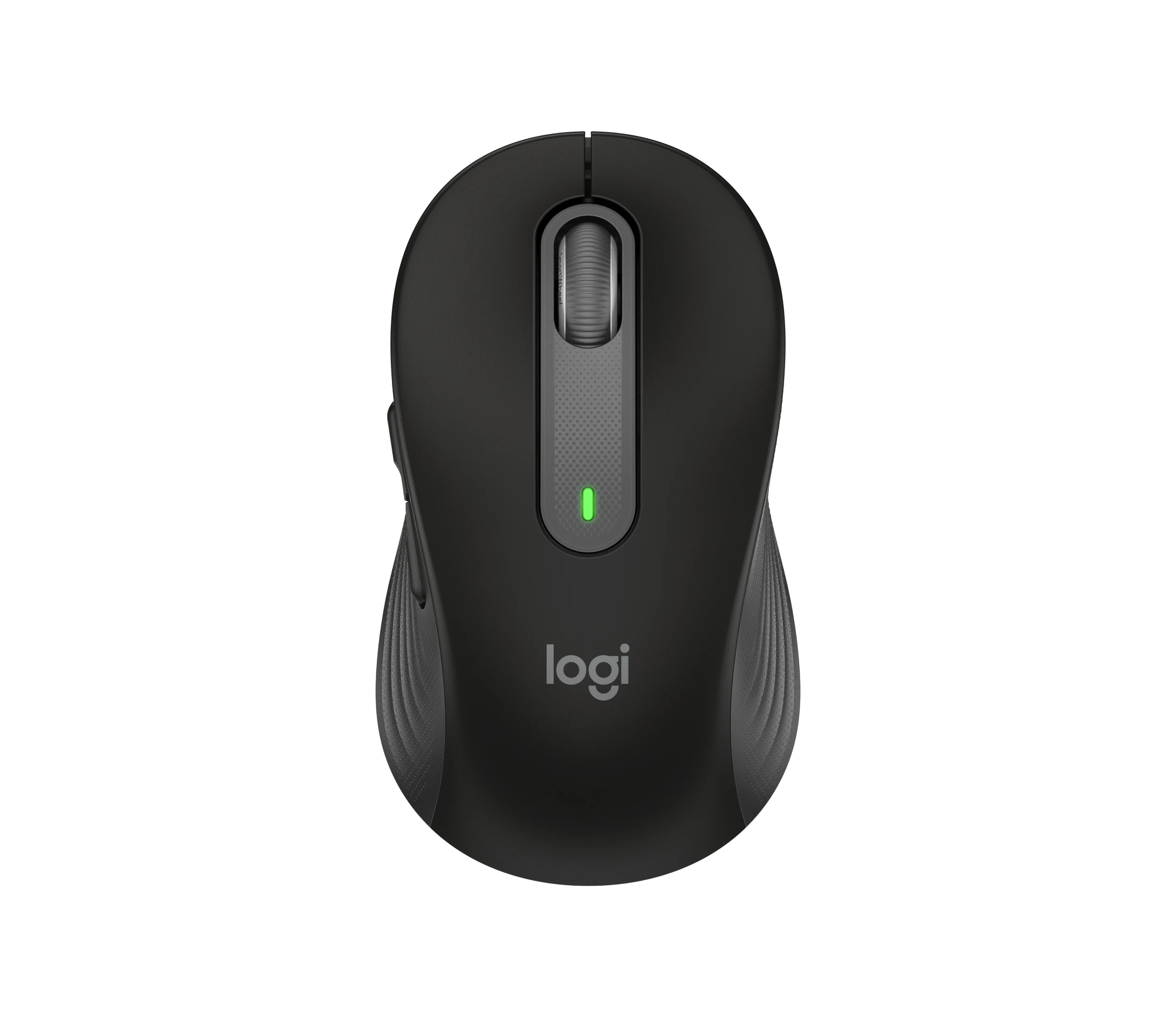
The Logitech Signature M650, model 910-006268, is a conventional wireless office mouse for right-handed users whose hands fit Logitech’s small-to-medium size recommendation. Its appeal is practical rather than extravagant: quieter clicking, an adaptive scroll wheel, two customizable side buttons, Bluetooth Low Energy or a Logi Bolt USB receiver, and compatibility across common desktop and mobile platforms.
The important buying decision is fit. This is the standard M650 size, not the larger M650 L and not the left-handed M650 L Left. Logitech describes this model as suitable for small-to-medium hands. That makes it a potentially sensible replacement for a basic office mouse, but not an automatic choice for every desk. A mouse can have useful software and quiet switches yet still feel tiring if its shell does not suit the user’s hand or grip.
The other major question is workload. An independent Tom’s Guide review found the M650 straightforward to set up, versatile and well made, but reported discomfort after extended continuous use compared with an ergonomic mouse. That does not make the M650 unsuitable for email, browsing, documents or ordinary home-office work. It does mean that people who spend most of their working time on mouse-intensive tasks should compare an ergonomic design before choosing this one.
What exact product is this?
This review concerns the Logitech Signature M650 in the standard small-to-medium size, Black, US model 910-006268. The manufacturer catalogue identifies that model number with the Black version. The standard M650 is the family member Logitech recommends for small-to-medium hands; the M650 L is intended for larger hands, while the M650 L Left is the separate left-handed option.
Those distinctions matter because retailer listings can place several M650 variants on one page. Check the model number, color and orientation before ordering rather than relying only on a product-family title. The relevant question is not whether the listing says “M650,” but whether it identifies the standard Black US model 910-006268.
The standard model has a right-handed contour, with the side buttons positioned for use by the right thumb. A left-handed person should not assume that Bluetooth support or software customization makes the standard shell equivalent to the dedicated left-handed version. Orientation changes the physical control placement and the way the hand rests on the mouse.
The size label is useful but not a precise hand measurement. Logitech’s recommendation gives a sensible starting point, yet it does not account for every palm length, finger span or grip style. If standard mice usually feel cramped, compare the M650 L. If you use the mouse with your left hand, compare the M650 L Left instead.
Shape and everyday handling
Logitech describes the M650 as having a contoured shape, a soft thumb area and rubber side grips. Those features place it firmly in the traditional office-mouse category rather than the flat, symmetrical travel-mouse category. The shell is intended to give the hand a defined resting position while the side grips help maintain contact during ordinary pointer movement.
Tom’s Guide independently described the mouse as sturdy and noted a dotted grip panel on either side, along with stable side buttons that were easy to access. That is an observation from the independent review, not a measurement produced for this article. It supports the view that the M650 is designed around straightforward daily handling, but it cannot establish that the same shape will suit every user.
A contoured body is an advantage when it matches your hand and a limitation when it does not. Users who prefer a low-profile mouse or fingertip grip may find the raised shape less natural. Someone who rests the whole hand on the mouse may appreciate the support, but that still depends on the standard size being appropriate.
The control layout is deliberately restrained. The mouse has the main buttons, the SmartWheel and two side buttons that can be customized through Logitech software. Two side controls are useful for common actions, but they do not turn this into a macro-heavy productivity mouse. Buyers who want many application commands, a dedicated DPI control or extensive physical controls should look at a more advanced model.
Quiet clicking and SmartWheel scrolling
Quiet clicking is one of the M650’s central reasons to exist. Logitech says its SilentTouch technology reduces more than 90% of the clicking noise compared with the Logitech M185. That is a manufacturer comparison, not an independent decibel measurement. It nevertheless makes the M650 relevant to shared offices, bedrooms, libraries and home workspaces where loud button clicks are distracting.
The quieter buttons are not the same as silent operation in every respect. The wheel, surface movement and the sound of contact with a desk or mousepad remain part of the overall experience. The supplied sources do not provide a laboratory noise test for the complete mouse, so the sensible expectation is reduced button noise rather than total silence.
SmartWheel is the more useful feature during mixed office work. Logitech says it provides line-by-line precision for detailed tasks and faster scrolling for lengthy pages, switching modes with a flick of the finger. That suits a routine that alternates between spreadsheets, documents, email archives and long web pages.
For wide spreadsheets or editing timelines, compare the documented scrolling controls of the alternatives. Do not assume that a wheel designed for faster vertical scrolling will also handle side-to-side navigation or every specialist shortcut. The useful choice depends on the movement your applications require.
Bluetooth or Logi Bolt?
The M650 supports Bluetooth Low Energy and a Logi Bolt USB receiver. Logitech states a wireless range of up to 33 feet, or 10 meters. That is a manufacturer maximum specification, so desk layout, walls, nearby wireless devices and the computer’s own hardware can affect practical results.
Bluetooth is the cleaner option for a laptop or desktop that already supports it. It leaves a USB port free and avoids carrying a small receiver between work locations. The Logi Bolt receiver is useful for a desktop without suitable Bluetooth or for someone who prefers a dedicated adapter. A desktop buyer should check the computer’s available ports before choosing the receiver-based setup.
Tom’s Guide reported that both connection options were straightforward, describing Bluetooth setup through computer settings and receiver setup by inserting the USB adapter. That is an independent reviewer’s finding, not an original setup result in this article. It does support the conclusion that ordinary connection should not require a complicated workflow.
The presence of Bluetooth does not make the standard M650 a multi-device switching mouse. Logitech’s supplied comparison says the M650 adds two customizable side buttons, while the M750 adds multi-device switching for up to three computers and Logitech Flow. If your routine involves moving repeatedly between several computers, select a model that explicitly provides that feature.
Compatibility and customization
Logitech lists the Signature M650 as working with Windows, macOS, Linux, iPadOS and Android. It also identifies the mouse as Works With Chromebook certified. That broad compatibility makes the M650 a plausible choice for a mixed household, a conventional office computer or a laptop that moves between operating systems.
Basic pointer movement and clicking are the least demanding functions. Optional customization is a separate question. Logitech’s supplied material says pointer speed can be adjusted with Logi Options+ on Windows or macOS, and gives an optical sensor adjustment range from 400 DPI up to 4000 DPI. Those figures are manufacturer specifications, not a performance test.
Tom’s Guide identifies Logi Options+ as compatible with macOS and Windows and reports that the scroll wheel and side buttons can be assigned to shortcuts. It also describes application-specific assignments, allowing a button to behave differently in different programs. That can be useful for repeated office actions, but it depends on installing the software and having permission to use it.
The supplied evidence does not establish equivalent customization software support on Linux, iPadOS or Android. On those platforms, the safest expectation is basic mouse operation through Bluetooth unless the device and operating system offer additional controls. A managed work computer may also restrict software installation, reducing the value of programmable buttons.
For a Chromebook or tablet, Bluetooth may be more convenient than the receiver because many mobile devices lack a conventional USB port. Logitech’s compatibility statement supports use with those platforms, but the buyer should still check the individual device’s Bluetooth support and physical connections.
Battery and ownership
The M650 uses one AA battery, and Tom’s Guide identifies that battery as included. Logitech’s FAQ states that the included AA battery will need replacement after its operating life. This is a replaceable-battery design rather than an internal rechargeable mouse.
That choice has two opposing consequences. A replaceable battery lets the mouse return to service without waiting for a charge and avoids making a charging cable part of the desk setup. It also means the owner needs a suitable replacement available. Buyers who want every accessory to recharge over USB may prefer a rechargeable alternative.
Ownership maintenance is simple. Keep dust away from the sensor opening and wheel, wipe the shell with a soft lightly damp cloth, and keep liquid away from the buttons and seams. The supplied sources do not identify a water-resistance rating, so the M650 should be treated as an ordinary indoor mouse rather than a spill-resistant accessory.
The removable battery compartment also creates a small practical check: remember where the receiver is stored when using Bluetooth. Tom’s Guide reported that the USB-A receiver is kept beneath the slide-out underside panel with the battery. That arrangement reduces the chance of losing the adapter during travel, although it does not make the receiver useful for a device without a suitable USB connection.
Setup and fit checklist
Next, decide whether the hand fit is plausible. Logitech recommends this model for small-to-medium hands. If your current mouse feels too small, or if your palm extends awkwardly beyond its support, compare the M650 L before buying. If you use your left hand, compare the M650 L Left rather than trying to make the right-handed shell work through software.
Choose the connection based on the computer. Bluetooth is convenient when the computer already supports it and when preserving USB ports matters. The Logi Bolt receiver is a sensible alternative for a desktop without Bluetooth or for a user who prefers a dedicated adapter. For a tablet, inspect its ports before assuming the receiver will be practical.
After connection, leave the default controls in place for a short period of ordinary work, then assign only shortcuts that remove repeated actions. Two configurable side buttons can be enough for copying, navigation or an application command. They are less valuable if your work does not use those actions frequently.
Finally, pay attention to comfort during normal sessions. The useful question is not whether the mouse feels acceptable for a few minutes, but whether the shape remains comfortable for the length and intensity of your routine. A fit problem is a reason to change size or design, not a problem that software can fix.
Limitations that should affect the purchase
The second is long-session comfort. Tom’s Guide reported that constant use for over 4 hours could strain the forearm compared with an ergonomic mouse. The reviewer also described discomfort after about 5 hours of continuous use. These are independent observations from that review, not measurements made for this article, and they should not be treated as a medical conclusion. They are still relevant evidence for people whose work involves prolonged pointer use.
The third limitation is the modest control count. Two customizable side buttons cover common office shortcuts, but they do not match a mouse with many application controls, a dedicated top DPI button or explicit multi-device switching. The M650’s simplicity is an advantage for buyers who want an uncomplicated office tool and a limitation for control-heavy workflows.
The supplied sources also do not provide independent latency, sensor accuracy, durability or complete noise measurements. Tom’s Guide contributes observations about construction, setup, software and extended comfort; Logitech supplies the product specifications and feature descriptions. Neither source supports laboratory-style conclusions beyond those specific findings.
Alternatives that change the decision
The Signature M650 L is the most direct alternative when the standard M650 seems too small. It preserves the family’s basic concept while addressing the size decision. A larger hand is a reason to compare that version before moving to a more expensive feature set.
The Signature M650 L Left is the relevant alternative for left-handed users who want the M650’s general approach. Logitech identifies it as a dedicated left-handed version with side buttons placed on the right side. That physical arrangement matters more than software customization for a user who operates the mouse with the left hand.
The Logitech M750 is the relevant family comparison if switching between computers matters more than the M650’s simpler controls. Logitech explicitly distinguishes it by multi-device switching for up to three computers and Logitech Flow. Check that the model you select offers the required switching feature rather than assuming that Bluetooth alone provides it.
A rechargeable productivity mouse is another direction to investigate if you prefer charging over replacing a battery. Compare the actual scrolling controls, hand fit and connection methods of the alternative before paying for extra functions. Rechargeability is a different ownership preference, rather than an automatic improvement over a replaceable cell.
A wired office mouse remains a reasonable alternative for a fixed desktop. It removes wireless pairing and battery replacement, although it gives up the M650’s cable-free flexibility. For a stationary workstation, that tradeoff can be more valuable than adding Bluetooth.
Verdict
Choose the Logitech Signature M650 910-006268 if you are right-handed, your hand fits Logitech’s small-to-medium recommendation, and you want quieter button clicks, SmartWheel scrolling, two customizable side buttons and a choice between Bluetooth Low Energy and Logi Bolt. Its strengths are practical rather than excessive: a familiar contoured shell, grippy side areas, broad stated platform compatibility and a simple wireless setup.
Choose another model if you need a left-handed or larger shell, several active device connections, a rechargeable battery, extensive physical controls or a more ergonomic design for intensive mouse work. The independent comfort finding deserves particular attention if your job involves continuous pointer use.