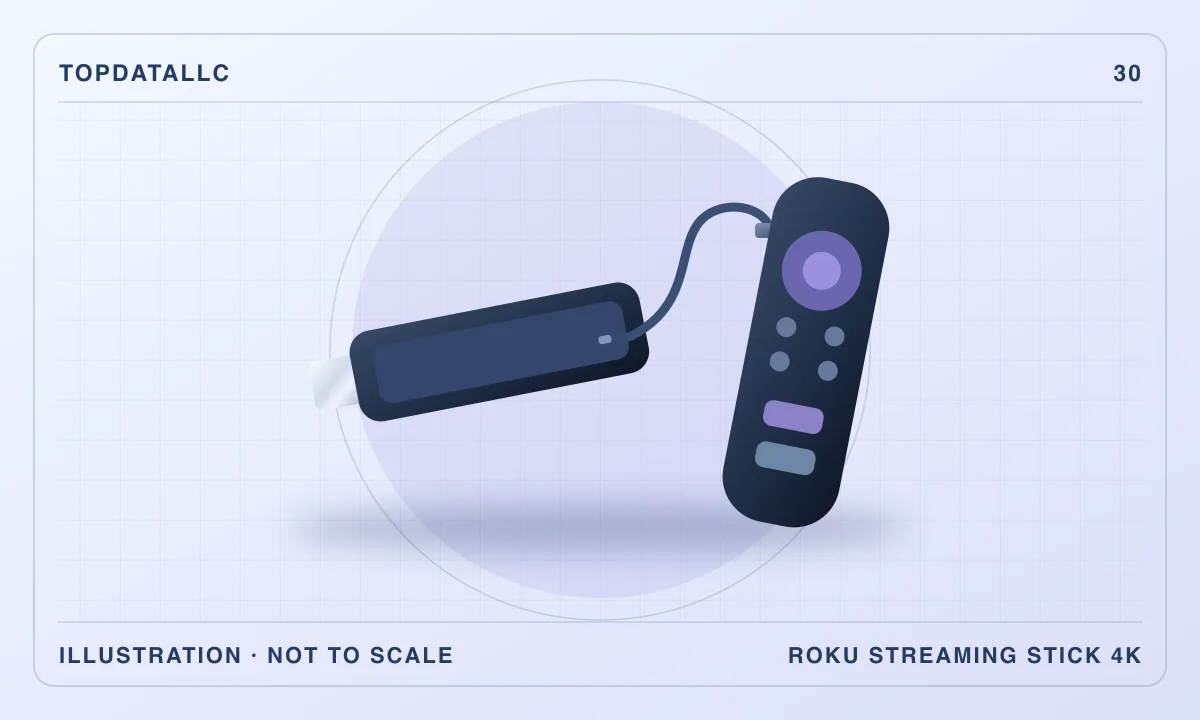
The Roku Streaming Stick 4K makes sense when a television still has a good picture but the built-in apps or remote are frustrating to use. The stick plugs into an HDMI input and brings its own streaming interface. The compact design helps if the TV is wall mounted or there is no shelf for a box. Before buying, check whether the stick, its power lead and your network can all work in the space behind the television.
This review covers the Roku Streaming Stick 4K on the linked US listing. Roku describes the compatible video formats, power connections and remote. Tom's Guide reviewed the model independently and discusses how it fits into a streaming setup. Check the exact box contents and model documentation because Roku sells other sticks and boxes with similar names and different features.
Check the HDMI port before you order
Look at the exact input you intend to use. A port on the side of the television can leave the stick protruding toward the wall. A rear-facing port may be too close to the mounting bracket or another cable. Check the space with neighboring devices still connected. The HDMI plug must seat fully, and the power cable needs a route that does not put pressure on the stick. A fitting problem is easier to solve before you need to remount a TV.
If you connect through an AV receiver or sound system, check the whole route from the player to the screen. An input that works for ordinary HD video may have different requirements for the format you want. Check the receiver, the television's input capabilities and the settings described by their manufacturers. If you use the TV directly, confirm which input will be available after leaving the other devices connected.
An external player also changes how you switch sources. If the TV starts on its own home screen, decide whether selecting the Roku input is a practical routine. Check whether the TV can remember its last input or whether you will need the television remote. A setup that is simple for one person can be confusing in a shared room if several remotes have similar buttons and the TV often starts somewhere else.
Check power and wireless reception together
Roku lists a long-range Wi-Fi receiver with the Streaming Stick 4K. The supplied power lead is part of the setup on the version described by Roku and Tom's Guide. Use the documented cable and a suitable power source. A spare cable that fits the connector can omit a function the original supplies. Follow Roku's guidance if the television's USB port does not provide enough power or switches off with the TV.
Try to picture the wireless path with the stick behind the television. The way the screen sits against a wall, the distance to the router and the furniture nearby can all matter. A phone that works in front of the TV is a useful clue, but it does not measure reception at the stick. If reception has been unreliable on other equipment in the same spot, check how you would improve the connection before depending on a new wireless player.
An intermittent picture can come from more than one part of the setup. Check power, the wireless connection and the streaming app independently. Try a service you know works on another device. If the stick repeatedly restarts, check the supplied power arrangement before assuming Wi-Fi is the issue. If the menu works and only one service buffers, compare that service and account on another player or connection where possible.
Decide whether you need 4K and HDR
Roku specifies support for compatible 4K, Dolby Vision and HDR10+ playback. A streaming player cannot give a television a display capability it lacks. Check which of those formats your screen accepts and whether the selected input is configured appropriately. The streaming service, title and subscription can also determine what format you receive. Buying the stick alone does not change the quality a particular service makes available to you.
If the TV is HD and you are happy with that picture, a simpler player can be enough. A 4K model can still be useful if you expect to move it to a compatible TV or if you prefer its particular remote or wireless design. Compare actual features, rather than assuming that an older TV benefits just because the new device advertises a higher resolution. The television's menu or streaming diagnostics may be able to show the active output format.
Try one familiar film or programme after setup. Check whether it plays through the desired service and whether the display detects the expected format when supported. If the picture looks different, compare the TV's settings on that HDMI input with the settings used by the built-in app. Some TVs remember separate picture settings per input. A surprising picture can reflect those settings instead of a fault in the player.
Decide what the remote should replace
The Roku remote is intended to control the streaming interface and can control supported TV functions. Check your exact television and equipment rather than assuming it will replace every remote. Try powering the television, controlling its volume and changing inputs in your intended arrangement. If audio goes through a receiver or soundbar, check the way volume is passed through to that equipment. Different combinations can behave differently.
Make the common actions obvious for the people who use the TV. If the stick is hidden behind it, the remote remains the part of the system they interact with every day. Put the other remotes where they can still be reached for functions the Roku remote does not handle. If you are setting it up for someone else, show them which input to choose and how to get back to the home screen. That practical test matters more than a list of shortcuts.
The app availability and subscriptions belong to a separate check. Make a list of the services and specific features you need. Confirm current availability for your market and device before buying. If you depend on a particular sports service, language setting or accessibility feature, verify it specifically. Having a streaming interface does not guarantee that the subscriptions or channels you want are included.
Think about travel, account access and setup time
A stick can be easier to pack than a box, but you need the cable, remote and access to a suitable TV and network. Check whether you can reach an HDMI input on the destination TV and whether the setup is allowed. Shared or guest Wi-Fi can have an additional sign-in step or limits on connected devices. Verify the supported setup before relying on it for a trip.
When using a shared television, keep track of where your account remains signed in and follow Roku's directions for removing your access when appropriate. A physical device you take home is different from an account you leave signed in on a TV's own apps. If you routinely move the stick between rooms, a small pouch for the remote and correct lead can save the most time. Label the power cable if you use several similar cables.
If this is for a secondary TV, consider whether the old interface already runs the services you need. A separate stick can make sense when the built-in apps are slow or missing a service, or when you want the same interface in several rooms. If the existing TV does the job reliably, spending time setting up another account and remote may bring little benefit.
Map the audio path before comparing player features
Find out whether sound goes straight to the television speakers, through a soundbar connected to the TV or through a separate receiver. This affects the controls that matter and the equipment that needs to support a particular format. If you only need clear dialog through the TV speakers, a simple setup may be enough. If you want a specific audio format, check it against the Roku, the TV and the rest of the audio chain, as well as the streaming service and title.
After setup, try a familiar programme with voices and music. Check that the sound comes from the intended device, the volume controls work and any preferred captions or accessibility settings are available in the streaming app. If the picture and sound do not line up, compare the built-in app and the Roku input with the same material. Check the manuals for the equipment and the available settings before buying a different player to solve a problem in the rest of the setup.
Start with the television you have rather than the services on the box
Think about which part of the viewing experience you want to change. If opening the TV's app is slow but playback is otherwise fine, a separate interface may help. If the TV buffers on several apps and other devices have weak reception nearby, start with the network. A different streaming player could improve its own connection, but it still needs a workable signal at the location where it sits.
If the issue is a service that is missing, check the service's official device list for your country. A stick that works with the services used by one household may be a poor fit for another. Confirm that signing in and managing payment work the way you expect. A shortcut button on the remote is less important than whether the app itself supports the features you rely on.
Leave the physical setup easy to change
Label the input or make a simple note for anyone sharing the television. Keep the supplied cable and any required power adapter together. If the stick has to go into another port later, you can tell which parts belong to it. This is useful when the display is installed close to the wall or another device shares the same set of inputs.
For a wall-mounted screen, check access before attaching the cable permanently. Make sure the plug can be disconnected without moving the television in an unsafe way. If clearance is extremely tight, compare a player that sits outside the television and connects through a suitable cable, or check Roku's documented clearance options. The benefit of the stick is its size, but the whole arrangement still has to be easy to install, power and service.
If the current remote is an important part of an accessibility setup, confirm that its functions or a suitable replacement work before moving everything over.
Choose a stick or a box based on the installation
The Streaming Stick 4K is useful if you need a compact device, a compatible HDMI path and a dependable wireless connection. Compare a box with documented Ethernet support if Wi-Fi is the obstacle and you can run a cable. Compare a simpler HD player if the display and services you use do not benefit from 4K. If the remote and built-in apps already work well, use the money to solve a problem that actually interrupts viewing.
Before ordering, check the clearance at the port, the power lead route and the services on your list. Then try to picture how the television will start every day. When those checks line up, the Roku can extend the useful life of a good screen. If any one is uncertain, resolve it before treating the small size as the deciding factor.