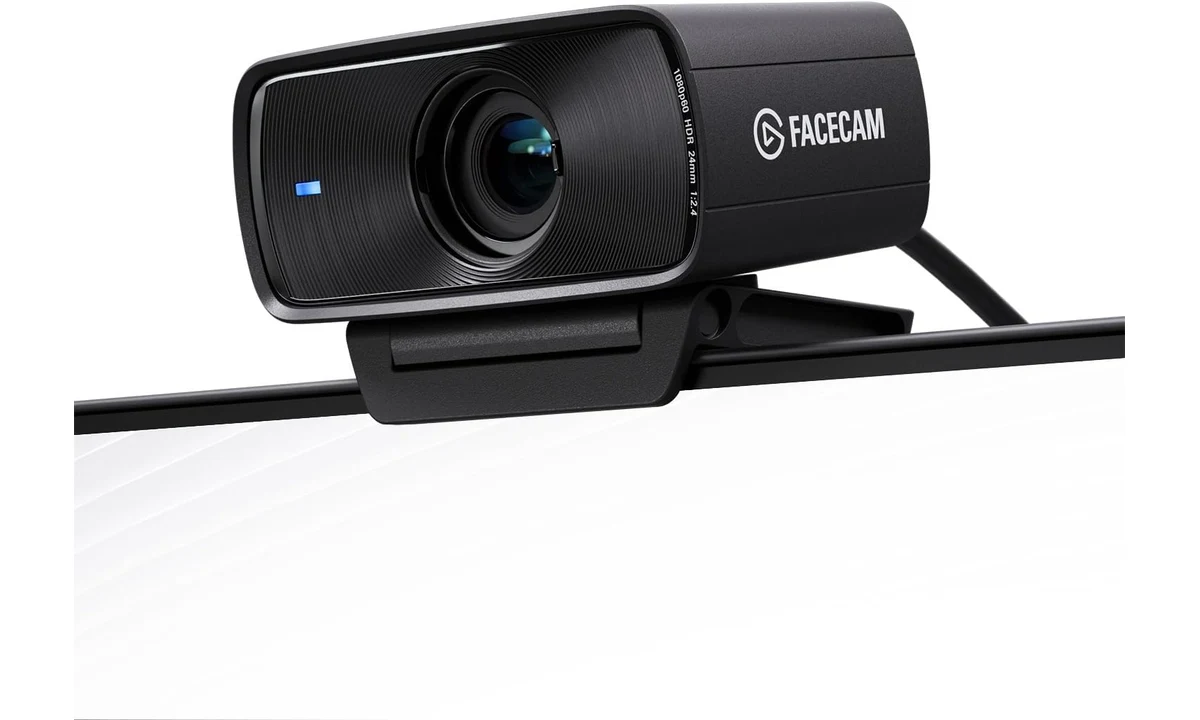
The Elgato Facecam MK.2 makes sense for a video desk where you sit within a predictable distance, use separate audio and want control over exposure rather than relying entirely on automatic decisions. Its Full HD video modes and saved settings are the main attraction. It is a less natural choice for someone who needs an all-in-one microphone and camera, regularly presents small objects close to the lens or primarily wants a simple laptop accessory.
This review concerns the black MK.2, not the original Facecam, Facecam Neo or Facecam 4K. It combines Elgato’s current specifications and setup guide with Tom’s Hardware’s original test. We have not measured its output ourselves. Software and firmware have evolved since launch, so current manufacturer requirements take precedence over historical review descriptions of operating-system support and connection options.
The camera expects a desk-distance subject
Elgato specifies fixed focus across a 30–120cm range. That is a deliberate design for a person sitting at a desk, rather than autofocus that continually hunts for a new subject. It can be useful when you want a stable seated shot, but it changes what the camera is suitable for. A small object held close to the lens may be outside the intended range.
Measure the approximate distance from the planned camera position to your face. A display far back on a deep desk and a laptop screen immediately in front of you create different arrangements. The mount may be convenient while the subject distance is not. Decide where the camera belongs based on the picture you need, not solely on the easiest place to clamp it.
For demonstrations, consider whether you present your face, a product in your hand or work on the tabletop. Those tasks can require different focus behavior and angles. Do not expect fixed focus to become autofocus through a software setting. A second camera or a different model can be a more appropriate tool when close-up presentations are central to the job.
The absence of focus movement is not a universal image-quality advantage. Someone moving beyond the desk or changing the camera’s distance repeatedly may prefer autofocus. The MK.2’s argument is consistency within a defined working position. Choose it when that position resembles your ordinary video use, rather than assuming every webcam feature should be judged on a single better-or-worse scale.
Full HD modes need a purpose
The MK.2 supports up to 1080p60, while HDR is specified up to 1080p30. Those are different operating choices, not a promise that the highest frame rate and HDR happen together. Think about the use: smoother movement may matter for a particular recording or stream, while ordinary conversation can be served by a lower frame-rate arrangement that behaves more consistently in the room.
Your meeting application can also limit what is transmitted. A camera capable of a particular local output does not establish that every call participant receives that same resolution and frame rate. Account settings, application behavior and the connection all intervene. Confirm the workflow before buying solely for a number that your usual calling platform may not use.
Higher frame rate does not automatically improve an underlit scene. The camera still needs an appropriate exposure arrangement, and image noise can remain visible. Put some attention into the light reaching your face and the brightness behind you. That can be more productive than repeatedly changing recording modes while leaving a strong window behind the subject and little illumination in front.
Tom’s Hardware found the HDR effect underwhelming in its original assessment. That is a useful limit on promotional expectations. It does not establish that the feature is useless in every scene, but it is a reason to avoid buying the camera solely to solve difficult lighting automatically. Treat HDR as an option to assess alongside deliberate room lighting and exposure settings.
USB capability changes the video path
Elgato’s current information specifies USB 3.0 for uncompressed video. USB 2.0 operation uses MJPEG instead. The practical point is that a physically compatible connector does not tell you which video path is available. Check the host port and the complete connection, including any hub, adapter or dock between the camera and the computer.
The removable USB-C cable is useful for routing and replacement, but a spare charging cable is not automatically an equivalent data cable. Choose an appropriately specified connection for the intended operation. A cable can fit correctly and still be unsuitable for the mode you want. Diagnose that possibility before assuming the camera is defective because an expected option is missing.
If your desk relies on a dock, test the camera through that dock while the other normal equipment is connected. External storage and other video devices can share resources. A successful test directly on a laptop does not establish identical behavior through every intermediate accessory. The CalDigit and Anker hub guides elsewhere on the site can help separate port availability from actual connection capability.
Simplify the setup when troubleshooting. Establish a known suitable direct connection, select a supported mode and confirm the image before reintroducing adapters. Changing the cable, application, lighting and port simultaneously makes it harder to identify the cause of a problem. A controlled sequence is especially useful where a desk contains several devices that all use similar-looking connectors.
Separate audio is part of the purchase
The Facecam MK.2 does not contain a microphone. That is an important buying condition, not a minor omission to discover during the first call. You need a suitable headset, computer microphone, speakerphone or separate recording microphone. Include that existing or additional equipment in the cost and desk-space calculation, particularly if you are replacing a laptop’s integrated camera-and-microphone arrangement.
A separate audio device can be an advantage when you already have a microphone that suits your voice and room. It lets the camera specialize in video without duplicating a microphone you will disable. However, the meeting software needs to select the correct audio input independently. Seeing your face in the preview does not establish that the call can hear you.
The Jabra Speak2 55 addresses listening and talking aloud in an appropriate room, while a headset addresses a different need for privacy. The Wave Neo and Q2U guides concern other voice-capture arrangements. Choose audio according to the call environment rather than assuming any microphone that produces a signal is equally appropriate for meetings, streaming and recording.
When changing applications or computers, verify both picture and sound. A saved camera setting cannot carry every audio selection with it. Keep a repeatable pre-call check for the devices that matter, especially where a dock or operating-system update can change the default input. The point is a dependable complete setup, not merely a camera preview that looks good in isolation.
Saved settings are useful on a consistent desk
On-device setting storage is one of the MK.2’s useful distinctions. It can reduce the need to recreate a preferred picture after reconnecting the camera. That matters on a permanent workstation where the camera, seating position and lighting are stable. It is less valuable if you carry the camera between rooms with entirely different illumination and expect one saved exposure to suit them all.
Elgato’s companion software provides controls such as exposure and white balance, with software naming and supported features evolving. Check the current download and support information for your computer. A feature shown in an older Camera Hub screenshot may appear differently in a newer application. The useful buying question is whether the required controls are available on the system you will actually use.
Start with a clear problem in the picture. If the face is too dark, assess lighting and exposure; if the colour looks wrong, assess the light sources and white balance. Avoid changing every control just because it is available. A small set of understandable adjustments is easier to maintain than a highly processed look you cannot reproduce after conditions change.
Saving settings does not calibrate every application’s output. A video-call platform may crop, process or reduce the stream after it leaves the camera. Preview the result in the actual calling or recording software rather than relying only on the companion application. The audience receives the final workflow, not the most flattering image in a separate configuration window.
Mounting, framing and the shutter
The supplied monitor mount and alternative threaded mounting option give you different placement routes. Use the manufacturer’s guide to install the camera securely, with appropriate cable freedom. A camera perched on a very thin display edge or competing with a monitor light bar deserves particular attention. The convenience of a clip is not evidence that every display or stacked accessory arrangement is suitable.
Elgato specifies an 84-degree field of view. That can include more of a room than you want to show, depending on the camera distance. Assess the background from the normal working position. Software cropping can help framing, but it is not the same as adding optical detail. A better physical position may produce a more useful picture without relying heavily on digital adjustments.
The integrated sliding shutter provides a visible way to block the lens when you do not want video. Check its position before starting a call and use it deliberately afterward. It does not mute a separate microphone or change the privacy settings of every application. Video obstruction and audio control are separate parts of the setup, particularly because this camera relies on an external audio source.
Tom’s Hardware appreciated the shutter and saved settings but criticized the bulky plastic body. That is relevant if you want unobtrusive hardware on a small screen. It is also a reminder that an expensive-looking specification list does not establish a particular feel or appearance. Check the dimensions and intended placement rather than assuming every Full HD webcam has the same physical presence.
Current software support comes before purchase
Elgato’s current requirements identify Windows 11 or macOS 13.3 and later. An older review may describe a previous baseline, so use the current support page when assessing compatibility. Do not assume that an old computer is fully supported merely because another generic USB webcam works with it. Basic video recognition and access to the complete current configuration software are different questions.
A work computer may also restrict application installation, camera permissions or firmware tools. Confirm those conditions if advanced controls are the reason for purchase. If software cannot be installed, assess the available ordinary operation and whether settings prepared elsewhere fit the organization’s policies. The webcam should integrate with the permitted environment, rather than require an informal workaround to become useful.
The manufacturer now documents USB 2.0 operation with a compressed video path, which differs from some launch-era descriptions. That does not erase the value of a suitable faster connection for uncompressed output. It means compatibility needs a precise question: which modes and controls work through your actual port, operating system and application? A simple compatible-or-incompatible label can hide those distinctions.
Alternatives and verdict
The Logitech C920x and Anker C200 already covered on TopDataLLC are useful comparisons when ordinary meetings, an integrated microphone or a different physical arrangement matter more than the MK.2’s particular video controls. Compare their exact features and current packages individually. A more elaborate camera is not automatically a meaningful upgrade when the main limitation is the room lighting or the calling application.
Choose the Facecam MK.2 for a stable seated position, separate audio and a deliberate video setup that benefits from saved settings and suitable Full HD modes. Choose another camera for close-up autofocus work, a genuinely different resolution requirement or an all-in-one call accessory. The MK.2 is a capable category of desk tool when its constraints match the job, rather than a universal replacement for every built-in webcam.