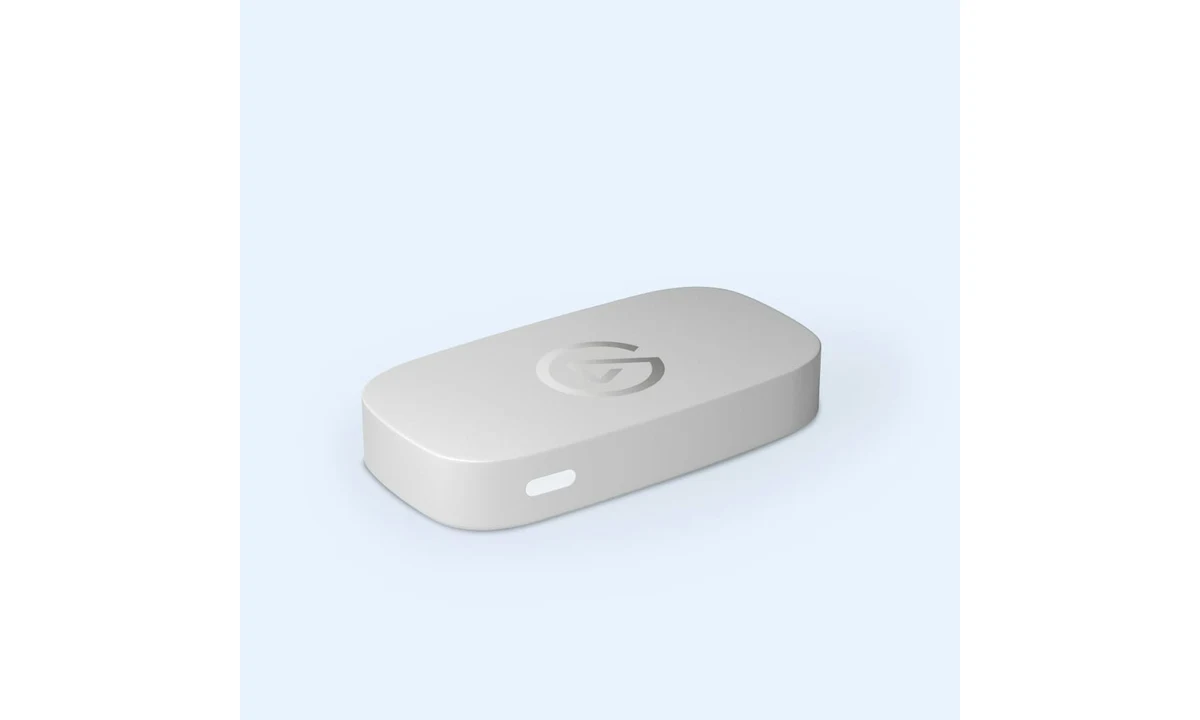
The Elgato Game Capture Neo is an external capture card for people who want a separate computer to record or stream gameplay from an HDMI source. Its central compromise is straightforward: you can pass a higher-resolution picture through to a display while recording at a lower resolution. That is useful for many streaming setups, but it is not the same as making a high-resolution HDR recording.
The sensible buying decision starts with the video you want to publish and the picture you want to play on. If ordinary full-HD capture meets the project, the Neo offers a relatively approachable route. If the plan depends on higher capture resolution or a high-refresh gaming display retaining every feature through the card, identify those requirements before choosing a model around its simplicity.
Separate capture from passthrough
Elgato's current technical specification lists passthrough up to 4K60 HDR and capture up to 1080p60. Passthrough is the signal sent onward to the connected display. Capture is the signal supplied to the recording or streaming application. These two limits describe different jobs and should not be combined into a claim that the Neo records 4K HDR video.
For HDR input, Elgato says the card uses onboard tone mapping to convert captured video to standard dynamic range. That can help a compatible HDR gaming setup produce an SDR recording, but it is a conversion rather than preservation of an HDR master. If an HDR editing or delivery workflow is essential, choose equipment explicitly documented for that recording requirement.
A capture card also sits inside a chain of other equipment. The console or source, cables, display, host computer and application all need to support the selected arrangement. A maximum specification on the Neo does not upgrade another component. Work from the intended source and final recording backward, checking each link rather than assuming a successful HDMI picture proves the whole capture workflow.
Write down your required capture format and display mode before comparing cards. This prevents a common mismatch: buying for a prominent passthrough number and discovering that the recording limit is the one that actually matters to the project. The Neo can be a sensible compromise when those two requirements are understood from the outset.
Connections and the host computer
The card provides HDMI input, HDMI output and a USB-C connection. Elgato specifies USB 3.0 at 5Gbps for the host connection and describes the HDMI input as unencrypted. The input goes to the source, the output goes to the gaming display where used, and USB carries the captured signal to the recording computer or another supported host.
A USB-C-shaped port alone is not a complete compatibility check. Confirm the host's data capability and the cable being used. A cable chosen mainly for charging, or an adapter whose data specification is unclear, can become the weak link. Use the manufacturer's setup guidance for the actual computer rather than treating any physically matching connector as sufficient.
Elgato's setup instructions recommend a direct suitable USB connection rather than a USB hub. That is especially relevant for laptops already sharing a dock among storage, a webcam and other peripherals. If a dock is central to your desk, determine whether the capture card can have its own appropriate connection before assuming everything can remain on the same accessory chain.
Check the current system requirements for your intended recording application as well as the capture hardware. The presence of a captured picture does not establish that the computer can run your planned scenes, encoding settings and other applications comfortably at the same time. Assess the complete session you intend to create, not just a brief preview with nothing else open.
Package contents changed
Elgato's support specification, updated in November 2026, lists a USB 3.0 C-to-C cable and says the previously supplied Type-C-to-Type-A cable has been discontinued. Older product-page text and PC Gamer's original review describe the earlier cable. This is a meaningful package change, so check the exact retailer offer and the cable required by your own host.
An HDMI cable is not included according to the same current support document. Plan the cables for the source-to-card and card-to-display connections where both are needed. Do not assume a photograph of a completed setup represents everything in the box. The card's straightforward design is most convenient when the required connections have been identified before it arrives.
Stored stock and imported offers may not contain the same USB cable as the current package description. That does not necessarily mean the capture hardware is different, but it changes what you need to connect it. Match the actual contents rather than treating one older unboxing video or a generic marketplace image as definitive for every current purchase.
The unit itself is small and designed to sit discreetly beside the setup. Leave room for the connected cables, not only the body. A compact device can still need considerable clearance behind it, particularly where HDMI leads have substantial plugs. Avoid arranging the card so cable tension is continually trying to pull it off the available surface.
Preview is not the playing display
PC Gamer's original evaluation found the Neo easy to detect in OBS without first installing Elgato's capture application. That is useful evidence of an approachable setup in the tested environment, not a promise that every host and application combination will require no configuration. You still need to select the correct source, format and audio path in your chosen software.
The same reviewer distinguished playing in a software preview from playing through the passthrough display. The preview was workable for some slower-paced play but introduced a noticeable disadvantage in a more reaction-sensitive game. This is one of the most useful practical findings in the review: a viewable preview is not automatically the best place to play.
Where your setup includes a separate gaming display, use the intended passthrough arrangement and judge the recording separately. That lets you evaluate the experience you will actually use rather than concluding that the card is unsuitable because a software window behaves differently. Conversely, if the whole plan depends on playing in a preview window, investigate that requirement specifically before buying.
Do not convert the manufacturer's low-latency description into a promise of identical timing across every software preview or device. Different paths through the setup have different purposes. Understanding which picture you are watching is more useful than treating a general latency phrase as though it describes every possible way the card can be connected.
Choosing software and audio paths
Elgato currently lists its Studio application alongside OBS Studio, Streamlabs Desktop, XSplit and other supported software examples. Choose the application that suits the project, then check its current instructions and operating-system support. The names on a compatibility list do not establish that all applications expose identical controls or behave the same way on every platform.
For a simple recording, start with a straightforward source and confirm that picture and sound arrive together. Add overlays, alerts and additional inputs only after that basic arrangement is understood. This makes a problem easier to locate than assembling an elaborate scene first and then trying to determine whether a fault comes from the card, source, application or another accessory.
Audio deserves its own check. Gameplay sound, a separate microphone and voice chat may follow different routes through a console or computer setup. Do not assume that hearing something in your headset means it is included in the recorded HDMI feed. Verify the actual recording and consult the source platform's instructions for the audio you intend to capture.
The unencrypted-input requirement also matters when choosing a source. A capture card is not a way to disregard the restrictions of protected video services or content. Check the relevant platform's supported capture setup and use the Neo for material you are entitled to record. A working HDMI output alone does not establish that every kind of video can be captured through it.
Judge the recording you will deliver
The most useful initial test is an ordinary example of the content you plan to produce. Include movement, text or interface elements that matter to the audience, and listen to the captured audio. Looking only at a stationary preview can hide choices that become obvious during playback. The correct settings are the ones that produce a suitable result for the intended project.
PC Gamer reported consistent recording quality during its longer tests and praised the simplicity of changing between supported sources. Those are encouraging observations, while still belonging to that review's equipment and conditions. They do not establish a reliability guarantee for a different laptop, an unsupported adapter or a recording application configured beyond the host's practical capabilities.
Think about storage and file handling before a long session. Decide where recordings will go, how you will identify them and whether the computer has room for the project. The capture card creates an input path; it does not organize the files or ensure that the destination remains available. A simple workflow around naming and checking a recording can prevent avoidable confusion later.
If your destination is a streaming service, distinguish the local capture capability from the settings and limits of the actual stream. Upload conditions, application configuration and the destination's requirements remain part of that decision. A card's maximum input or capture figure does not guarantee that viewers will receive the same format under every network condition.
Limits and alternatives
The Neo is not the right starting point if higher-resolution recording is a firm requirement. Compare cards whose official capture specification matches the project, and include the demands placed on the host. Paying for a higher capability is worthwhile when you can identify the job it enables, rather than simply because a larger number appears in a comparison chart.
High-refresh gaming is another reason to check the exact passthrough requirements closely. The Neo's documented ceiling is oriented around the listed lower frame-rate modes, not every capability a modern gaming display may offer. If preserving a particular display mode is essential, obtain explicit support for it instead of assuming the HDMI connector carries all features unchanged.
A capture card may be unnecessary if the source's built-in recording tools already produce the material you need. The Neo is more compelling when a separate host, recording application or broader production arrangement solves a real limitation. Compare the complete workflow with and without the card before adding another device and its cables to the desk.
For someone already using an appropriate Elgato card, a simpler-looking enclosure is not by itself a reason to replace it. Check which actual connection, capture or workflow problem the Neo would solve. Its role is to make a suitable capture arrangement approachable, not to outperform every existing model or supply features beyond its own specification.
Verdict
Choose Game Capture Neo when documented 1080p60 capture fits the project, the available host and direct USB connection meet the requirements, and the passthrough modes match the display you want to play on. Its simple external arrangement and positive original review make it worth considering for that specific role. Confirm current cable contents before ordering.
Choose another solution when you need HDR recording, higher capture resolution, a different high-refresh display path or a preview-only playing experience that has not been verified for your setup. The Neo's limitations are manageable when they are deliberate choices. The strongest purchase is one based on the complete capture path, with the recording and passthrough requirements kept clearly separate.