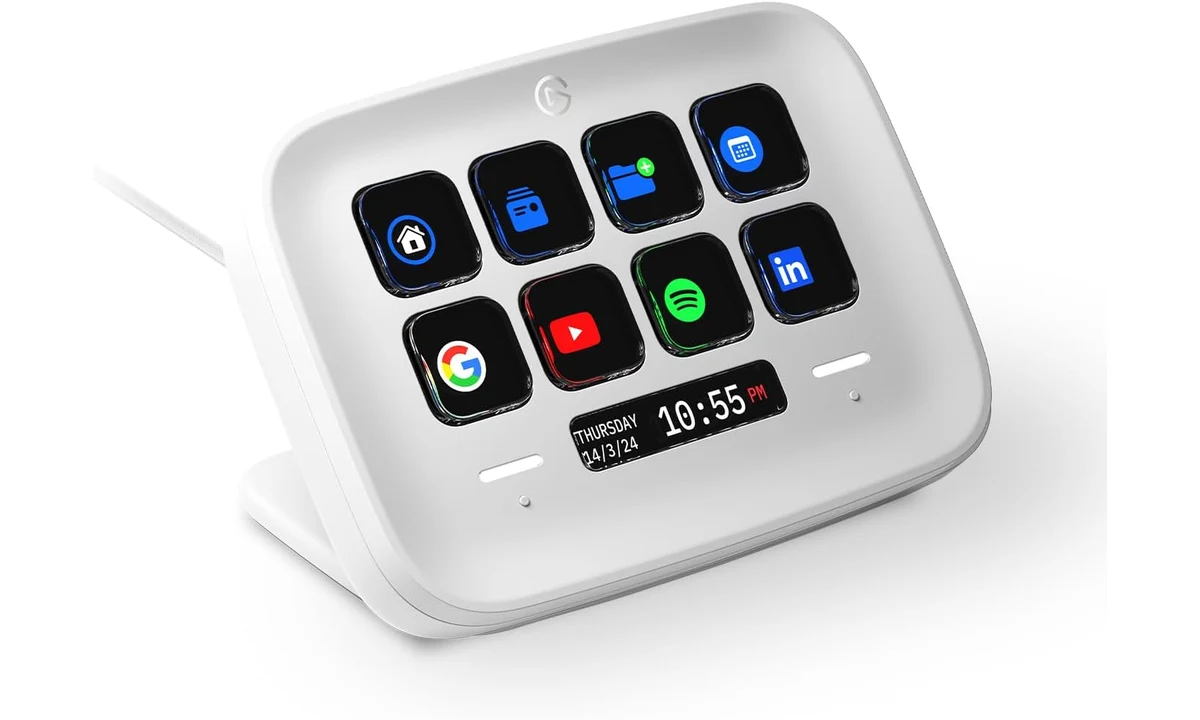
The Elgato Stream Deck Neo is useful when you repeatedly reach for the same desktop commands and would prefer clearly labeled physical keys. It is less compelling when your shortcuts change constantly or your work computer cannot run the required software. Before choosing it, identify the actions you want to make easier. Buying a shortcut controller without that list risks adding another object to the desk rather than improving a routine.
This review covers the white Stream Deck Neo, model 10GBJ9901. It draws on Elgato’s current specifications and getting-started material, with Tom’s Hardware’s original review providing independent context. We have not evaluated a physical review unit. Software features can change after a review is published, so current compatibility and the actions available in your applications take priority over historical screenshots or assumptions about the name Stream Deck.
What the hardware puts within reach
The Neo provides eight customizable LCD keys, two Touch Points and an Infobar, with an integrated adjustable stand. The key labels are the practical distinction from memorizing another set of keyboard combinations. A visible icon can help you locate an occasional command without remembering which modifier keys it uses. The benefit depends on making those labels recognizable at a glance, rather than simply making them attractive.
Eight visible keys also impose a useful constraint. You need to decide what deserves immediate access. If a command is used rarely, putting it on the main page may displace something you perform constantly. An uncluttered selection of frequent actions can be more helpful than demonstrating every possible integration. The most successful layout is the one you can operate confidently during your ordinary work.
Elgato’s software offers pages, folders and Multi Actions to expand the arrangement. These are useful organizational tools, but each extra layer adds navigation. A controller that seems too small for your workflow may remain too small after creating many pages, because you still need to find the right one. Separate occasional utilities from actions that must be available immediately during a call or recording.
The Neo has physical keys rather than analog dials. It can invoke supported commands, but it does not provide the same interaction as turning a dedicated volume or adjustment knob. If continuous tactile adjustment is the main goal, compare a controller designed around that input. Do not assume a page of up and down buttons is an equally comfortable substitute for every task.
Computer compatibility is a purchase condition
Elgato’s current product information specifies Windows 11 or macOS 13 and later. An older independent review can describe a previous operating-system baseline, which should not be treated as the current requirement. Confirm the latest support details for your actual computer before ordering, particularly if the machine is deliberately held on an older operating-system version for other software.
A managed work computer raises another question: can you install the application and any required integrations? A USB connection alone does not guarantee that a company permits companion software or plug-ins. If installation is restricted, get a clear answer before spending money. The Neo is not a standalone computer that can bypass those restrictions or provide access to applications you do not already have.
Application compatibility needs the same care. An integration may depend on a particular version, account permission or separately installed component. A logo in a product demonstration does not establish that every feature of that application will be available on your machine. List the specific action you need, such as a particular meeting control, and confirm how it is implemented rather than relying on the app’s name.
This matters for shared computers too. A layout that assumes your personal application paths or accounts may not suit another user. Decide whether each person can maintain an appropriate profile and whether that arrangement fits the organization’s policies. The hardware can make a workflow easier to reach, but the underlying software environment still determines what the command can actually do.
The fixed cable and stand deserve attention
The Neo connects through a fixed USB-C cable specified at 90cm, using a USB 2.0 Type-C interface. The issue is reach and routing, rather than needing a high-bandwidth port for a simple controller. Check the distance from the intended desk position to an available connector, including the path around a monitor arm or the back of a desktop computer.
A fixed cable is less flexible to replace or reroute than a detachable lead. Tom’s Hardware identified the non-detachable cable as a drawback while appreciating the folding stand. This is a useful ownership distinction: if the cable reaches your setup comfortably, it may disappear from daily attention; if it is too short, you need an appropriate connection arrangement before the controller can sit where it is useful.
Elgato lists dimensions of 107 × 26 × 78mm and a weight of 210g. Those figures describe the device, not the complete hand space around it. Leave room to press a key without knocking a mug or moving the keyboard. Put it somewhere reachable while your eyes remain on the screen, then assess whether the stand angle makes the labels readable from your normal seating position.
An attractive location beside the monitor may be less useful than one closer to your working hand. Conversely, a location beside the mouse can be crowded during detailed pointer work. Treat placement as part of the trial, rather than assuming the position in a promotional photograph will work on every desk. The benefit is physical access to commands, so physical access should drive the arrangement.
Build a useful first page
Start with actions you already perform and understand. Opening a working folder, launching a regular application or invoking a familiar shortcut is easier to validate than a complicated sequence spanning several accounts. Give each key a short, unambiguous label. A clever icon that you repeatedly misinterpret is less useful than plain text that tells you exactly what will happen.
Group actions by context. A meeting page and an editing page can be easier to understand than one mixed collection of unrelated commands. However, avoid hiding a frequently needed control behind several layers merely to maintain visual symmetry. A layout should reflect how you work under time pressure, including the mistakes you are likely to make when switching between applications.
Multi Actions can combine steps, but a sequence should be tested against ordinary failure conditions. What happens if an application opens slowly, a dialog is already present or the wrong window has focus? A command that works during a quiet demonstration may behave differently during a busy session. Keep sequences modest until you understand what each step assumes about the computer’s state.
Do not store passwords, recovery codes or other secrets in a convenient text macro. A key that types sensitive material is not an appropriate credential manager. Likewise, avoid assigning irreversible actions to an easily confused key without a suitable confirmation in the underlying application. Convenience is most valuable when it reduces routine friction without creating a new class of expensive mistakes.
A button press does not always prove the result
A shortcut can send a command without proving that the application accepted it. A meeting mute key is an obvious example: if it simply toggles a keyboard shortcut, its label may not reflect the actual microphone state unless the integration supports reliable feedback. Check the real application indicator rather than assuming that an illuminated key always confirms the result.
For recording, publishing or live production, verify the complete workflow before relying on the controller in front of an audience. Test the correct application window, device selection and permissions. The Neo does not supply a streaming computer, microphone, application licence or account authorization. It is a control surface for an existing setup, and each part of that setup still needs to work independently.
Plug-ins can broaden the available actions, but review what you install and where it comes from. Some optional tools may involve separate payment or permissions. Do not treat every demonstrated extension as included with the hardware. A simpler built-in shortcut can be preferable when it performs the job reliably and avoids a dependency you do not want to maintain.
Historical reviews versus current software
Tom’s Hardware’s review discussed restrictions on customizing the touch controls and Infobar at the time of testing. Those observations are relevant to the product’s development, but software changes can alter them. We do not present those historical restrictions as permanent current facts. If a particular navigation behavior is essential, confirm it in the current software documentation or a current demonstration before buying.
The same principle applies to attractive new features. A later screenshot showing an option does not prove that your application, operating system or plug-in supports it. Separate the controller’s physical controls from software-dependent behavior. The hardware arrangement is straightforward; the value of a particular action depends on the software ecosystem available to your computer and workflow.
Neo versus the larger Stream Deck MK.2
The Stream Deck MK.2 already covered on TopDataLLC provides fifteen visible keys, compared with the Neo’s eight. More immediate controls can be valuable when you need many commands without page changes. That does not automatically make it the better purchase for someone who only wants a small collection of office shortcuts. Count genuinely frequent actions before paying for a larger control surface.
The Neo’s integrated stand and compact layout appeal when you want a smaller desk presence. The MK.2 deserves consideration if your first useful layout already exceeds what the Neo can show comfortably. Avoid assuming that unlimited folders remove every disadvantage of fewer keys. Navigation has a mental and physical cost, especially while speaking, presenting or monitoring another application.
A keyboard shortcut remains a credible alternative. If you already use a command fluently without looking away, moving it to another device may add little. A programmable keyboard or mouse button can also handle a limited set of actions. The Neo is strongest where visible labels help you find useful commands that would otherwise remain forgotten or buried in menus.
Include maintenance in the decision
Allow for occasional software updates and reassessing actions after an application changes its shortcuts. A controller layout is not a permanent substitute for understanding the underlying command. Keep a small set of essential actions easy to verify, and remove keys you no longer use. If maintaining that arrangement sounds more burdensome than the existing keyboard shortcut, the extra hardware may not earn its place. The benefit should survive normal software changes rather than depend on a one-time demonstration.
Verdict for an everyday desk
Buy the Stream Deck Neo when you can name a modest set of repeatable actions, have a supported computer and can place its fixed cable comfortably. Build the layout gradually, test application feedback and keep sensitive or irreversible actions out of casual reach. Its useful contribution is making a known workflow easier to operate, rather than inventing a productive routine on your behalf.
Choose a larger controller when immediate access to many controls matters, or keep existing keyboard shortcuts when they already work well. Check current software support before treating any integration as decisive. The Neo is a sensible entry point for a focused desk workflow, provided the keys solve specific inconveniences and you are willing to maintain the software arrangement behind the appealing physical interface.