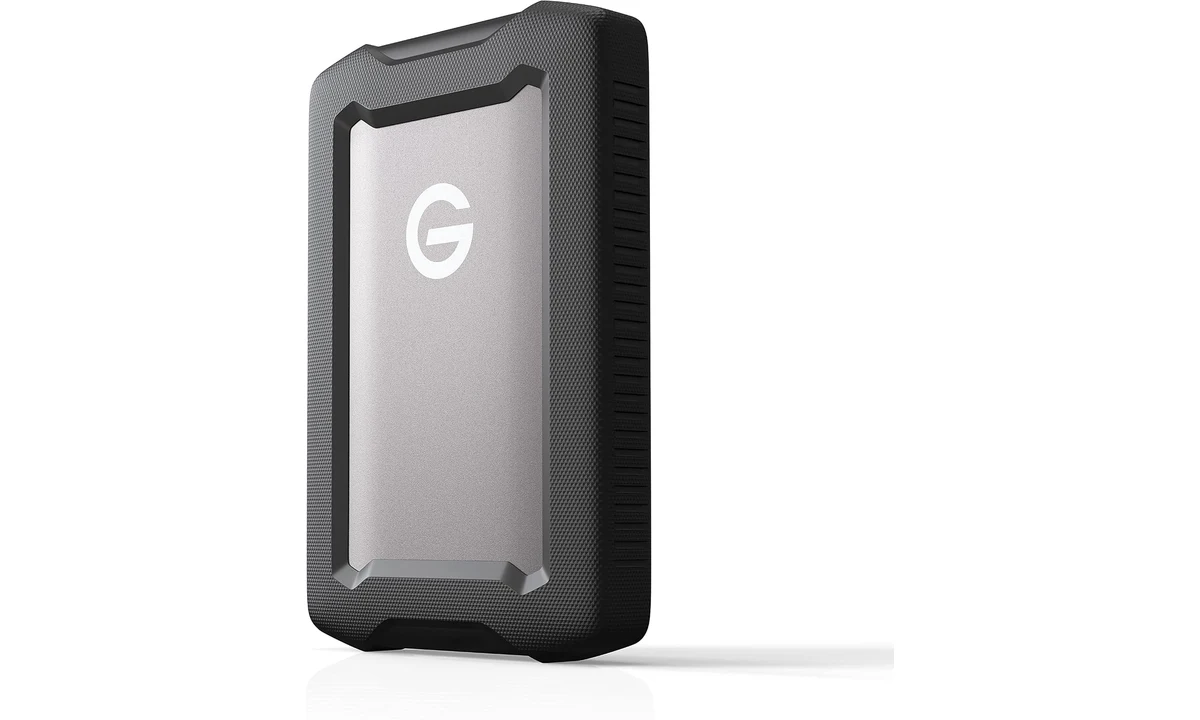
The G-DRIVE ArmorATD 2TB is a portable hard drive for someone who wants a more protective housing around bulk storage and accepts the limits of a mechanical disk. Its bumper and aluminum enclosure are useful physical features. They do not make it a solid-state drive, a complete backup system or a safe place to keep the only copy of an important collection.
This assessment concerns SDPH81G-002T-GBA1D, sold under SanDisk Professional and G-DRIVE branding. We use Western Digital’s current datasheet alongside original StorageReview and TechRadar evaluations. Those reviews concern earlier samples and published specifications, so we do not transfer their benchmark numbers or old dimensions to the current retail unit. TopDataLLC has not performed a drop, water-resistance or transfer-speed test on this drive.
Mechanical storage fits a particular kind of work
The ArmorATD contains a portable hard disk, rather than flash storage. It makes the most sense for moving larger collections, keeping an additional archive or carrying a copy between locations when outright responsiveness is not the main requirement. A person copying a folder after a trip is making a different demand from someone running a demanding project directly from the drive throughout the day.
A mechanical drive has work to do when finding and reading files. A collection containing many small files can behave differently from one large sequential transfer. The host, file system and workload all matter, so a headline sequential maximum should not become an estimate for every folder you copy. Plan around the actual kind of material you store rather than assuming all transfers are equally straightforward.
StorageReview’s original 2TB evaluation found performance appropriate to a portable hard drive, with solid-state alternatives much faster. That is useful context for the product category. It does not mean its exact results describe a current sample under your workload. If you need fast working storage, the Samsung T7 Shield and Crucial X9 Pro guides on TopDataLLC address different portable-SSD decisions worth considering.
The ArmorATD can still be useful alongside an SSD. One drive might hold an active project while another stores an independent copy. That is a workflow decision rather than a claim that the slower drive should be used for every task. Choose each role deliberately. A robust-looking housing should not persuade you to put a latency-sensitive job on mechanical storage when another design better fits it.
Two terabytes need a capacity plan
The 2TB label is nominal capacity. The space available to the operating system is lower, and the way capacity is displayed can differ from the decimal figure used on packaging. Leave room for the files you intend to add, not just the collection you already have. A drive that barely fits today’s archive can become awkward before the next substantial set of photos or project files arrives.
Count the kinds of copies you actually want. A working folder, exported versions and a versioned backup can consume different amounts of storage. Do not assume that buying a drive slightly larger than a computer’s current used space will necessarily support every future backup arrangement. The software’s retention rules and the rate at which your material changes affect the useful capacity.
For an evolving photo collection, decide which files are originals and which are edited or exported variants. A copy of a small sharing image is not a replacement for the original scan or camera file if that original matters to you. The new FastFoto review addresses the scanning stage; storage planning is the next task, not something the scanner’s save button settles automatically.
Avoid treating a full drive as a cue to delete original material hurriedly. Review the available copies, confirm what is important and expand the storage arrangement deliberately. The cost of another suitable destination should be assessed against the value of the material, rather than against the appeal of keeping every file on one portable object. Nominal capacity is useful only within a workable preservation plan.
USB-C does not make it a fast SSD
The current manufacturer datasheet describes a 5Gbps USB connection and a read maximum of up to 130MB/s under its conditions. These numbers describe different parts of the path. The USB link’s potential signaling rate is not the same as the disk’s sustained file-transfer result. A compatible faster computer port cannot make a mechanical drive deliver the performance of a portable SSD.
The Thunderbolt-compatible description also needs that distinction. It means the USB drive can be used with an appropriate compatible host connection, not that it becomes a native Thunderbolt storage device. Buyers comparing two USB-C-shaped products should look past the socket. The underlying storage mechanism and actual interface remain more informative than the appearance of the connector alone.
The documented package includes USB-C-to-C and USB-C-to-A cables. That is convenient for moving between different computer ports without assuming every machine has the same sockets. Check the current retailer’s exact package, particularly if buying a used or different regional offer. A replacement lead needs to support the required data connection; a lead kept for charging a small accessory is not automatically equivalent.
If transfers seem unexpectedly slow, simplify the route before assigning blame to the disk. An older hub, adapter or busy shared connection can affect the path. Establish an appropriate direct connection, try representative material and observe whether the problem is consistent. Changing the drive, cable, hub and software together makes the result harder to interpret and can conceal which part actually needed attention.
Protection is a set of conditions, not an invitation to test it
Western Digital describes IP54 protection under its own test conditions. That concerns splashing and limited dust exposure, not submersion. The datasheet also says the unit must be clean and dry before use. A covered connector and a bumper should not be interpreted as permission to connect wet equipment or leave the drive in standing water because its category is described as rugged.
The enclosure can reduce certain physical risks, while the disk inside remains mechanical storage. Handle it sensibly and follow the maker’s operating conditions. Do not perform a casual drop demonstration on a drive containing material you need. A protection claim addresses a defined test arrangement; it cannot establish that every angle, surface, operating state and accident will leave the hardware and files unaffected.
TechRadar’s original assessment distinguishes solid construction from splash-only protection and ordinary hard-drive performance. That balance is more useful than treating ruggedness as an all-purpose reliability score. A drive can be appropriate for carrying between locations and still need a suitable bag, careful cable handling and an independent copy of the files. Physical protection is one part of ownership rather than a replacement for the rest.
The current datasheet gives the 2TB model a body measuring 130mm by 87mm by 24mm. Earlier reviews show different thickness figures, which is why this review follows the current record for this SKU. Check the space in the bag or drawer where it will live, including the cables. A protective body has little practical benefit if you cannot carry it in the arrangement you actually use.
Check the file system before a transfer becomes urgent
The manufacturer describes the drive as ready for Mac use, with reformatting required for Windows. That is important for someone expecting an ordinary plug-and-copy Windows purchase. It is not necessarily a difficult setup requirement, but it should be understood before the drive is needed to receive a large urgent transfer. Recognition of attached hardware and the ability to write to its file system are different things.
Reformatting can erase existing contents. Preserve and verify anything needed before changing the file system, and follow the relevant computer and manufacturer instructions. Do not experiment with formatting a drive containing the only copy of an archive. A blank new purchase and a previously used drive are different starting points, even if the same software offers the same controls for both.
If you move between operating systems, choose the file-system arrangement around actual compatibility and the intended job. A shared file shuttle and a dedicated versioned-backup destination can have different requirements. Check the software and systems involved rather than assuming the most portable-looking format is ideal for every purpose. This review does not prescribe one formatting choice for every mix of machines.
After setup, test a small set of unimportant files before committing the main collection. Confirm that you can write, disconnect appropriately, reconnect and open the files on the intended computer. That practical check is more useful than merely seeing the disk icon. It can expose a compatibility or permission issue while the original files still remain safely available elsewhere.
A copied folder and a backup are not always the same thing
A portable drive can hold a backup, but purchasing it does not create one automatically. You need a process that copies the intended material, checks it and repeats when the originals change. If the computer’s files evolve while the drive remains untouched in a drawer, the copy gradually becomes less representative. Decide how you will know the last successful copy occurred and which files it includes.
Versioning serves a different purpose from keeping only the latest folder. A simple mirror can reproduce an accidental deletion or unwanted edit, while a suitable history may preserve an earlier state. The right arrangement depends on the material and software. The ArmorATD itself does not decide which changes are mistakes, select a retention policy or confirm that every future restore will be useful.
Keep important copies independently. A laptop and its portable drive in the same bag share some risks, including theft or damage to the bag. Another location or suitable independent backup destination addresses a different problem from the bumper around this disk. The point is not to make the arrangement complicated; it is to avoid describing two objects traveling together as protection against every form of loss.
Test restoration as well as copying. Open representative files from the saved destination and, where appropriate, practice recovering material without overwriting the working original. A successful progress indicator is encouraging, but it does not by itself establish that the file you will need later is present and readable. Make that check part of the routine while there is still time to correct an omission.
Everyday handling and alternatives
Use the operating system’s appropriate disconnect process and allow transfers to finish before removing the cable. Keep the connection free from strain while the drive is working. Portable storage is easy to move casually, particularly when the enclosure feels substantial, but the task is still reading and writing data. A clear place on the desk can be more useful than letting the drive hang from a crowded adapter.
A plain portable hard drive, such as the WD Elements already reviewed on the site, is worth comparing when the drive mostly stays on a sheltered desk. A portable SSD is a more relevant comparison when fast working transfers and a smaller object are the priority. Do not assume that protection-oriented mechanical storage is the automatic middle answer; compare its current price and actual role with both categories.
Choose the ArmorATD 2TB for deliberate bulk-copy or archive duties when its protective housing, supplied connections and capacity fit the routine. Choose another design when high responsiveness is essential or when ordinary stationary storage makes the extra enclosure unnecessary. Its strongest purchase case is a useful additional copy in a realistic handling and backup plan, with hard-drive performance and splash-protection limits clearly understood.