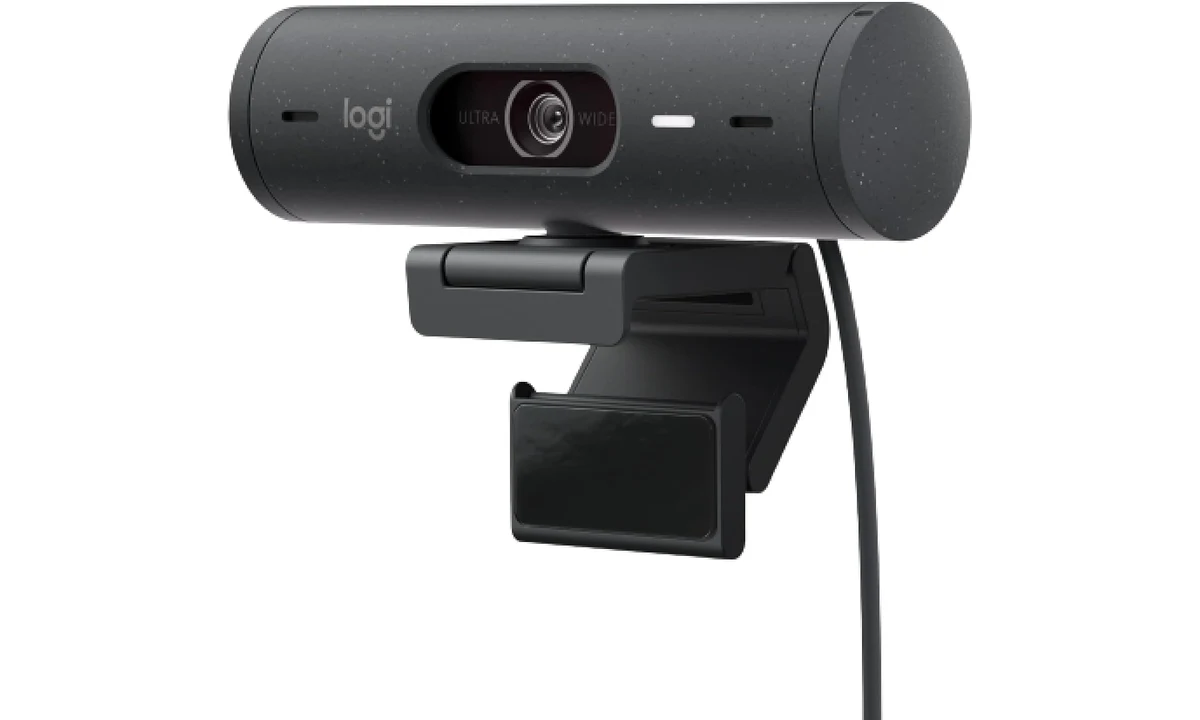
The Logitech Brio 500 is most persuasive when your main job is joining meetings, staying sensibly framed and occasionally showing something on the desk. Its autofocus, integrated microphones and physical shutter make it a more complete call accessory than a camera that expects separate audio. The compromise is that this remains a Full HD webcam with a fixed USB-C lead and advanced features that depend on supported software.
This review concerns the Graphite Brio 500, not the different Brio 4K or MX Brio. Logitech’s current product information and setup guide establish the intended workflow, while Tom’s Hardware’s original review supplies independent observations about image adjustment and microphones. We have not measured the camera ourselves. The recommendation depends on the computer, room and applications where you intend to use it.
Start with the meeting, rather than the resolution label
The Brio 500 offers 1080p at thirty frames per second, with a faster frame-rate option at 720p. That is a useful range for ordinary conversation, but it is not the same specification as a camera offering Full HD at a higher frame rate or native 4K. If the reason for upgrading is detailed local recording, choose around that requirement rather than the broad Brio family name.
For a video meeting, the application can reduce or process the camera stream before another participant sees it. Your account settings, connection and platform can matter as much as the local capture mode. Before paying for a specification upgrade, check what your regular software actually transmits. A sharper preview in one configuration window does not demonstrate that every remote participant will receive the same improvement.
Think about your existing problem in concrete terms. Is the laptop camera too low, is the face too dark, does movement take you out of frame, or is the microphone inconvenient? Those are different problems. The Brio 500 can address several within a supported setup, but replacing a camera will not move a bright window away from behind you or remove another person’s conversation from the room.
A person who already uses separate audio and carefully adjusted lighting may value different features. The Facecam MK.2 guide on TopDataLLC describes a fixed-focus alternative built around a more deliberate video desk. The Brio’s stronger case is convenience for meetings, especially when autofocus and integrated call audio are useful. Compare the complete setup rather than choosing a webcam solely because its product line sounds more premium.
Autofocus helps with changing distances, within reason
Autofocus is useful when your position changes during a conversation or you occasionally hold an object up to show it. Unlike a fixed-focus camera, the Brio 500 can adjust the focus plane as the subject distance changes. That does not make it a dedicated close-up product camera. Small lettering, reflective surfaces and awkward lighting still need an appropriate camera position and a realistic expectation of the available detail.
For a demonstration, decide whether the important subject is your face, the item in your hand or a page on the desk. Trying to make all three equally clear in the same frame can be harder than choosing one intended subject. Move and frame the camera purposefully, then look at the result in the actual meeting application. The audience sees that final picture, rather than the product photograph or software marketing example.
If the image keeps changing while you remain seated, assess the lighting and background before changing several controls. A bright moving object or someone walking behind the desk can alter what an automatic camera encounters. A stable environment makes automatic behavior easier to evaluate. More control is helpful when there is a specific issue to solve, rather than a reason to adjust every available setting immediately.
Show Mode is a useful change of angle
Show Mode is designed for sharing physical work by tilting the camera toward the desk. That can suit a sketch, a small layout or a handwritten explanation that is easier to show than describe. It offers a different workflow from holding every item near your face. However, it still uses the same camera and mount; it does not add a second overhead lens or automatically make an unsuitable desk area visible.
Consider the camera’s height above the page, the display’s position and what the lens can see when tilted. A large monitor placed well behind a deep desk may create a different result from a laptop close to the working surface. Check whether the required area is actually in view. The useful question is how the arrangement serves your documents, rather than whether the camera can physically point downward.
Logitech requires Logi Tune for Show Mode. A work computer that accepts the basic webcam but prevents installation of companion software may therefore not provide the full experience you are buying for. Confirm that condition early. The hardware being recognized as a camera is only one level of compatibility; the extra framing and presentation features introduce another dependency.
For frequent demonstrations, compare this approach with a separate overhead camera or document camera. A dedicated position can preserve your face view and keep a large page framed more consistently. It costs desk space and another connection. Show Mode is attractive for occasional sharing when the simple tilt suits the task, rather than as a universal replacement for a regular demonstration station.
Before relying on Show Mode for a meeting, make a sample with the smallest writing or object detail you expect to share. Ask another participant to assess it at their normal viewing size. If they need to enlarge the call substantially to read it, a scanned document or a separate document-camera arrangement may communicate the information more clearly. The value of the feature is whether another person can understand the work, not merely whether the page appears somewhere in the preview.
Auto-framing and field of view need restraint
The Brio 500 offers framing choices through supported software, with a wide view available and narrower options for a single person. A wide frame can help a small group fit in, but it can also show more of a room than you intended. Look beyond the face in the preview. Doors, shelves and private documents can become part of the scene when the camera takes in a larger area.
RightSight auto-framing depends on Logi Tune. It can help keep a person centered within the available view, but it is not a motorized camera following someone around an unlimited room. The underlying position and available image remain constraints. If movement is central to your presentation, check the whole activity rather than testing only a small shift in the chair.
A narrower crop can make an ordinary call look more focused without reorganizing the entire background. It also reduces how much of the original frame is used. Do not interpret digital framing as extra optical detail. Choose a comfortable physical position first, then use software to refine it. That keeps adjustments purposeful and avoids buying a wide-view webcam only to spend every call correcting its placement.
Automatic image adjustment is helpful, but visible
Tom’s Hardware’s reviewer found the Brio 500 effective at making a person visible in less-than-ideal light, while observing that its automatic exposure could be aggressive. That is useful evidence of its meeting priorities. A face that remains clearly visible can be more important during a conversation than maintaining the exact appearance of every bright object elsewhere in the room.
The tradeoff is that an automatically adjusted picture may not match the look you want for recording or colour-sensitive demonstrations. Test the relevant materials, especially if the call involves showing artwork, fabric or a product finish. A pleasing face image and accurate-looking materials are not always the same evaluation. This review does not certify the webcam as a reference colour-capture system.
Logi Tune provides image controls, but the original review found its adjustment precision limited compared with more specialized tools. Someone who wants extensive manual control should compare that workflow directly. The Brio 500 is easier to justify when its automatic behavior already gets you close to the desired result. It is a less obvious purchase when you expect to defeat most of that automation immediately.
USB-C and the fixed cable affect desk fit
The camera has an attached USB-C cable. That is convenient when the right computer connection is nearby and less flexible when you need another lead length or a replacement cable. Confirm where the port sits and how the cable reaches it with the monitor in its normal position. A camera mounted neatly on a screen can still create a strained or awkward cable route behind the desk.
If an adapter or dock is needed, include that connection in the suitability check. The connector shape alone does not establish every part of the video path. Begin with an appropriate direct connection when diagnosing a problem, then introduce the usual dock and other equipment. This makes it easier to distinguish an application permission issue from a cable route or host-port problem.
The magnetic mounting arrangement makes repositioning approachable, but it still needs a secure, suitable screen edge. Thin bezels, an integrated camera or a monitor light bar can complicate the top of a display. Plan those accessories together rather than assuming every clip and clamp stacks usefully. The ScreenBar Halo 2 review covers a separate lighting job that may compete for the same physical location.
Built-in microphones reduce equipment, not room noise
The Brio 500 includes dual microphones. Tom’s Hardware found them usable for speech when facing the camera, which supports considering the webcam as a straightforward meeting accessory. We do not extend that observation to every room or seating distance. A reflective kitchen, a quiet furnished office and a shared workspace create different demands even when the same camera sits on the monitor.
Check the microphone selection separately from the video source. Meeting software can show the Brio picture while still listening to a laptop microphone or another connected device. A brief test with a remote participant is more useful than judging audio from a working camera light. Confirm mute behavior too, especially if the desk combines a headset, speakerphone and webcam with several possible inputs.
A headset remains the better direction when incoming audio must stay private or a close microphone is important. A speakerphone serves a different room-sharing need, and a recording microphone introduces another set of controls. Integrated microphones simplify equipment only when they suit the call environment. They should not be treated as an obligation to abandon an audio device that already works well.
Privacy and software support before the first call
The physical shutter offers a clear way to block the lens. Use it deliberately, but remember that it does not mute a separate microphone or end a meeting. Video obstruction, audio input and application permissions are separate controls. A simple end-of-call routine is useful: finish the meeting, confirm microphone state and close the shutter when you want the camera physically covered.
Logitech’s current information says Tune is unavailable for ChromeOS. Basic camera compatibility on a platform therefore should not be confused with access to every advanced feature. Check the current support and download details for the specific computer, particularly on a managed system. Do not base the purchase on a historical screenshot of a software control without checking whether that workflow remains available to you.
Choose the Brio 500 for a supported meeting desk where autofocus, integrated audio and occasional Show Mode sharing solve real problems. Choose another camera for a different recording resolution, extensive manual image control or a permanently separate overhead view. Its strongest role is making an ordinary call setup more convenient, with the cable, mount and software conditions understood before purchase.