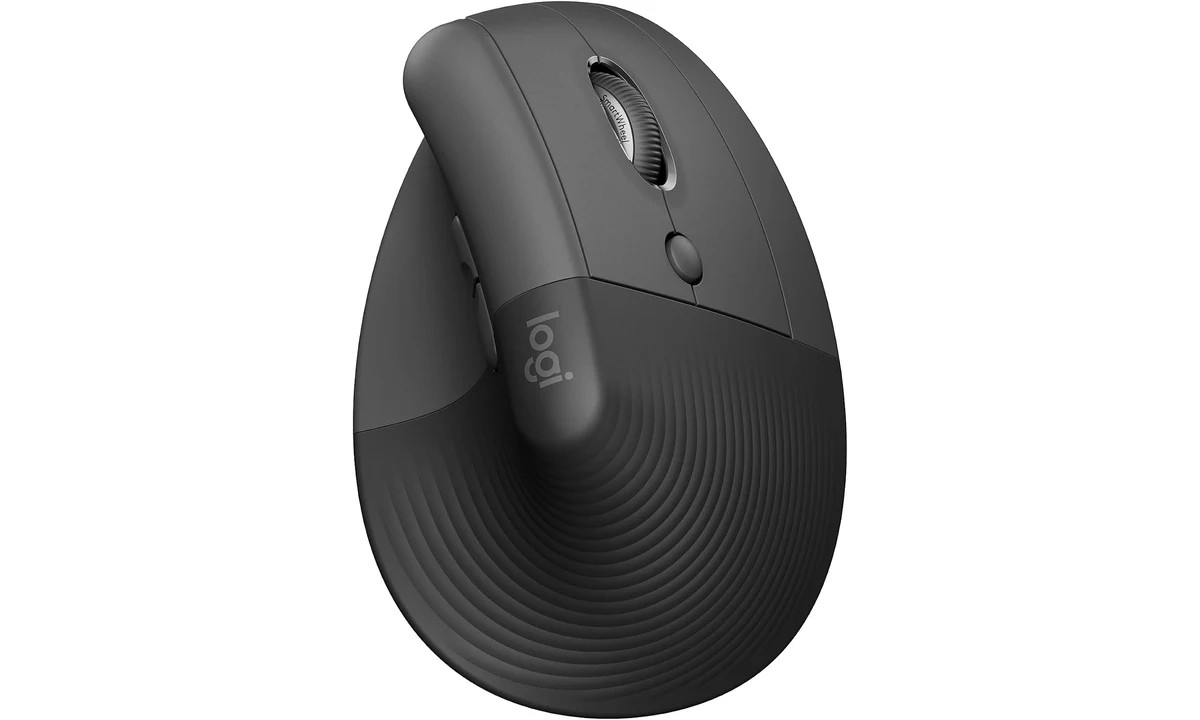
The Logitech Lift makes sense when a conventional mouse feels too flat or too large, and you want to try a more upright grip without moving to a large productivity mouse. Its most important feature is the shape under your hand. Device switching and configurable buttons are useful extras, but neither can rescue a poor fit. Buy it from somewhere that lets you assess that fit during ordinary work.
This review concerns the right-handed Graphite consumer model, rather than the separate left-handed version. It combines Logitech’s published specifications with RTINGS’ independent evaluation and practical analysis of desk use. We have not measured its performance ourselves. The recommendation is conditional: the Lift is a plausible office mouse for smaller hands, rather than a treatment for pain or a substitute for adjusting your workstation.
Start with your hand, not the ergonomic label
Logitech positions the Lift for small to medium hands and describes its grip as a 57-degree design. That changes the way your palm meets the mouse and where your fingers rest. It does not establish that every wrist will be comfortable. Someone accustomed to holding a low mouse with fingertips may find the taller body quite different from someone who normally rests a whole palm on a shell.
Consider how you move the pointer through a normal working day. Do you make broad movements across a large screen, or short corrections inside spreadsheets? Does your forearm rest on the desk, and can the mouse sit close to the keyboard? An upright shape cannot compensate for repeatedly reaching beyond papers, a laptop stand or a wide keyboard. Clear a sensible working area before deciding whether the mouse itself is the problem.
The thumb side matters as much as the angle. A grip that places the main buttons comfortably but leaves a side button awkward to reach may be acceptable for basic pointing and frustrating for browsing. Assess the controls while your hand is relaxed. If you must reposition your palm for every backward navigation command, the theoretical advantage of extra buttons becomes less useful.
Left-handed buyers should select the separate left-handed Lift deliberately. A right-handed product photograph is not evidence that a listing offers an ambidextrous design. Colour, handedness and the included receiver deserve a final check at checkout, particularly where several variants share a product page. A comfortable right-handed office mouse can be an unsuitable purchase for someone using the opposite hand.
What the wireless choices actually solve
The Lift offers Bluetooth Low Energy and the included Logi Bolt receiver, with saved connections for up to three devices. Bluetooth is attractive on a laptop with scarce ports. The receiver is useful when you prefer a dedicated connection to a desktop, or when you want to avoid pairing through the computer’s Bluetooth controls. Neither connection makes the mouse independent of the computer’s security policies.
Logi Bolt is a different receiver family from Logitech Unifying. Owning an older Logitech receiver does not mean it can take over for the supplied Bolt unit. If you plan to consolidate several peripherals onto one receiver, confirm each device’s compatibility rather than relying on a matching brand. Keep the included receiver identifiable so it does not disappear into a drawer full of similar-looking adapters.
The receiver uses USB-A. A laptop with only USB-C needs a suitable adapter or hub if you want to use it, while Bluetooth avoids that extra piece. This is a small buying detail with everyday consequences: a mouse intended to simplify a travel setup can end up requiring another connector. Check the ports available after your display, storage and other accessories are connected.
Saved device connections are most valuable when you regularly alternate between computers. They remove repeated pairing, but they should not be confused with permission to control a locked work machine or with automatic sharing of applications. Decide which device belongs in each slot and label that arrangement mentally. A consistent assignment is easier to use than repeatedly changing the pairing order.
Buttons and scrolling for office work
Logitech specifies six buttons and a tracking range of 400–4000 DPI. The practical issue is whether you can position the pointer precisely at a comfortable movement distance. A higher maximum sensitivity is not automatically better: a pointer that crosses the screen too readily can make small spreadsheet cells harder to select. Start with a moderate setting and assess accuracy before increasing it.
RTINGS describes the Lift as a capable office design with sturdy construction, while noting that it lacks left and right wheel tilt. That limitation matters if horizontal scrolling is central to your day. Wide timelines, large worksheets and image canvases may be easier with a mouse that provides a dedicated horizontal control. Occasional sideways navigation is a different requirement from doing it all afternoon.
Button customization through Logi Options+ can make routine actions easier on supported Windows and macOS systems. Useful assignments are usually simple and memorable: navigating back, changing an application action or invoking a command you already understand. Filling every button with an unfamiliar macro can increase mistakes. Keep the core pointer actions predictable while you learn the new grip.
Basic pointing on an operating system does not establish full support for every customization feature. If your employer prevents software installation, judge the Lift on the functions available without the companion application. An advertised software feature has little value on a managed computer where you cannot enable it. Ask your administrator about permitted software before making advanced settings the reason for purchase.
Battery power and the absence of a cable mode
The Lift runs on one AA battery. That means it does not need a charging cable on the desk, but it also means there is no wired operating mode to fall back on. A spare battery is a more relevant contingency than a spare USB charging lead. This distinction is easy to miss when moving from a rechargeable mouse that can operate while connected.
For a shared desk, removable power can be convenient because replacing the battery does not require arranging a charging break. For someone trying to standardize every accessory around USB charging, it may be a drawback. Neither approach is universally better. Consider the accessories you already maintain and whether you reliably keep the appropriate replacement battery available.
Do not build a purchase calculation around an assumed battery replacement interval. Usage, battery choice and operating conditions affect maintenance. The useful conclusion from the power design is straightforward: it is an untethered, replaceable-battery device. If being able to plug in and continue working is essential, choose a model with a documented wired or charging arrangement that meets that requirement.
Desk space, movement and travel
A tall mouse needs different handling from a slim travel mouse. RTINGS notes that the Lift is relatively bulky for carrying and that its feet are thin. Those observations support treating it primarily as a desk tool. They do not predict a particular lifespan or establish that every surface will feel the same. The friction of your own desk or mat still matters.
Try the mouse with the keyboard in its usual position, rather than evaluating it in an unusually clear demonstration space. Check that your hand can approach the body naturally and that the side of the mouse will not repeatedly meet a mug or notebook. A compact-looking footprint is only part of the space requirement; your hand and forearm need room to move as well.
For travel, protect the controls from pressure inside a bag and keep the receiver with the equipment it serves. If you only use a mouse occasionally beside a laptop, a lower and simpler portable model may be easier to pack. The Lift’s argument is a preferred grip during substantial desk work, rather than maximum convenience in every setting.
Lift versus other Logitech choices
The Logitech M720, already covered on TopDataLLC, is the more conventional comparison for someone interested mainly in switching between computers. If you like a horizontal shape and simply need an office mouse, changing the grip may add an unnecessary adjustment. Compare the controls you actually use before treating the Lift as an automatic upgrade because its form is more unusual.
The MX Master 3S addresses a different productivity preference, especially for buyers interested in a dedicated horizontal wheel. Its larger conventional body is not a substitute for trying the Lift’s smaller upright shape. Choosing between them is less about an overall ranking and more about whether hand fit or an expanded control layout is your unmet need.
A larger vertical design, such as the MX Vertical discussed in RTINGS’ comparisons, is another route if the Lift feels cramped. Avoid deciding solely from hand-size labels: finger length, preferred grip and button access interact. If the Lift requires you to tuck your fingers awkwardly or hover your palm, a larger alternative deserves consideration even when a general size chart suggests compatibility.
A gaming mouse is preferable when gaming responsiveness and a familiar low grip are the priority. RTINGS’ office assessment should not be repackaged as evidence of equivalent gaming performance. Conversely, someone doing email and document work does not need to optimize around competitive gaming specifications. Match the decision to the activity that occupies most of your time.
A useful assessment during the return period
Begin with a few representative tasks rather than immediately changing every software option. Select text, drag a window, move through a spreadsheet and use the side controls in a browser. Note whether you can do these without gripping tightly. This is a practical fit assessment, not a clinical test, and it should not be used to diagnose the cause of discomfort.
Then check the connection arrangement you intend to keep. If you bought the mouse for switching between a personal laptop and a work computer, test both within their normal software restrictions. Assess whether the receiver occupies a port needed by another accessory. Discovering that conflict early is more useful than admiring a feature you cannot integrate into your actual setup.
Change sensitivity separately from button assignments so you can tell which adjustment helps. Moving from a familiar shape can initially feel strange, but persistent difficulty reaching controls is a reason to reconsider the purchase. Do not assume you must tolerate discomfort because a device is marketed as ergonomic. Existing symptoms or recurring pain warrant appropriate professional advice rather than product promises.
Who should buy it
The Lift is worth considering for an office worker with a smaller hand who actively wants an upright grip, can keep the mouse close to the keyboard and values multiple wireless connections. Its physical approach is the point of the product. The connection options and configurable controls strengthen that proposition when the computer supports them, but they are secondary to a comfortable reach and dependable pointing.
Skip it if you need horizontal wheel control, a flat travel shape, wired operation or a gaming-focused mouse. Choose the handedness carefully and verify the current package before ordering. Our verdict is a qualified recommendation for the right hand and desk: the Lift offers a credible way to change your pointing posture, provided you evaluate comfort for yourself and resist interpreting an ergonomic label as an assured health outcome.