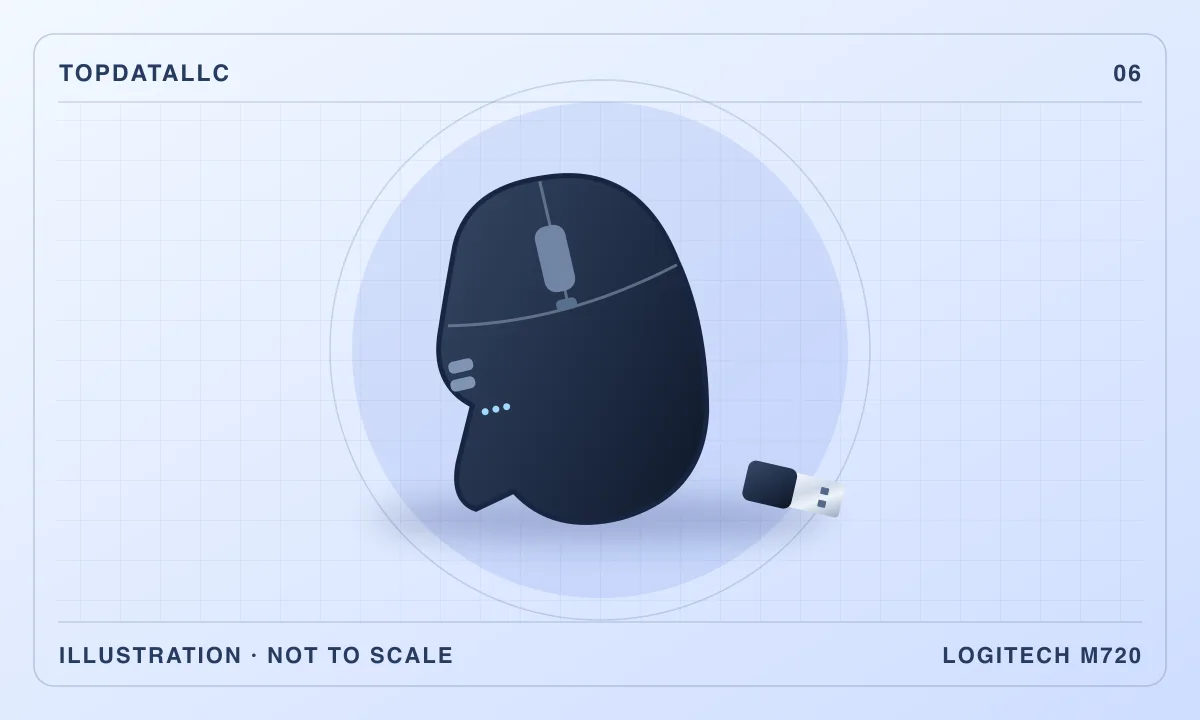
The Logitech M720 Triathlon is most useful when the same person regularly points and scrolls on more than one computer. It can remember up to three devices and offers a button for selecting which connection is active. That is a different proposition from buying a keyboard and mouse bundle for one stationary computer. The mouse is only worth choosing for its switching if you can establish the connection on each machine and the right-handed shape suits the way you hold it.
This guide covers the black M720 listed in the product panel. Logitech’s product documentation and setup guide establish what the hardware supports. RTINGS provides independent observations about the shape, controls and use as an office mouse. The examples here apply those findings to common desks. They are decision exercises, without performance measurements from TopDataLLC.
Write down what needs to switch
Start with a list of the devices that share the work surface. A personal laptop and an employer-managed desktop are a good example. If you normally reach for a separate mouse every time you turn to the other display, remembering both connections can remove that small recurring interruption. If you only use the second computer once a week, the improvement may be too small to justify replacing a mouse you like.
Logitech specifies pairing with up to three devices. The side control selects the active connection. It does not turn one computer into a host for the others, and it does not switch a separate keyboard, monitor input or headset. That boundary matters if you want an entire workstation to follow one button press. In that situation, write down each device that needs to move between computers and decide whether you want a mouse feature, separate device switching, or a hardware switch that supports the peripherals and displays you use.
Keep the device order consistent with the desk. You might assign your main work machine to the first connection and the personal machine to the next. If you add a third, write down the assignment somewhere nearby until it becomes familiar. This is a small task during setup, but it helps when the displays are separated or a device is closed. A useful multi-device arrangement should take less thought than the collection of mice it replaces.
Choose Bluetooth or the supplied receiver for each device
Logitech supports Bluetooth and its Unifying USB receiver on the M720. The receiver plugs into a USB-A connection. Bluetooth can be useful on a laptop with no free USB-A port. The receiver can make sense on a desktop where you prefer a dedicated connection or the machine lacks compatible Bluetooth. Check the operating system and device requirements in Logitech’s documentation for your particular combination.
Connection choice deserves a practical check on managed computers. A computer might have Bluetooth or a spare USB port, yet the organisation’s policy may restrict pairing or installing configuration tools. Find out what is permitted before treating that computer as part of the plan. If its Bluetooth is unavailable and USB receivers are restricted, another mouse with the same general feature will not solve the access problem. Ask about the supported hardware route instead.
The included receiver belongs to Logitech’s Unifying family. Do not assume a receiver from another Logitech product works simply because it fits the port. Check the receiver family and the compatibility list before buying a replacement or trying to combine existing equipment. Keep the supplied receiver available while you test the devices you intend to switch between. If a laptop needs an adapter, factor in how much room it occupies and whether you can leave it connected when the laptop moves.
Separate the switch button from Logitech Flow
The physical switch is enough if you want to choose the active device yourself. Logitech also describes Flow, a software feature that can move the pointer between compatible computers and transfer certain content after setup. These are two different buying reasons. Hardware switching can be useful in a straightforward two-computer desk even when you cannot install the software or choose to keep the machines separate.
If Flow is the reason you are considering the M720, check the requirements before ordering. Confirm both machines support the required software, whether they can connect through the appropriate network, and whether copying content between them is allowed. On a work and personal setup, permission to install the mouse software does not automatically mean permission to transfer files or clipboard content. Use the hardware button alone if that is the workflow you are authorised to use.
Think about where the displays sit. A side-by-side arrangement makes pointer movement across screens easy to imagine. A setup where one computer is behind you or is only occasionally open may be more predictable with a deliberate button press. Compare the convenience of switching automatically with the value of knowing which machine receives your next click. The best arrangement is the one that suits how you divide work, rather than the one with the most modes.
Check the shape before committing to a shared desk
The M720 has a sculpted right-handed body and a thumb area. RTINGS found the shape comfortable for office use and found suitability depends on hand size and grip. The multi-device controls are most useful when you can reach them easily. A shape that makes you change grip every time you switch may undo some of the convenience you are buying.
Use a mouse you already own as a reference. Notice whether your palm rests on the shell, whether you guide the mouse mainly with fingertips, and where your thumb lands when the pointer is moving. If you normally like a small, low mouse that can be moved easily with your fingers, the more sculpted shape may feel like a significant change. If you want a place for the thumb to rest and usually work with your right hand, the M720 has a clearer purpose.
For a desk used by several people, check who needs to use it and with which hand. A symmetric mouse can be easier to share. The M720 may still make sense as a personal mouse on a shared workstation if other people use their own input devices. If the equipment is expected to work for everyone, shape and reach come before extra buttons or pairing slots.
Consider how you use the scroll wheel
Logitech provides a wheel that can switch between stepped and free-spinning scrolling. Stepped scrolling makes sense when you want to move deliberately through a shorter document or choose an item from a list. Free-spinning can be useful when you need to move quickly through a long page or spreadsheet. The value of the feature depends on whether you move between those jobs often enough to use both modes.
The wheel also offers tilt controls for horizontal scrolling in supported setups. If your work involves wide spreadsheets or documents, check what those controls actually do in the applications you use. The M720 does not have the separate thumb wheel that RTINGS identifies on Logitech’s MX Master 3S. A dedicated horizontal wheel may be a better fit if sideways movement is a frequent part of your work rather than an occasional adjustment.
Button customisation is worth considering only after you know which changes you need. List the actions you currently reach for, such as a browser navigation button or an application shortcut. Check whether the required software is available on the computer you plan to use. A shortcut you can set on a personal machine may be unavailable on a managed machine. If basic pointing, scrolling and switching are enough, do not make the purchase depend on optional software.
Compare alternatives for the reason you want to replace your mouse
A simple single-device mouse is a better starting point if your setup rarely changes. You may value a smaller shape, simpler controls or an easier match for left-handed use more than you value stored connections. Someone buying a keyboard as well can consider a matched combo such as the MK270 if one shared receiver for one computer is the goal. The two purchases solve different desk problems.
The MX Master 3S is worth comparing if you frequently scroll horizontally, want quieter clicking based on RTINGS’ comparison, and prefer a larger right-handed design. Compare the connection system, shape and software requirements separately. Do not treat it as an automatic upgrade. If the reason for choosing the M720 is to get a physical switch and a familiar thumb position, a different mouse may offer features that add little to your work.
For a desk where everything must follow the active computer, compare a suitable hardware switching arrangement before choosing any multi-device mouse. Check the display mode, keyboard and audio requirements. If only the pointer needs to move, the M720 is a simpler way to solve that particular problem. The practical distinction is what you expect to happen when you press the button.
Use your own workflow as a first-day check
Pair one computer and try an ordinary task before setting up the others. Once pointing, scrolling and any needed side buttons behave as expected, add the next computer and verify the connection order. Try switching while both machines are open and again in the arrangement you will use most often. If a device fails to respond, check whether the mouse is on the expected connection before troubleshooting the operating system or receiver.
Then test the tasks that justify the purchase. Work through a long document, use the side controls with the applications you care about, and switch between machines as you would during a normal session. Notice whether you reach for the mouse comfortably without moving the keyboard. If you find yourself returning to a second mouse because of the shape or connection procedure, that is useful information about your desk. A device with more features only improves the setup when those features fit the work.
If the mouse will travel with a laptop, decide whether the receiver stays in the computer, travels with the mouse, or can remain at the desk because the laptop uses Bluetooth. That decision prevents a portable setup from depending on a tiny accessory you normally leave behind. Logitech’s setup guide is the appropriate reference for pairing and basic operation.
A shared desk with separate keyboards
One arrangement worth considering is a work laptop on a stand, a personal desktop on the main monitor and a compact keyboard dedicated to each computer. Put the mouse beside whichever keyboard you use most. The advantage of the M720 here is keeping the same grip and pointer controls on both machines without making both keyboards part of a switching system. The small inconvenience is that the keyboard and pointer can still be aimed at different computers. Before sending a message or using a shortcut, check the active screen and device indicator. If you regularly switch the entire desk mid-task, a hardware switch or a matched keyboard and mouse with a switching routine may fit the way you work better.
Who should buy the M720
Shortlist it if you regularly use more than one compatible device at the same desk, want a deliberate hardware switch, and like a right-handed mouse with two scroll modes. Skip it if you need a left-handed shape, need every desk peripheral to switch together, or only want a simple mouse for one computer. Check policy and compatibility before relying on Flow or custom controls.
The paid destination is the black US listing. The manufacturer and independent evaluation below support the hardware facts and trade-offs. The buying recommendation follows from the way you use your own devices, rather than a claim that everyone needs a multi-device mouse.