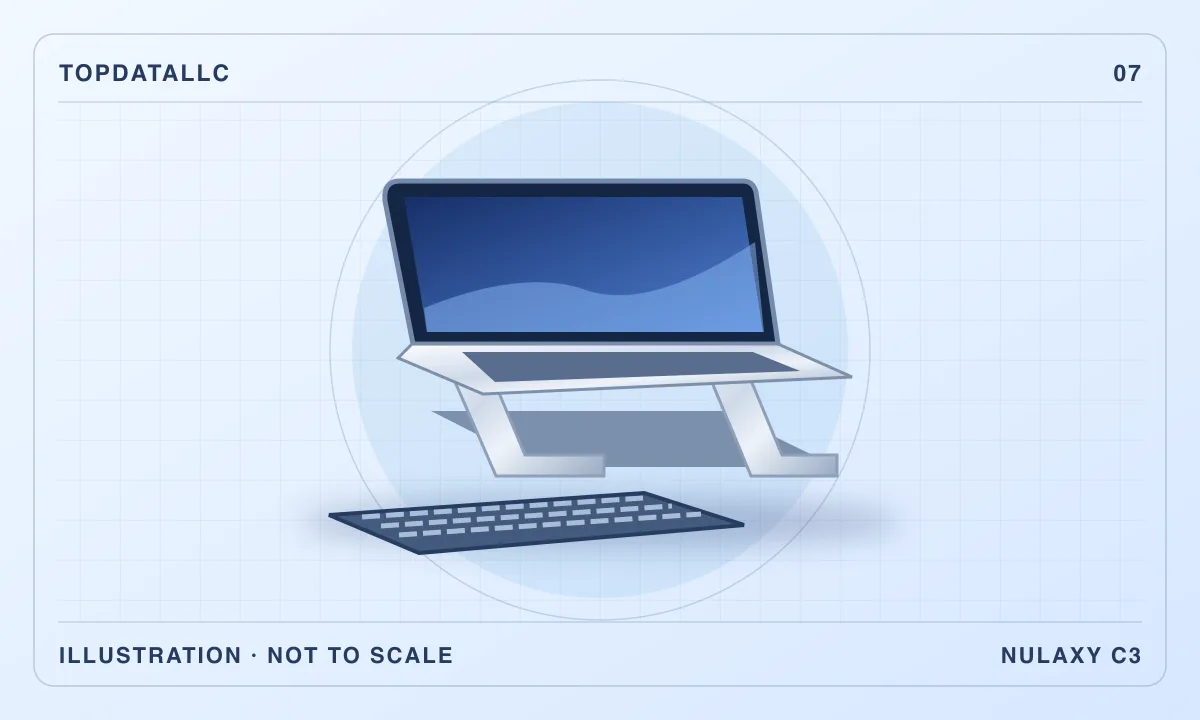
The Nulaxy C3 is a fixed, detachable laptop riser for a desk where the laptop screen needs to sit higher and you already have room for separate input devices. The question is whether its one working position suits your desk. If you need to move the screen up and down during the day, change the angle to manage glare or fold a stand quickly into a bag, a different design can make more sense.
This guide covers the grey C3 variant identified by the manufacturer’s US listing. Nulaxy’s product page describes the construction, compatibility and assembly. The US Occupational Safety and Health Administration workstation guidance provides independent context for laptop placement and separate input devices. The examples are measuring exercises and setup choices. We do not claim that the stand improves cooling by a measured amount or solves any health problem.
Resolve the product page’s sizing language before buying
The manufacturer identifies this C3 as a detachable aluminium laptop stand. Its product page uses different size language in different parts. The short description names laptops through 15.6 inches, while the detailed description extends that wording to 16 inches. Both are screen diagonals. Neither tells you exactly how a particular computer’s underside will rest on the support arms.
That distinction matters most near the upper end of the range. A thin laptop and a deeper workstation can have similar screen diagonals and different chassis footprints, hinge placement and weight. Measure your laptop’s base and inspect the underside before ordering. Check the location of its rubber feet, the position of any underside openings and where the front edge would meet the stand’s stops. If your computer sits outside the narrower description or has an unusual base, ask Nulaxy about the exact stand and laptop combination.
Nulaxy lists a maximum load of 22 lb on the product page. Treat that as the manufacturer’s stated ceiling, rather than evidence that every shape within that weight will fit or that the stand behaves the same on every surface. A suitable fit requires the laptop to rest properly on the supports. Consider how the machine sits when the lid is open, which is the position that matters most for normal use. The maker’s assembly instructions and the actual shape of the computer should guide the decision.
Test whether a fixed riser puts the screen in the right place
The C3 has a fixed working position after assembly. Its main advantage is that you can set up a repeatable desk without choosing between different angles each time you sit down. That also means you cannot fine-tune the screen height with the stand itself. Think through the position before treating the rise as automatically beneficial.
Start with the chair and desk you already use. Sit normally and note the height of the top of your laptop screen. OSHA’s workstation material describes the top of a monitor at or slightly below eye level as a general setup consideration. The right fit also depends on your actual viewing position, the screen and any other display you use. Compare the likely raised position before buying. A stable arrangement with your existing equipment can help you estimate where the screen would end up without assuming that the manufacturer’s marketing figure describes the same point you are measuring.
If you work in several places, repeat the exercise at each desk. A fixed stand can be a good fit at a particular table and too high at another. It may also be awkward on a shared desk if another person needs a different setup. Adjustable designs become more useful when height and tilt actually need to change. Decide whether that is a recurring requirement or a possibility you would rarely use.
Make space for an external keyboard and pointing device
Raising the laptop also raises its built-in keyboard. Nulaxy itself suggests using separate input devices and notes that typing directly on the raised laptop may make the setup wobble. OSHA’s purchasing guidance likewise recommends external input devices for laptop workstations. Plan the stand as part of a complete desk arrangement, particularly if you expect to type for long stretches.
Mark where the stand and laptop will sit. Then place the keyboard and mouse where you can use them without crowding the other things you need. A stand can free an area underneath while making the whole setup deeper once a keyboard is placed in front. If a notebook or paper planner already lives between you and the laptop, try the arrangement with that item in place. On a narrow desk, a full-size keyboard may also leave less space for the mouse than you expect.
Consider how the desk changes during the day. If you frequently clear the surface, decide where the external keyboard and mouse will go when you finish. The open space under the riser may be useful for an item that can be moved out of the way. It is less useful if whatever you store there blocks connectors or prevents you from moving the keyboard into a comfortable position. A paper mock-up can make those trade-offs obvious before the stand arrives.
Check where the ports and vents will be
Look at the laptop from the side you normally plug into. Make a list of the leads you leave connected, such as power, an external display or a USB hub. Check whether the plug heads would clear the desk and stand, and whether there is room for the cables to curve without pulling on the laptop. A support arm that leaves a port exposed can still put a cable in an awkward path if the desk sits close to the wall.
The open design can leave some space around the bottom of a laptop, but that is insufficient evidence of improved temperatures for your computer. Check the laptop maker’s instructions on vent clearance and inspect where the supports would sit. A cooling problem needs its own diagnosis. The practical reasons to choose the C3 are screen placement, surface organisation and fit with your equipment.
If you use the laptop camera for calls, try the proposed position with the lid open at its normal angle. Raising the screen may change the angle of the camera and the framing of the background. Check lighting and glare at the time of day when you usually work. An adjustable stand may be a better fit if you need to change screen angle frequently or keep the built-in camera usable from more than one chair.
Decide whether detachable is portable enough
Nulaxy describes a stand that separates into three pieces. That can make it easier to put away between uses or move to another room. Detachable describes how it comes apart. It does not mean the C3 folds into one piece while assembled. For a desk that stays set up most of the week, that difference may not matter. For someone who works from a different table every day, reassembling separate parts may be a step they soon stop doing.
Think about how you actually travel. If the stand only moves between the desk and a cupboard, choose based on where the parts fit and how easy they are to keep together. If it travels in a bag alongside a laptop and chargers, compare a folding model and check its packed dimensions. If you usually work from a location with little surface area, include space for the separate keyboard and mouse in the comparison. A stand that packs well still needs to fit the place where you unpack it.
If you share the desk or regularly change the position of the laptop, inspect how the supports hold the laptop before relying on the arrangement. Use the manufacturer's assembly guidance and a flat surface. If the laptop rocks, rests on a connector or does not sit securely against the intended supports, stop and reconsider the fit rather than trying to wedge it in place.
Compare a fixed stand with a different desk setup
The Nulaxy LS18 is an example of the manufacturer’s adjustable approach. It adds height adjustment and rotation. Those features are useful when the viewing position varies or you regularly turn the screen toward another person. Consider the documented dimensions and how the stand behaves in the positions you need. Additional adjustment is only worthwhile when it solves a recurring problem.
A dedicated external monitor is a different alternative if the laptop can sit somewhere convenient and the screen is too small for the work. It gives you another choice of screen placement without requiring the laptop keyboard to rise. It also takes space and may need additional connections. If you already have an external screen and only want the laptop to sit beside it, check the two screen positions together. A riser that fits the laptop can still place the secondary screen too far to one side.
Leaving the laptop on the desk remains practical for short sessions that depend on the built-in keyboard. A fixed riser does more for a station with a separate keyboard and mouse. Choose the arrangement around the actual task, rather than assuming that raising the laptop is always the first improvement to make.
Do a fit check when the stand arrives
Assemble the stand according to the instructions and place it where it will normally live. Before attaching cables, check that the laptop sits fully on the supports and does not interfere with them as the lid opens. Then connect the leads you use most often and confirm there is enough slack. Place the keyboard and mouse and try an ordinary task from the chair you actually use.
Check the result with the laptop closed or moved away if that is part of your routine. You may find that you need somewhere to put the accessories when the laptop leaves the desk. If more than one person uses the same surface, test whether they can quickly move the laptop and input devices into a suitable position. The fixed height is a reasonable compromise only when the resulting desk arrangement works.
Give the laptop screen a clear job
On a small desk with a main monitor, decide what information you want to see on the laptop before deciding how high it needs to sit. An occasional calendar or meeting window can live off to the side. A reference screen you consult continually needs to be close enough that you can read it without leaning across the keyboard. Open the apps you normally use, enlarge text if needed and check how far you have to turn to see the relevant part of each screen. With a fixed stand, moving the whole arrangement to one side affects the space left for cables and accessories. If both screens are equally important, position the stand and main monitor together during the mock-up. You may find the monitor base and the laptop stand both need the same patch of desk.
Who should choose the C3
Shortlist the C3 if you want a fixed station, can verify that your laptop sits securely on the supports and have room for separate input devices. Its detachable design suits a desk that is normally set up but sometimes needs clearing. Compare another design if you need frequent height changes, prefer to type directly on the laptop or want a stand that folds without separating into parts.
The offer points to the grey US C3. Check the exact variant and your laptop footprint before buying. The source list below distinguishes the maker’s model specifications from independent guidance about arranging a computer workstation.