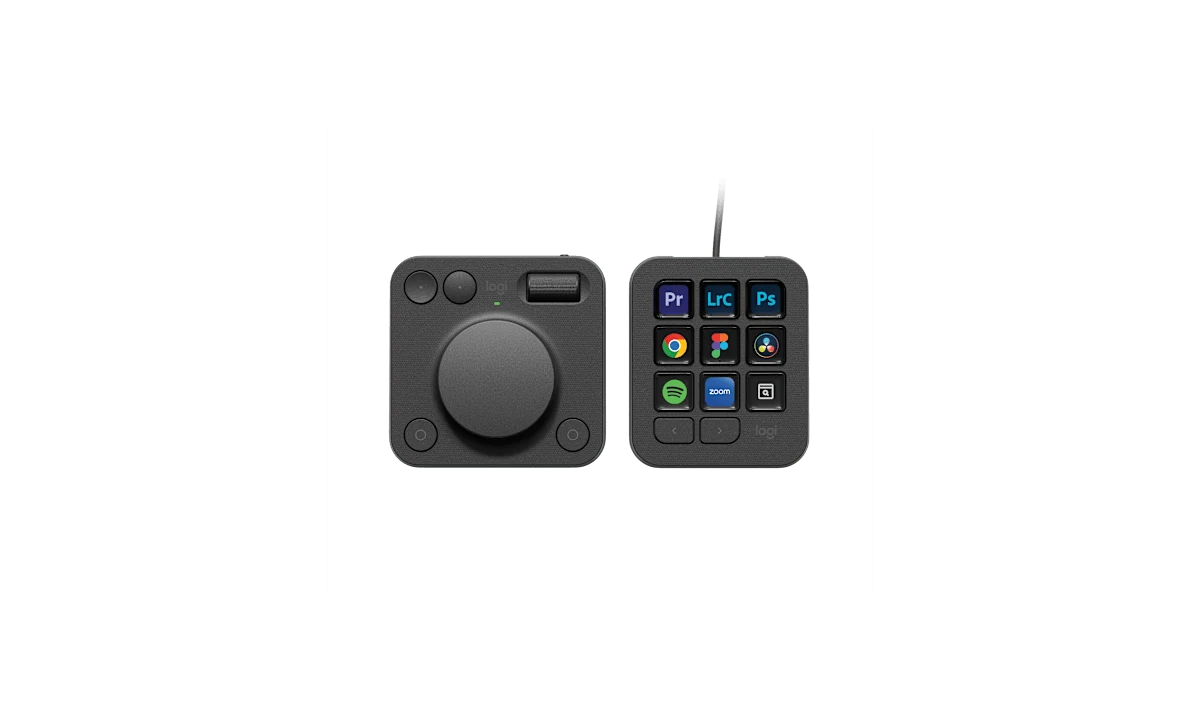
The Logitech MX Creative Console is most useful when editing repeatedly pulls your attention away from the image, timeline or document and into menus. Its promise is physical access to familiar commands: a wireless dialpad for adjustments and a separate keypad with changing LCD labels. It makes less sense as another attractive object beside a keyboard that already handles your work comfortably.
The buying decision begins with software and repetition. Identify the commands you use during an ordinary project, check the current integration for your application, and consider whether you would actually learn a new arrangement. A controller can remove friction from an established process. It cannot decide which adjustments an image needs or make an unfamiliar application easy by itself.
Two devices with different jobs
This review concerns the Graphite MX Creative Console, rather than a conventional keyboard or a single all-purpose macro pad. The package combines the Creative Keypad and Creative Dialpad. Logitech lists a USB-C connection for the keypad, while the dialpad uses Bluetooth Low Energy and replaceable AAA batteries. Their different connections are central to planning the desk.
The keypad provides nine LCD keys. Labels can change with the selected application or profile, which is helpful when a shortcut means something different in a photo editor and a meeting app. Physical labels also reduce the need to remember an arbitrary arrangement immediately. That benefit depends on making the labels clear enough to recognize without studying them.
The dialpad has a prominent adjustment dial, a roller and supporting buttons. It offers a different kind of input from the keypad: selecting a command and making a continuous adjustment are separate actions. Before buying, think about whether exposure changes, timeline movement or another repeated adjustment would be more comfortable through a dial than through your existing mouse.
Separating the devices lets you place the dial beside the hand that performs adjustments and keep the keypad where its labels are visible. It also consumes more usable desk area than the keypad alone suggests. A crowded work surface can turn the arrangement into a reach across cables, cups and a mouse mat, weakening the benefit of the controls.
Check the computer before the applications
Logitech's current requirements identify Windows 10 or later and macOS 13 or later, alongside USB-C, Bluetooth Low Energy and the Logi Options+ application. The manufacturer specifically excludes Windows systems using ARM 64 processors. That is a material limitation for buyers of newer Windows laptops: the operating-system name alone is not a sufficient compatibility check.
Confirm the processor architecture and your ability to install Options+ before ordering. On a managed work computer, ask whether the application and its integrations are permitted. If installation is restricted, do not assume the Console will provide its advertised customization simply because the keypad can be physically connected. A functioning port and an approved software environment are different requirements.
The supplied keypad cable is USB-C to USB-C. Check the actual free port you intend to use, including whether it is already occupied by a display, charging cable or another accessory. The wireless dialpad still needs a compatible Bluetooth connection. Buying a controller should not require an unplanned rearrangement of the rest of the workstation before you can evaluate it.
There is another practical consequence of the split design: the keypad's cable and the dialpad's batteries create separate housekeeping tasks. Leave a sensible route for the cable and a place for replacement batteries. The package includes two AAA batteries for the dialpad, but a supplied first set should not be confused with a rechargeable system that never needs attention.
Integration quality matters more than a logo list
Logitech currently lists integrations including Adobe applications, Final Cut Pro, DaVinci Resolve, Figma and Affinity Photo, with further plugins available through its Marketplace. Treat that list as a starting point. A supported application may expose exactly the controls you need, while another part of your workflow may still depend on ordinary shortcuts or mouse interaction.
Inspect the relevant plugin and profile before making a buying decision around a specific command. Check the application version, operating system and operation you want to control. For example, general support for a video editor does not by itself establish that every third-party effect, dialog or custom panel will respond to the dial in the same way.
Macworld's original review found the hardware well finished and the customization flexible, while also noting software-driver issues and a desire for more ready-made profiles at the time of testing. Those are useful observations about the learning burden, rather than proof that a particular fault persists today. Current plugin documentation and your exact software combination should decide compatibility.
A sensible first setup uses familiar commands that you already understand. Put recognizable, frequently needed actions on the keypad and assign the dial to an adjustment you repeat often. Avoid filling every available location simply because it exists. An almost-empty profile with dependable controls can be more useful than a dense collection whose labels and purposes are difficult to distinguish.
Build a profile around an actual project
For photo work, begin by identifying where your hand repeatedly leaves its comfortable position. Perhaps you alternate between selecting images, changing a common adjustment and returning to a wider view. Map the actions that interrupt that sequence. Do not assume a manufacturer's demonstration reflects your own editing style, especially if its application panels and preferred shortcuts differ from yours.
For video editing, distinguish navigation from changes to the material. A roller used to move through a timeline is a different commitment from a dial that alters a selected parameter. Clear separation can help avoid adjusting the wrong control when focus moves between panels. Evaluate the setup with an expendable project before relying on it during a deadline-sensitive editing session.
Consistency across profiles deserves deliberate attention. If the same physical key means a common housekeeping action in several applications, keeping its position stable can make switching easier. Equally, an application-specific function should have a label that makes that context obvious. The screen on a key is helpful, but it does not remove the need for an understandable arrangement.
Macworld describes the Action Ring as an on-screen group of commands that can be called up near the pointer and adjusted with the dial. That may reduce travel to a distant panel. It is worth considering when you prefer to keep your attention on the image, but it is not automatically superior to a shortcut you already perform without looking away.
How much adjustment is enough?
A continuous control is appealing because it offers a physical way to make repeated changes. Its value is highest when the application interprets that movement predictably. If the active parameter or panel changes unexpectedly, the control can become another thing to monitor. Include focus changes, application switching and undoing an adjustment in your evaluation, rather than testing only a single successful demonstration.
The reviewer at Macworld appreciated the dial's smooth operation and the way the dial and roller stop when released. That finding helps explain the hardware's appeal for controlled adjustments, but it remains one reviewer's assessment. Someone who likes a freely spinning scroll wheel may prefer a different response. The right comparison is with the input method you use now.
The Console should remain an addition to the keyboard and pointing device, not a reason to force every task through new controls. Text entry, infrequent commands and complex dialogs can remain where they work best. A useful purchase improves the repetitive part of your workflow without creating a separate system for operations that were already straightforward.
Give the arrangement a fair trial on ordinary work rather than a showcase task chosen to flatter the device. Notice which controls you reach for spontaneously and which require a pause to remember. The latter may need a clearer label, a different location or removal. More customization is available, but more customization is not always the answer to a confusing profile.
Alternatives and the total workstation
A conventional keyboard with well-chosen shortcuts is the baseline alternative. It avoids another device and may already offer fast access to frequently used commands. Its weakness is discoverability: an unfamiliar combination carries no visible label. The MX Creative Console is more compelling when that hidden shortcut vocabulary or repeated parameter adjustment is a genuine obstacle in your work.
A general macro keypad is another category to consider if launching applications, changing meeting controls or triggering discrete actions matters more than turning a dial. Compare the exact supported actions and software, rather than treating every screen-equipped keypad as interchangeable. A device optimized for buttons may suit command-heavy work; the Console's separate dialpad is its more distinctive reason to exist.
A dedicated editing panel belongs on the shortlist when a single application dominates your day and you need controls organized around that application's particular workflow. That can be a more focused approach than a broadly configurable console. Check what happens when the application changes or when you move to another editor, because specialized controls and general flexibility serve different priorities.
Desk portability also changes the answer. The keypad, dialpad, stand and cable are separate pieces to position and carry. If your laptop regularly moves between locations, decide whether the same profile and a repeatable physical layout can travel with it conveniently. A controller that feels effortless on a permanent desk may become an accessory you routinely leave behind.
Ownership and buying checks
The current US product page lists a one-year limited hardware warranty. Read the applicable terms and retailer arrangements for your purchase rather than assuming every marketplace listing has identical support. Keep the product identity, receipt and supplied accessories together. A warranty is useful ownership information, but it does not establish a fixed service life or promise uninterrupted compatibility with future applications.
Logitech also advertises an Adobe membership promotion on the product page. Do not use a temporary bundle as the main reason to choose the hardware. Eligibility, redemption and subscription terms can change. Assess whether the controls justify their place in your workflow independently, and check any current offer directly before relying on it in a purchase decision.
Before ordering, be able to answer three practical questions: does your computer meet the documented requirements, does the current integration expose your important commands, and is there a comfortable place for both devices? If any answer is uncertain, resolve it first. These checks are more useful than comparing a long list of icons with another accessory's marketing page.
Verdict
Choose the Logitech MX Creative Console when repeated editing adjustments and application commands are slowing an otherwise established workflow, and when you are willing to configure a clear, restrained set of controls. Its separate wireless dialpad and labelled keypad offer a thoughtful combination for that situation. The strongest case is specific, repeatable work, not a vague ambition to become more productive.
Keep your existing setup if keyboard shortcuts already feel natural, your computer is outside Logitech's supported requirements, or software-installation restrictions prevent the intended integrations. For occasional editing, a little attention to shortcuts and panel organization may remove the friction without another device. The Console earns its place when its physical controls solve a problem you can actually identify.