What this review covers
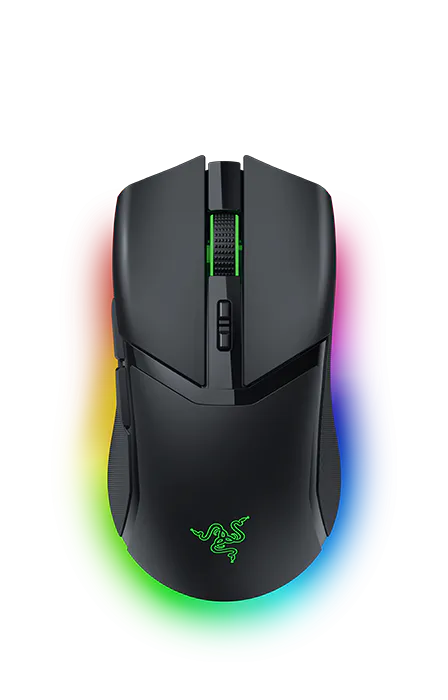
The Razer Cobra Pro wireless mouse in Black, US configuration is a compact pointer for someone who wants gaming-oriented controls and several connection choices without a large ergonomic shell. The important question for ordinary adult desk use is not whether its specification sheet looks impressive. It is whether the small shape, moderate button count, lighting and accessory path fit the way you work.
The Cobra Pro sits between categories. It offers more customization than a basic office mouse, fewer directly reachable commands than an MMO model, and a less aggressively lightweight design than Razer’s performance-focused alternatives. That makes physical fit and connection convenience more important than the headline sensor figures.
This review separates Razer’s current US product listing from Tom’s Hardware’s independent review. Razer establishes the Black variant, current configuration choices and headline feature list. Tom’s Hardware supplies the dimensions, control breakdown, connectivity details, battery estimates and grip observations. Its performance and lighting comments belong to that publication, not to original testing for this article.
Size and physical fit
Tom’s Hardware reports that the Cobra Pro measures 4.71 inches (119.6 millimeters) long, 2.46 inches (62.5 millimeters) wide and 1.5 inches (38.1 millimeters) tall. Those are compact dimensions for an adult mouse, particularly in length and width. They explain the appeal for a small desk, but they also make hand size and grip style central to the purchase.
Tom’s Hardware describes the shape as small and semi-ambidextrous. The body is broadly symmetrical, but the two thumb buttons sit on the left side. It is therefore approachable for a left-to-right desk setup while remaining practically oriented toward right-handed use.
The independent review’s grip guidance is more useful than a generic comfort label. Tom’s Hardware found the Cobra Pro suited to claw or fingertip grip rather than palm grip unless the user has tiny hands. That does not make the mouse universally uncomfortable; it means the shell offers limited support for someone who wants most of the palm resting on it.
The reported weight is 2.72 ounces (77 grams), excluding the cable. That is light enough to avoid the heft associated with many larger productivity or MMO mice, but it is not an ultra-light design. The trade-off is a compact mouse that may feel nimble without pursuing the lowest possible mass.
Tom’s Hardware reports textured, rubberized grips on both sides of the smooth matte-black chassis. Those panels are especially relevant to fingertip and claw users, who reposition the mouse more actively than a relaxed palm user. The main shell also has glossy black accents and contoured primary buttons, according to the review.
The underside has two wide PTFE feet and a PTFE ring surrounding the sensor, as reported by Tom’s Hardware. That is useful construction information, but it is not a reason to assume every desk surface will feel identical. Surface material, dust and wear can still affect the glide of any mouse.
Controls and everyday use
Razer’s current product page lists 10 customizable controls. Tom’s Hardware explains that the total includes the scroll directions and the profile switch on the underside. In ordinary reach, the principal controls are left and right click, scroll-wheel click, two thumb buttons and two buttons below the wheel.
That distinction changes the buying decision. Ten controls sounds close to a highly programmable mouse, but the physical layout is much simpler than an MMO keypad. The Cobra Pro provides useful remapping room for shortcuts and games without offering a thumb-heavy command bank.
The scroll wheel has a notched, rubberized finish and backlighting, according to Tom’s Hardware. The wheel does not tilt left or right. If horizontal scrolling is central to spreadsheet, design or timeline work, that missing input may matter more than the extra underside profile control.
Synapse 3 is the software route for changing buttons, DPI stages, lighting effects, mat calibration and low-power settings. The mouse works with its default behavior out of the box, but deeper customization depends on Razer’s software. That is a sensible setup for a gaming desk, while adding software overhead for someone who wants a simple office pointer.
Tom’s Hardware reports that the software can assign mouse functions, keyboard functions, multimedia controls and Windows shortcuts, and includes a macro recorder. HyperShift adds a second layer of programmable controls. These features expand what the mouse can do, but only if you are comfortable remembering a modifier and maintaining a profile.
The software supports up to five sensitivity stages and can assign different horizontal and vertical sensitivity levels, according to Tom’s Hardware. That is practical when one mouse moves between precise desk work and faster pointer movement. It is more useful in mixed use than selecting a maximum sensitivity figure simply because it is available.
What the sensor numbers mean
Tom’s Hardware lists the Focus Pro 30K optical sensor at a maximum sensitivity of 30,000 DPI, a maximum speed of 750 IPS and acceleration of 70 G. These figures describe different parts of the specification; they are not three independent promises of more accurate aiming. Sensitivity determines how far the pointer moves for a given movement, while tracking speed and acceleration describe the stated motion envelope.
For a mixed desk, start with a sensitivity that lets you select small controls without repeatedly lifting the mouse. Then check whether your gaming configuration needs another stage. The software’s separate horizontal and vertical settings offer more relevant adjustment than simply selecting the largest advertised number. Neither a high sensor ceiling nor a software profile changes the compact shell or adds a horizontal scroll input.
RGB and desk presentation
Razer’s current listing identifies 11-zone Chroma lighting with underglow. Tom’s Hardware breaks that into the scroll wheel, the palm-rest logo and nine underlighting zones. The lighting is therefore visible around the mouse rather than confined to a single small logo.
Tom’s Hardware praised the lighting’s brightness, placement and underglow. That is an independent visual assessment, not a measured brightness result. For an RGB-focused desk, the placement is more meaningful than merely seeing the word RGB in the product name.
Smart Dimming automatically dims the lighting after three seconds of inactivity, according to Tom’s Hardware. That is a practical compromise for a wireless mouse: the lighting remains part of the desk presentation without staying at full output whenever you pause to read or think.
Lighting remains a battery decision. Tom’s Hardware’s runtime figures assume the lighting is turned off, and its review recorded faster drain with bright lighting left on continuously. Buyers choosing the Cobra Pro partly for its underglow should treat the advertised runtime as conditional on settings.
Wireless and wired connections
The Cobra Pro offers 2.4GHz wireless, Bluetooth and wired USB-C connectivity. That combination covers a gaming desktop, a second computer and a cable fallback without requiring separate mouse models. Tom’s Hardware also describes the included 2.4GHz receiver as a multi-device dongle for compatible Razer devices.
For latency-sensitive play, Tom’s Hardware identifies 2.4GHz HyperSpeed as the faster wireless option and places wired use ahead of it. Its review considers Bluetooth more suitable for general tasks, travel or situations where a USB port is unavailable. Bluetooth is therefore a convenience mode rather than the main reason to choose this mouse for competitive play.
The package includes a six-foot USB-C to USB-A SpeedFlex cable, a USB-A dongle and a USB extender, according to Tom’s Hardware. The extender can help position the receiver closer to the mouse when a desktop’s rear ports or case layout create distance or obstruction problems.
The cable also provides a straightforward wired fallback while charging. That matters on an ordinary desk because the mouse need not be put away during a charging session. Its USB-A host connection still deserves attention when planning a newer desk with few legacy ports.
Battery expectations
Tom’s Hardware reports Razer’s estimates of up to 100 hours over 2.4GHz wireless and up to 170 hours over Bluetooth. These are different operating modes, so they should not be treated as interchangeable figures for every task.
Using the optional HyperPolling Wireless Dongle or Mouse Dock Pro for up to 4,000 Hz wireless polling reduces the cited estimate to 33 hours. That is the clearest accessory trade-off: higher polling may suit a specialized setup, but it increases charging frequency substantially compared with standard wireless use.
Lighting changes the practical result as well. Tom’s Hardware recorded a review unit dropping from 100% to 82% after around five hours with lighting at maximum brightness and set never to turn off. This was an independent observation under a specific setting, not a universal runtime figure. It does show why Smart Dimming and brightness controls matter.
For ordinary desk work, Bluetooth has the longest cited runtime, while 2.4GHz is the more relevant wireless mode for responsive gaming. The sensible decision is not simply to choose the longest number. Select the connection that fits the task, then decide whether RGB and polling features justify their charging consequences.
Accessories and current variants
Razer’s current US page presents the Black Cobra Pro by itself and shows configurations involving the HyperPolling Wireless Dongle, Mouse Dock V2 Pro and HyperFlux V2 Wireless Charging System. It also presents a Cobra Pro plus Mouse Dock V2 Pro option. These are configuration choices, not evidence that every accessory comes with the standalone mouse.
Tom’s Hardware specifically says the Mouse Dock Pro and HyperPolling Wireless Dongle are sold separately or bundled through Razer’s website. The standalone purchase should therefore be treated as a conventional wireless mouse unless the selected bundle explicitly includes the accessory.
The removable underside puck stores the 2.4GHz USB-A dongle, according to Tom’s Hardware. It can be replaced with Razer’s Wireless Charging Puck for charging through the Mouse Dock Pro. The base design remains useful for receiver storage while leaving a route to dock charging later.
The accessory ecosystem is appealing if you already own compatible Razer equipment or specifically want a charging dock. It is less compelling if your only aim is to avoid plugging in a cable. A higher polling accessory changes runtime, while a dock or charging puck adds cost and another piece of desk hardware.
Who should buy it
The Cobra Pro makes the most sense for a smaller-handed adult who prefers claw or fingertip control, wants wireless and Bluetooth in one mouse, and values visible RGB. Its compact body can be easier to position on a tight desk than a larger ergonomic gaming shell, while its software provides more customization than a basic office model.
It is a weaker match for a palm-grip user with medium-to-large hands, someone who needs many directly reachable commands, or someone seeking the lightest possible competitive mouse. It is also a questionable fit for MMO-style play where numerous physical inputs are central to the workflow.
For a mixed work-and-gaming desk, the strongest feature is flexibility rather than any single specification. You can use Bluetooth for a secondary device, 2.4GHz for the main computer and USB-C when charging. The compromise is that the compact body and limited physical layout remain present in every mode.
Alternatives and verdict
A lighter competitive mouse is the more sensible category for someone prioritizing minimum weight and a stripped-down FPS setup. A larger ergonomic gaming mouse is the better category for palm support. An MMO-oriented mouse is the better category when numerous directly accessible commands matter more than compactness. These are category comparisons, not unsupported specifications for named models.
The Razer Cobra Pro is a conditional recommendation for ordinary adult desk use. Choose the Black US model when compact fit, three connection modes, RGB and software remapping matter more than palm support, a tilt wheel or a large control bank. Choose something else when your hand naturally fills larger mice, you dislike configuration software, or optional polling and charging hardware would turn a simple purchase into an accessory project.