What this webcam is for
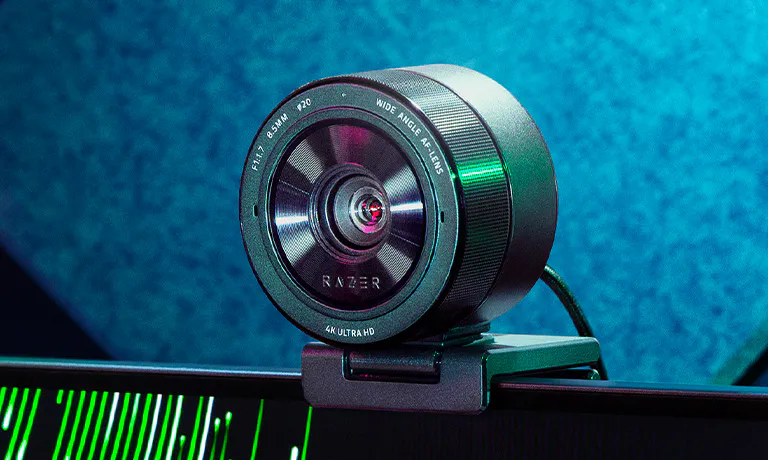
The Razer Kiyo Pro Ultra 4K USB webcam is aimed at buyers who want more control than a basic meeting camera provides. This exact product is the Black US model, RZ19-04420100-R3U1. Its appeal is the combination of a large sensor, wide-aperture lens, adjustable framing and physical shutter, rather than the 4K label alone.
That combination makes the Kiyo Pro Ultra more relevant to desktop content creation and carefully framed calls than to a purely plug-in-and-forget setup. It can provide capture headroom, lens-based background separation and manual controls, but those advantages come with a large body and a software workflow that demands attention.
For ordinary meetings, the important question is whether the calling service can use the camera’s output. In its original evaluation, Tom’s Hardware described Google Meet, Microsoft Teams and Zoom limiting outgoing video to 1080p or 720p, and Twitch to 1080p at 60 frames per second. Those are historical review observations, not a current guarantee about every service or subscription. Check the platform’s present output options and your account settings before buying for resolution alone. The camera may capture more than the service delivers.
Razer identifies a 1/1.2-inch Sony STARVIS 2 sensor with 2.9 micrometer pixels. Razer says this sensor captures 3.9 times more light than other webcams, but that is a manufacturer comparison rather than an independent measurement supplied here. The practical appeal is a more ambitious imaging design for desks where lighting is not always ideal.
The lens uses an f/1.7 aperture. Razer describes it as designed to admit substantial light, while Tom’s Hardware connects the aperture with the camera’s shallow depth of field. Neither point turns a dark room into a studio. The lens is better understood as one part of the camera’s image strategy, alongside lighting and processing.
Image quality and framing
Tom’s Hardware found the default image strong in its well-lit comparison, with effective automatic exposure and color balance. That matters for a call-first buyer because the camera has a credible starting point without immediate manual adjustment. The same review found shallow background blur produced by the lens rather than a software blur effect.
Lens-based background separation is useful when the person should stand out from the room. It is less obviously helpful when a creator needs to show products, documents or a whiteboard. A softer background can reduce visual distraction, but it can also make nearby objects less prominent. The Kiyo Pro Ultra rewards deliberate composition instead of solving every framing problem automatically.
Razer lists face-tracking autofocus and automatic exposure as imaging features. Tom’s Hardware adds an important qualification: its reviewer found the autofocus relatively quick but overly sensitive. Movement or a change in the scene can therefore prompt visible focus behavior. The reviewer reported that autofocus could be disabled in Synapse 3, although saving settings was unreliable in that workflow.
The camera supports an adjustable diagonal field of view from 72 degrees to 82 degrees, according to Tom’s Hardware’s specification table. The narrower setting can reduce the amount of a small or cluttered room in frame. The wider setting can include another person or more of a demonstration area. This is framing control, not optical camcorder-style zoom.
Tom’s Hardware lists 4x digital zoom. Digital zoom crops the image rather than adding optical detail, so it is best treated as a composition aid. It may help keep a subject positioned without moving the camera, but increasing the crop reduces the image area being used. For a head-and-shoulders call, field-of-view adjustment is likely more useful than maximum enlargement.
Razer says HDR adds visual detail and texture at 30 frames per second and corrects over- and underexposed areas. Tom’s Hardware found that HDR could improve an image slightly in lower lighting, but did not fully tame bright areas in its comparison. HDR is therefore a selectable processing tool, not a substitute for arranging lights around the subject.
Resolution and connection
Razer specifies raw 4K at 30 frames per second and says the camera can output uncompressed 4K at 24 frames per second, 1440p at 30 frames per second or 1080p at 60 frames per second. Tom’s Hardware also lists 1080p at 30 and 24 frames per second, plus 720p at 60 and 30 frames per second.
Those modes give a creator room to choose between detail, frame rate and the limits of the application. They do not mean every video service will accept every mode. A buyer should check the target software first, particularly if the main use is conferencing rather than local recording or streaming.
The connection is USB-C. Tom’s Hardware says the package includes a 5-foot braided USB-C-to-USB-C cable. That suits a modern computer with a matching port, but the cable length should be considered if a desktop tower sits under the desk. The reviewer also found the cable somewhat stiff, which can make precise placement less convenient.
Tom’s Hardware reports that Razer recommends connecting the webcam directly to a USB 3.0 port for best performance. Its reviewer reported that the camera also worked through other ports, but higher-resolution video showed some stuttering in preview and streaming. A direct USB 3.0 connection should therefore be part of the setup plan when high-resolution capture is the reason to buy this model.
The supplied evidence does not establish that every USB hub will provide equivalent performance. A hub may be convenient, but the conservative arrangement is to reserve a direct USB 3.0 connection where possible. That matters more to a creator using high-resolution modes than to a meeting user who has confirmed that their service sends a lower-resolution stream.
Size, mount and desk fit
This is a large webcam. Tom’s Hardware measured the camera at approximately 3.01 inches in diameter and 2.36 inches in depth, excluding the mount. The camera weighs 6.28 ounces, or 178 grams, without accessories. Its round, lens-heavy design occupies more physical and visual space than a small rectangular meeting camera.
The included mount adds 5.61 ounces, or 159 grams, according to the independent review. With the camera attached, the overall depth is approximately 3.68 inches, or 93.5 millimeters. A monitor may support that arrangement, but a crowded display edge, shallow shelf or wall-mounted screen may not leave comfortable clearance.
Tom’s Hardware describes the included mount as an L-shaped, clamp-style design and says it is already attached when supplied. Its rubberized, non-slip material is intended to provide grip on a monitor. The mount tilts a few degrees upward and 90 degrees downward, giving useful vertical adjustment for unusual screen heights or desk demonstrations.
There is no built-in swivel. Horizontal aiming may therefore require turning the camera or mount rather than simply rotating a side control. The mount does include a universal tripod mounting point, so the camera can be placed on a tripod without removing the mount. That offers a practical alternative when a monitor edge is too narrow.
The physical size changes the buying decision. Measure the display edge and the space behind it before assuming the clamp will fit comfortably. A buyer with a deep desk and a standard monitor has more flexibility than someone using a shallow shelf, a wall-mounted display or several screens packed closely together.
Privacy and physical controls
The webcam has an integrated physical shutter operated by twisting its outer frame. Razer says turning the frame covers the lens, while Tom’s Hardware describes the mechanism as an iris-like shutter. The package also includes a separate lens cover. The shutter covers the lens during use; the cap is intended to protect the glass from dust and scratches.
Tom’s Hardware found the shutter smooth to operate and reported that opening or closing it did not displace the camera on the monitor. That is an independent handling observation, not a claim about every desk or mount. The same review notes that closing the shutter does not turn off the camera, so it should be treated as an optical cover rather than a complete device-state control.
Razer also lists onboard memory for the last saved configuration. That could reduce setup work when the camera moves between applications, but the independent software findings make the feature less straightforward in practice. Tom’s Hardware reported that Synapse settings did not consistently save to the webcam, so manual settings should be checked in the target application.
Software controls and the reviewed setup
Razer’s current catalogue lists Synapse controls for zoom, pan, tilt, ISO, shutter speed and other camera settings. The independent review evaluated Synapse 3; its version-specific observations below should not be assumed to describe every later software release. Tom’s Hardware additionally reports controls for focus, exposure, resolution, processing effects, brightness, contrast, saturation, white balance and anti-flicker. This is a substantial control set for a webcam used in repeatable creator setups.
The drawback is the route required to use those controls. Tom’s Hardware found that its reviewed Synapse 3 setup needed the in-app preview open to change settings, with the controls locked when the preview was off. The reviewer also reported a one-application-at-a-time constraint in that Windows setup. Verify the current software and target application together if changing settings during a broadcast is important.
That arrangement can make setup a back-and-forth process. A creator may need to open Synapse, adjust the camera, save the configuration, close or change applications, and then verify the result in the recording or calling program. The hardware offers detailed control, but the software does not make that control invisible.
Tom’s Hardware reported that Synapse 3 settings did not consistently save to the webcam. This is more important than a general complaint about software design because it changes the ownership routine. If a setup depends on manual focus, exposure or processing, check the picture in the target application after saving.
The independent review also reports five presets for zoomed, panned and tilted framing, with each preset assignable to a shortcut key. That could help a presenter move between a face view and a desk view. It does not remove the need to confirm that the relevant settings have saved correctly.
Low-light and microphone trade-offs
In an independent low-light comparison, Tom’s Hardware found that the camera kept both subject and background visibly lit with one monitor serving as the remaining light source. The reviewer also reported considerable image noise, although detail remained. Noise processing reduced some noise over the subject but did not eliminate it.
The camera was less convincing when the background was brighter than the subject. Tom’s Hardware reported that the subject appeared somewhat dark, grainy and pink in that scenario. The Insta360 Link and Elgato Facecam Pro performed better in that comparison, although the reviewer described the difference as not especially large. A nearby light remains useful.
The Kiyo Pro Ultra includes a built-in omnidirectional microphone. Tom’s Hardware found it usable but a little quiet, with a somewhat thin voice character, and reported that it captured surrounding sounds including PC fans. It may be adequate for a quick call in a quiet room, but a creator who cares about voice quality should plan separate audio rather than treating the webcam microphone as the main attraction.
Alternatives and buying decision
The Insta360 Link and Elgato Facecam Pro are meaningful alternatives because Tom’s Hardware compares them directly with the Kiyo Pro Ultra. The Link is described as smaller and lighter, while the Facecam Pro is described as larger and heavier than the Razer. The supplied evidence does not establish every current feature of either alternative, so the comparison should remain focused on category and fit.
Choose the smaller-camera category if desk space is the overriding concern. Choose a different premium webcam category if a simpler software routine matters more than extensive manual controls. The Kiyo Pro Ultra is most distinctive when its large sensor, lens-based background separation, physical shutter and adjustable framing are actually useful to the buyer.
The camera is a poor match for someone who wants a tiny meeting webcam, a fixed setup with no software maintenance or a built-in microphone that replaces dedicated audio equipment. Its higher-resolution modes also make the direct USB 3.0 recommendation relevant, while many conferencing services will not deliver its full 4K output.
It is a better fit when image framing, lens-based background separation and manual adjustment matter. A content creator can use the field-of-view control, digital crop and presets to shape a scene. A desktop caller can benefit from the strong default exposure and color balance reported by Tom’s Hardware, provided the physical footprint is acceptable.
Verdict
Choose the Black US Razer Kiyo Pro Ultra if you want a large, optically ambitious webcam for calls, streaming or recording and have enough room for its mount plus a direct USB 3.0 connection. Its image design, physical shutter and control range are meaningful strengths. Choose a smaller or simpler alternative if most calls are capped below 4K, desk space is tight, or Synapse’s saving behavior would outweigh the value of manual control.